03 — Dashboard by Role
Each role in Regnify has a distinct dashboard tailored to its responsibilities. This section documents what each dashboard shows, what each metric means, what actions are available from the dashboard, and the exact sidebar navigation each role sees.
The dashboard a user sees at /dashboard is determined at login. Routing logic (verified against client/src/pages/DashboardPage.tsx):
SYS_ADMINorORG_ADMIN→ Admin DashboardHR_ADMINorCOMP→ Approver DashboardFI_USERwith theis_approverflag set → Approver DashboardFI_USERwithout theis_approverflag → Representative DashboardREP_USER→ redirected to/rep— the Representative Portal, which has its own layout
1. System Administrator (SYS_ADMIN)
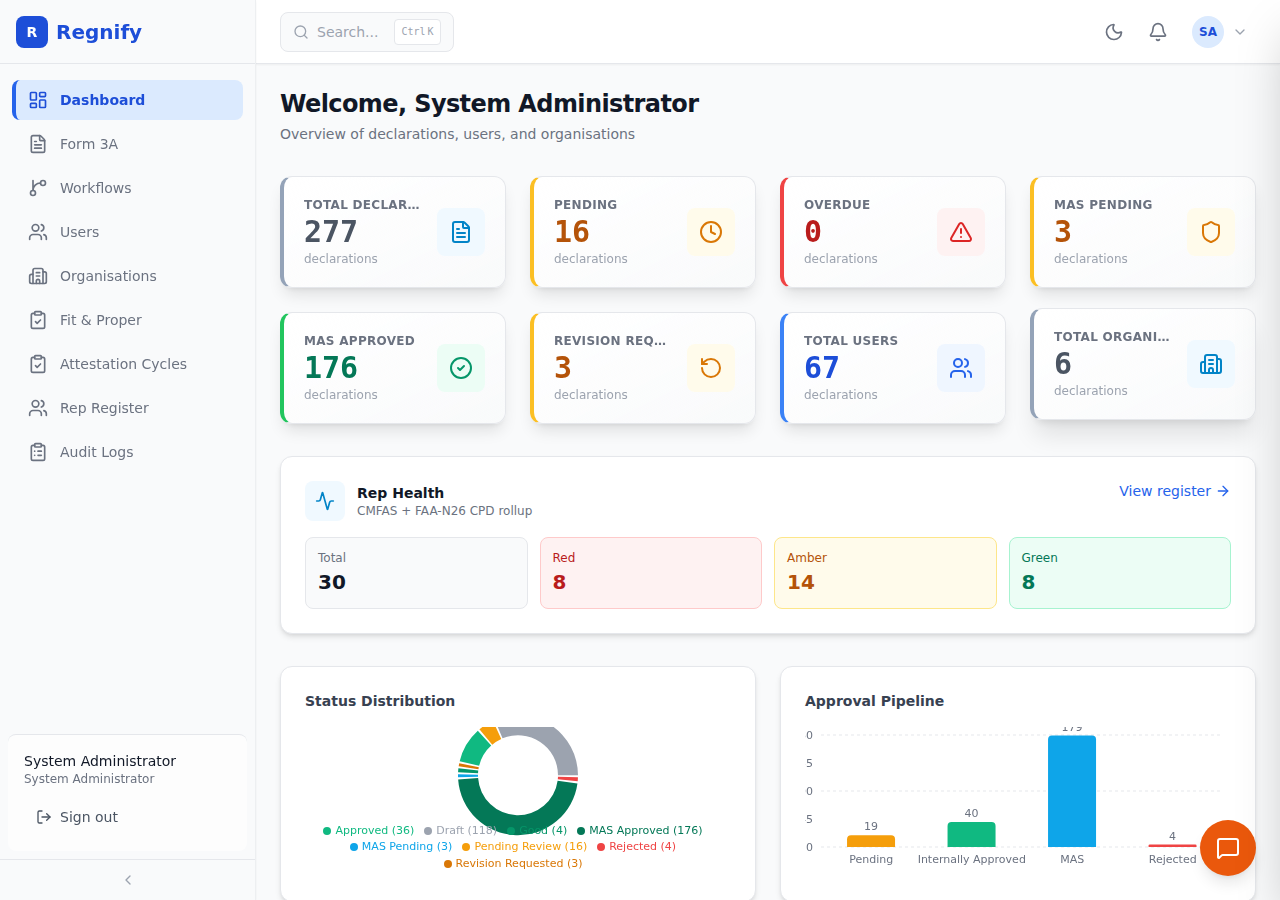 The System Administrator dashboard shows platform-wide metrics: 277 declarations, 6 organisations, 67 users, and Rep Health summary (8 RED / 14 AMBER / 8 GREEN across 30 reps).
Sidebar Navigation
The system administrator sees the most items in the sidebar. All eight navigation items are visible (verified against AppLayout.tsx NAV_ITEMS and App.tsx route guards):
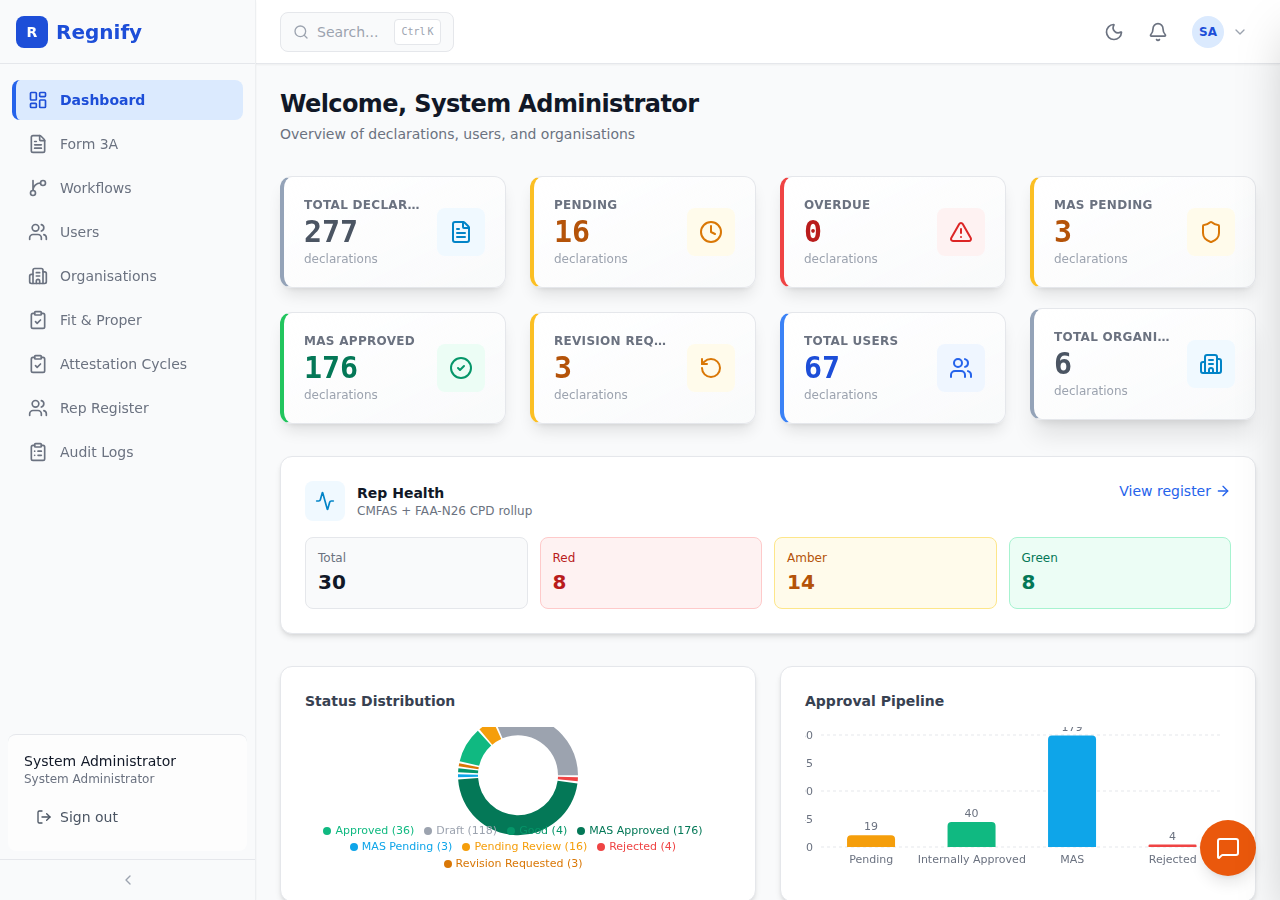 The full SYS_ADMIN sidebar — Dashboard, Form 3A, Workflows, Users, Organisations, MAS Console, Attestation Cycles, Rep Register, Audit Logs.
| Item | Route | Purpose |
|---|---|---|
| Dashboard | /dashboard |
Platform-wide metrics and declaration table |
| Form 3A | /form3a/new |
Open Form 3A wizard to begin a new declaration |
| Workflows | /workflows |
View and manage all workflow templates and instances |
| Users | /users |
Create, edit, and manage all users across all organisations |
| Organisations | /organisations |
Create and manage organisations |
| MAS Console | /mas-console |
Submit internally-approved declarations to MAS |
| Fit and Proper | N/A — not shown | FI_USER only; not visible to SYS_ADMIN |
| Audit Logs | /audit-logs |
Full platform audit trail |
Additional pages accessible via the dashboard or direct URL:
/admin/rep-register— Representative register with Red/Amber/Green health badges/admin/attestation— Attestation cycle management/declarations/:id— Declaration detail page/workflow/:declarationId— Workflow approval page
Summary Cards (8 cards, two rows of four)
Each card is clickable and filters the declaration table to the corresponding subset.
| Card | What it counts |
|---|---|
| Total Declarations | All non-draft declarations across the platform |
| Pending | Declarations with status "Pending Review" currently in the approval chain |
| Overdue | Declarations with status "Pending Review" that have been waiting for more than five days since submission |
| MAS Pending | Declarations with status "MAS Pending Review" submitted to MAS but not yet decided |
| MAS Approved | Declarations with status "MAS Approved" — fully complete |
| Revision Requested | Declarations sent back to the representative for changes |
| Total Users | Total registered users across all organisations |
| Total Organisations | Total registered organisations on the platform |
Note: "Total Declarations" excludes drafts — a draft is not a submitted application.
PDPA scope (Loop 114): the Representative Health rollup is no longer rendered on the System Administrator / Organisation Administrator dashboards. The Red/Amber/Green view lives on the Rep Register page (
/admin/rep-register), which is restricted to Compliance and HR Administrator roles. This matches the WTF-1 and WTF-6 fixes: admin roles do not see rep PII or rep health dashboards by default.
Charts
Two charts appear below the summary cards:
- Status Distribution (left) — A visual breakdown of declarations by status. Useful for understanding where declarations are clustered in the pipeline.
- Approval Pipeline (right) — A four-stage funnel: Pending (awaiting internal approval), Internal (approved internally), MAS (at MAS), and Rejected. Shows the overall flow health.
Bottleneck Alert
When any pending workflow instance has been waiting at its current step for more than five days, a highlighted alert banner appears between the charts and the declaration table. The banner shows:
- The declaration ID of the longest-waiting item
- Which step it is on (for example, "Step 2/3")
- How many days it has been waiting — displayed in amber text when 7 days or fewer, red text when more than 7 days
- The name of the approver assigned to that step
- A View button linking directly to the declaration detail page
This enables immediate identification of where the approval pipeline is blocked.
Declaration Table (Three Tabs)
The declaration table below the charts has three tabs:
| Tab | Contents |
|---|---|
| All Applications | Every non-draft declaration, sorted by days pending (most urgent first) |
| Overdue | Only declarations that have been waiting for an approver for more than five days |
| My Queue | Declarations where the currently logged-in user is the active approver in the workflow chain |
Table columns: ID, Rep ID, Status, Form Type, Days Pending, Updated, Actions.
- Days Pending shows a colour-coded badge: green (0–3 days), amber (4–5 days), red (6+ days).
- Actions column provides two buttons per row:
- Review (blue) — appears when the declaration is in the user's approval queue. Navigates to the workflow approval page.
- View (outline) — opens the declaration in the Form 3A wizard in read-only mode.
- Detail (outline) — opens the declaration detail summary page.
Clicking any column header sorts the table by that column. Clicking again reverses the sort direction.
2. Organisation Administrator (ORG_ADMIN)
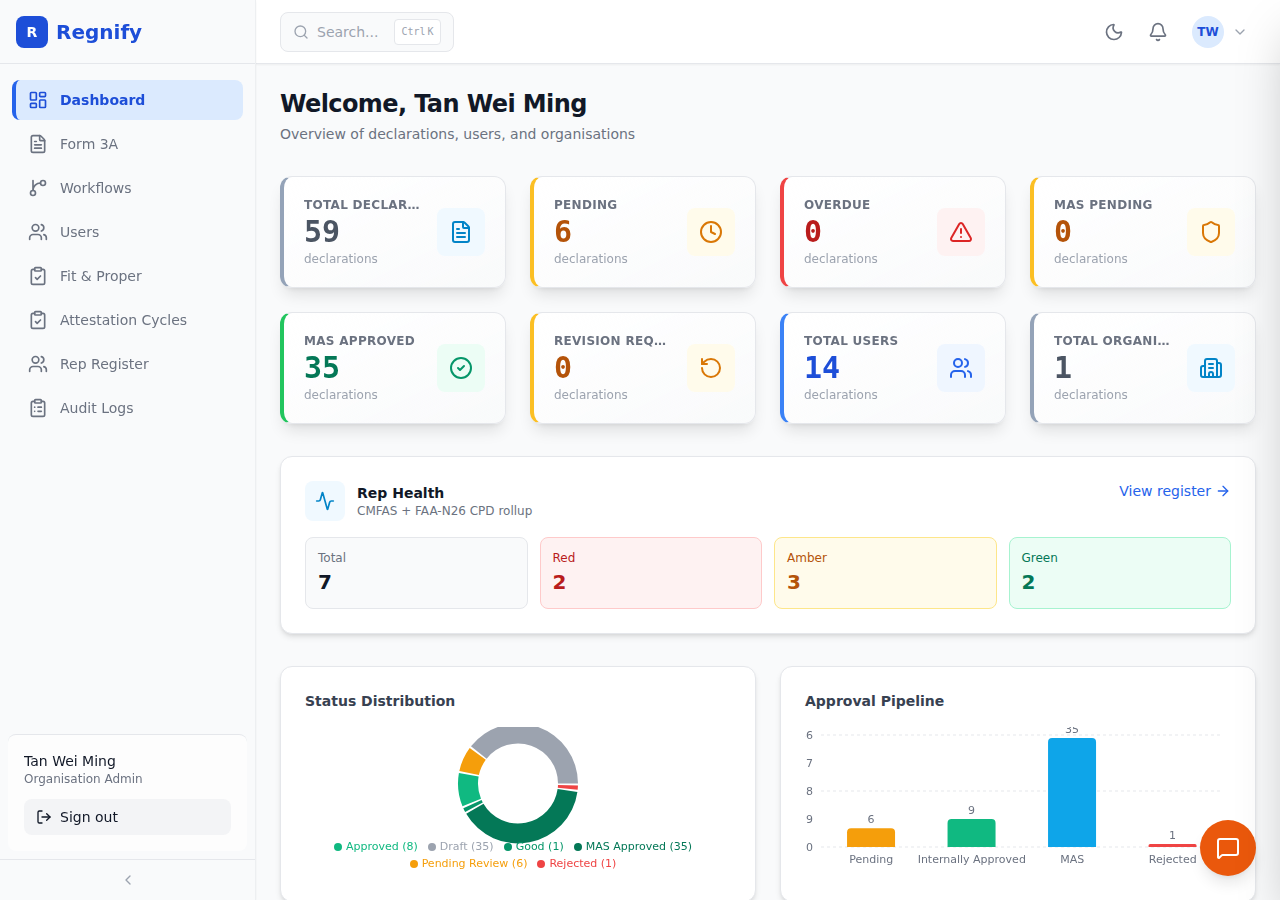 Tan Wei Ming (DBS ORG_ADMIN) sees metrics scoped to DBS Group Holdings Ltd: 59 declarations, 14 users.
The organisation administrator sees the same Admin Dashboard as the system administrator. Data is scoped to the administrator's own organisation — they see only their organisation's declarations, users, and workflows.
Sidebar Navigation
| Item | Route |
|---|---|
| Dashboard | /dashboard |
| Form 3A | /form3a/new |
| Workflows | /workflows |
| Users | /users |
| Audit Logs | /audit-logs |
Not shown: Organisations (organisation administrators cannot create or manage other organisations — they manage only their own) and MAS Console (Compliance role only).
Dashboard Contents
Identical in structure to the system administrator dashboard — eight summary cards, rep health card, two charts, bottleneck alert, and the three-tab declaration table — but limited to the organisation's data.
Available Actions from the Dashboard
- Click any summary card to filter the declaration table to that subset.
- Click View register on the Rep Health card to open the representative register.
- Click Review on a declaration in the My Queue tab to open the workflow approval page.
- Click View or Detail to inspect any declaration.
3. Human Resources Administrator (HR_ADMIN)
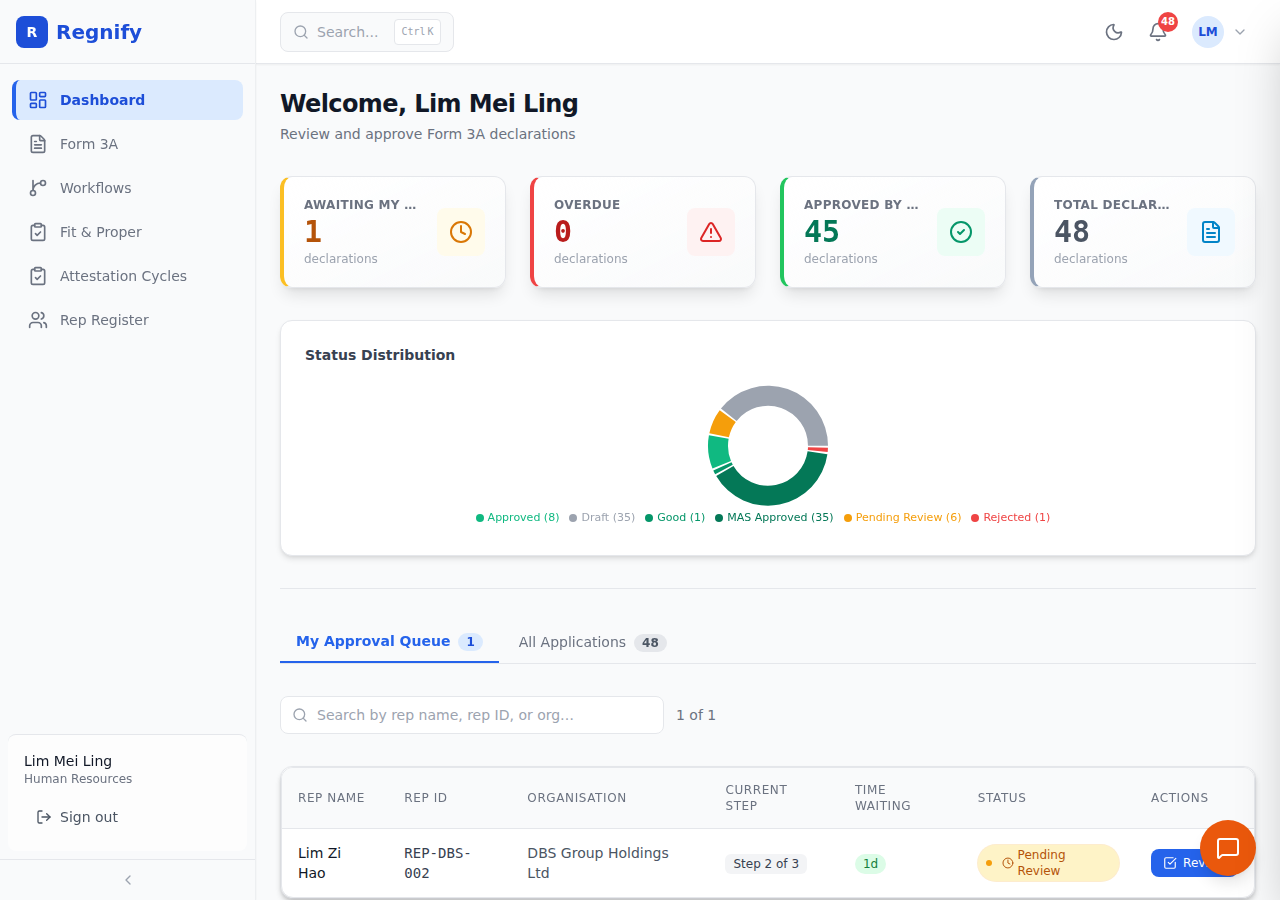 The Human Resources Administrator Approver Dashboard — default view is the "My Approval Queue" tab
Sidebar Navigation
| Item | Route |
|---|---|
| Dashboard | /dashboard |
| Form 3A | /form3a/new |
| Workflows | /workflows |
Not shown: Users, Organisations, Audit Logs (admin roles only), MAS Console (Compliance only), Fit and Proper (FI_USER only).
Also accessible via direct URL (not in the sidebar):
- /admin/rep-register — Representative register
- /admin/attestation — Attestation cycles
Metric Cards (Four Cards)
| Card | Meaning |
|---|---|
| Awaiting My Action | Declarations where the current workflow step is assigned to this user and the step status is "pending" |
| Overdue | Items in the approval queue that have been waiting at the current step for more than five days |
| Approved by Me | Total count of workflow steps this user has approved across all declarations (all time) |
| Total Declarations | All non-draft declarations visible to this user |
Clicking Awaiting My Action or Overdue switches the table to the My Approval Queue tab. Clicking Approved by Me or Total Declarations switches to the All Applications tab.
Status Distribution Chart
A single chart below the metric cards shows the breakdown of all visible declarations by status. This gives an approver situational awareness of where declarations are in the broader pipeline beyond just their personal queue.
Overdue Alert Banner
When the approval queue contains any items waiting more than five days, a red alert banner appears above the table:
"You have N overdue items requiring attention" — with a View queue link to switch to the My Approval Queue tab.
Declaration Table (Two Tabs)
| Tab | Contents |
|---|---|
| My Approval Queue | Only declarations where this user is the active approver at the current workflow step |
| All Applications | All non-draft declarations in the system |
My Approval Queue columns: Rep Name, Rep ID, Organisation, Current Step, Time Waiting, Status, Actions.
- Current Step — shows "Step N of M" to indicate position in the approval chain.
- Time Waiting — colour-coded badge: plain count for 0–7 days, amber "Idle Nd" for 8–14 days, red "Stuck Nd" for more than 14 days.
- Actions — a single Review button navigates to the workflow approval page where the approver can approve, send back with comments, or reject.
All Applications columns: ID, Rep ID, Status, Form Type, Days Pending, Updated, Actions.
- Items that are also in the approver's personal queue show a Review button; others show View and Detail.
4. Compliance Officer (COMP)
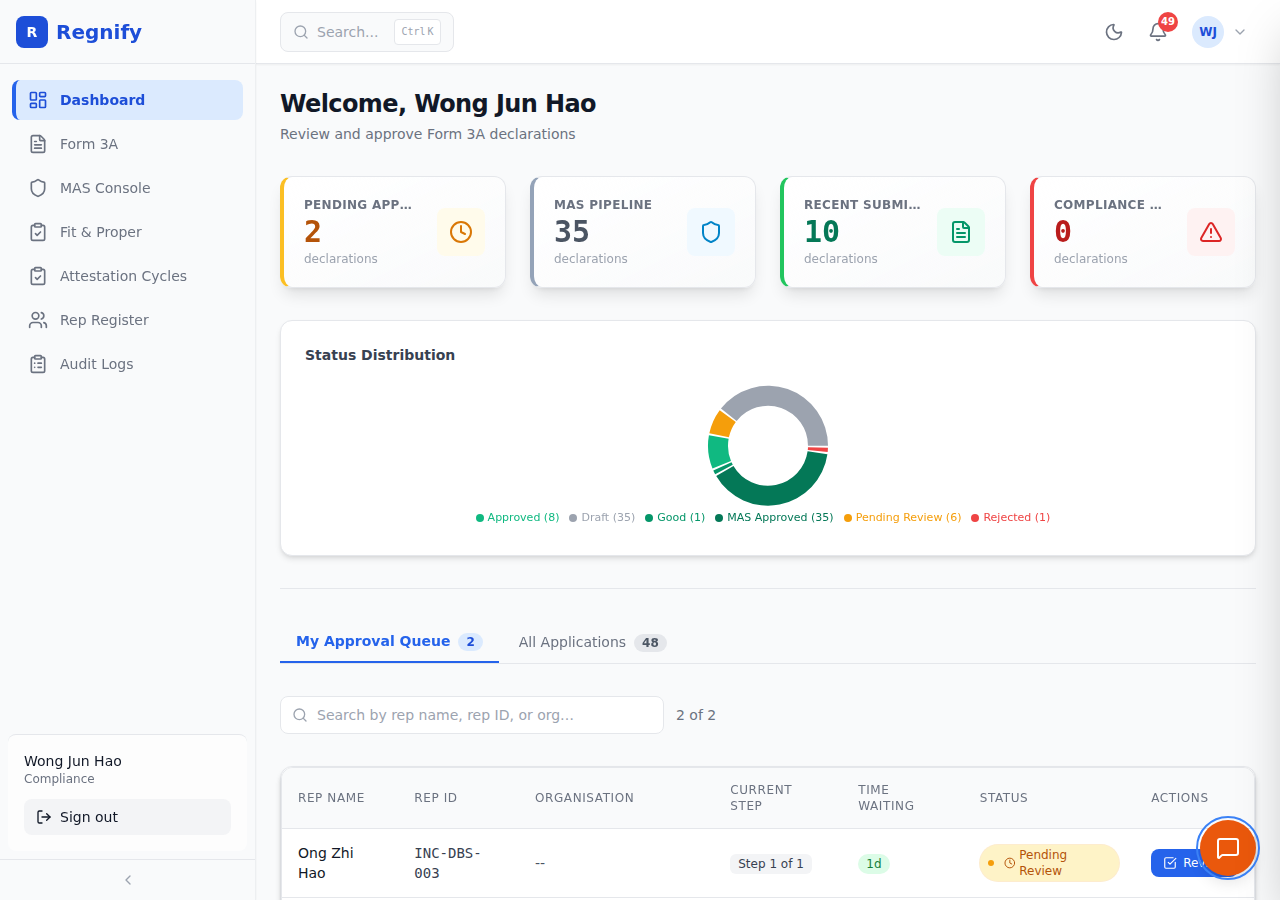 The Compliance Officer Dashboard — same structure as the Human Resources Administrator Dashboard with the addition of MAS Console access
Sidebar Navigation
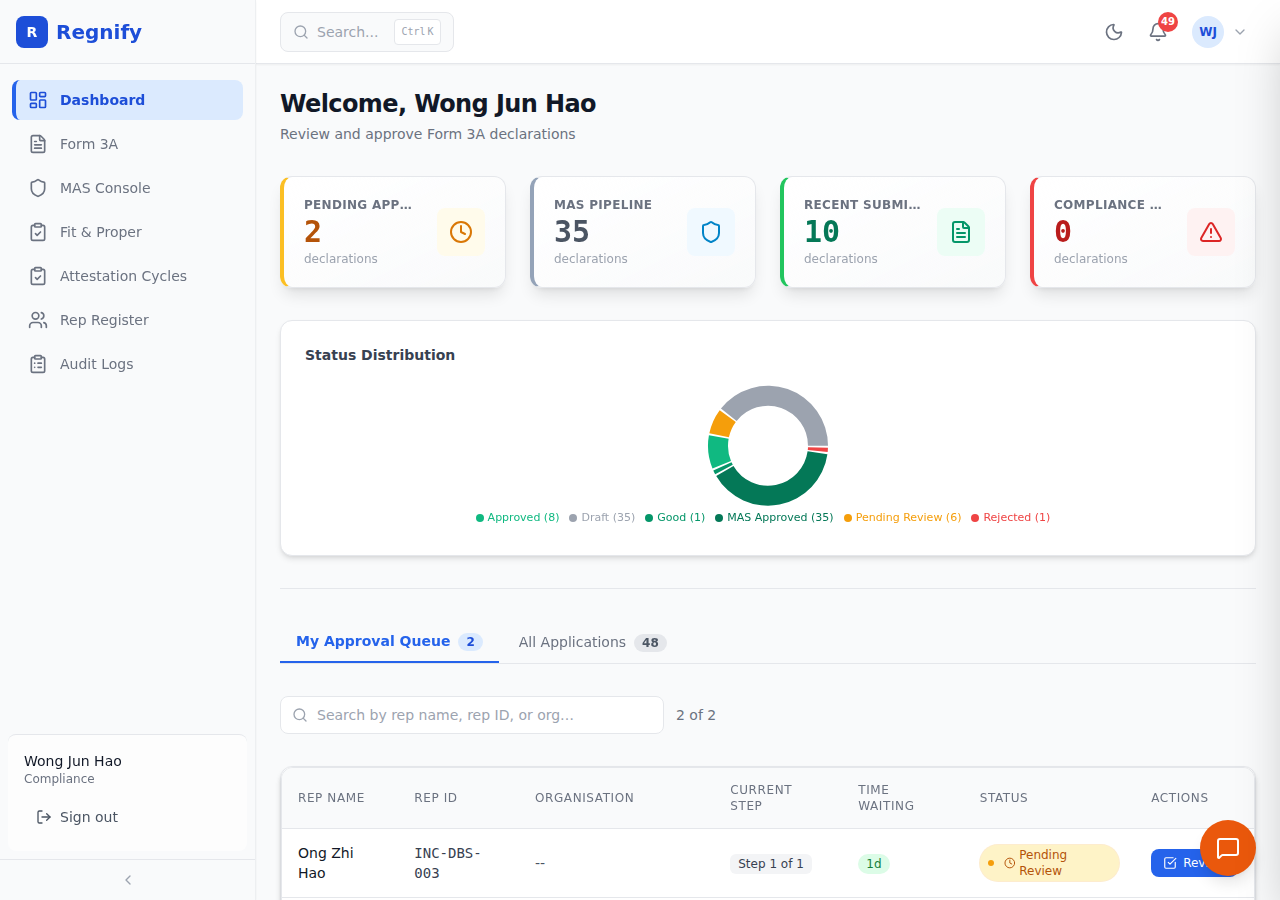 The COMP sidebar — Dashboard, Form 3A, MAS Console, Fit & Proper, Attestation Cycles, Rep Register, Audit Logs. No Workflows, Users, or Organisations.
| Item | Route |
|---|---|
| Dashboard | /dashboard |
| Form 3A | /form3a/new |
| MAS Console | /mas-console |
| Fit and Proper | /fit-and-proper |
| Attestation Cycles | /admin/attestation |
| Rep Register | /admin/rep-register |
| Audit Logs | /audit-logs |
Not shown: Workflows (ORG_ADMIN and HR_ADMIN only), Users, Organisations (admin roles only).
Also accessible via direct URL:
- /admin/rep-register — Representative register with R/A/G health badges
- /admin/attestation — Attestation cycle management
- /mas-details/:declarationId — MAS submission detail page
Dashboard Contents
The Compliance Officer sees the same Approver Dashboard as HR Admin: four metric cards, the status distribution chart, the overdue alert banner, and the two-tab declaration table. The personal approval queue reflects declarations where the compliance officer is the active approver.
MAS Console (Key Compliance Feature)
The MAS Console at /mas-console is the primary tool for submitting internally-approved declarations to MAS. It is only accessible to SYS_ADMIN and COMP users (verified in App.tsx).
From the MAS Console, the compliance officer can:
- View all declarations with status "Approved" or "Good" that are ready for MAS submission.
- Review a read-only summary of the declaration and its supporting documents.
- Initiate MAS submission, which transitions the declaration to "MAS Pending Review".
- Monitor declarations already submitted to MAS (status: "MAS Pending Review" and "MAS Approved").
Representative Register (/admin/rep-register)
The representative register provides a full list of representatives under the compliance officer's organisation, with health badges computed from CMFAS and CPD status.
R/A/G health badge meanings (per FAA-N26 CPD thresholds):
| Badge | Meaning |
|---|---|
| Green | Representative meets both CMFAS certification requirements and CPD hour targets for the current cycle |
| Amber | One of the two signals (CMFAS or CPD) needs attention; the other is acceptable |
| Red | Representative has material gaps in CMFAS certification or CPD hours that require immediate action |
CPD thresholds under FAA-N26: 30 total hours / 8 hours in ethics / 4 hours in product knowledge per annual cycle (source: MAS FAA-N26, Revised Notice on Minimum Entry and Examination Requirements for Representatives of Licensed Financial Advisers and Exempt Financial Advisers).
Attestation Cycles (/admin/attestation)
From this page, the compliance officer can:
- Create a new attestation cycle for a set of representatives.
- Monitor the status of ongoing cycles (which representatives have responded, which have not).
- Review attestation responses for anomalies (the AI tool
detect_attestation_anomalycan be invoked via the AI assistant to cross-reference attestation answers against prior declarations and audit history).
5. Financial Institution User / Representative (FI_USER)
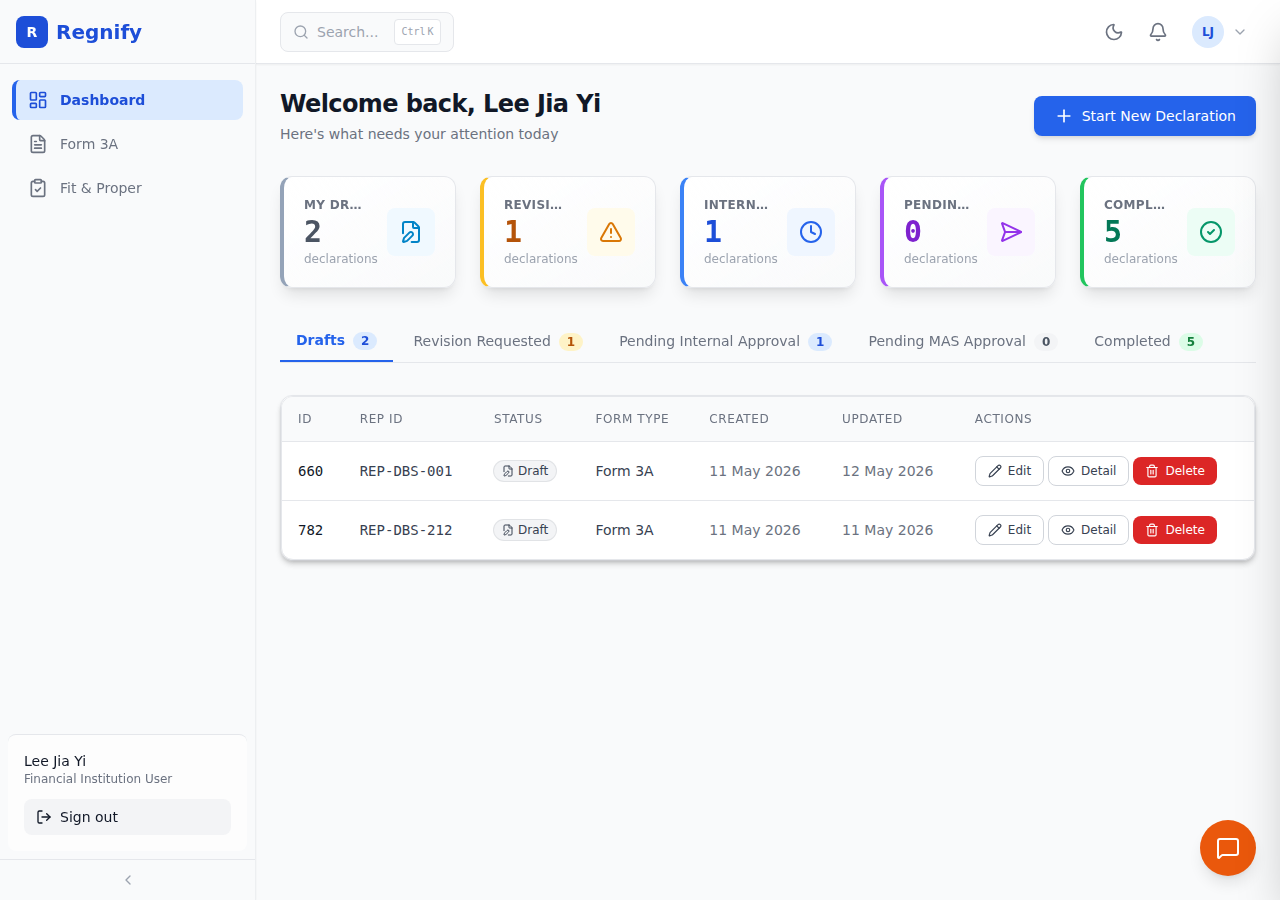 The Representative Dashboard — scoped to the current user's own declarations only
Note on dashboard routing:
FI_USERaccounts with theis_approverflag set (supervisors, managers, and CEOs in an organisation's approval hierarchy) see the Approver Dashboard described in sections 3 and 4 rather than the Representative Dashboard below.
Sidebar Navigation
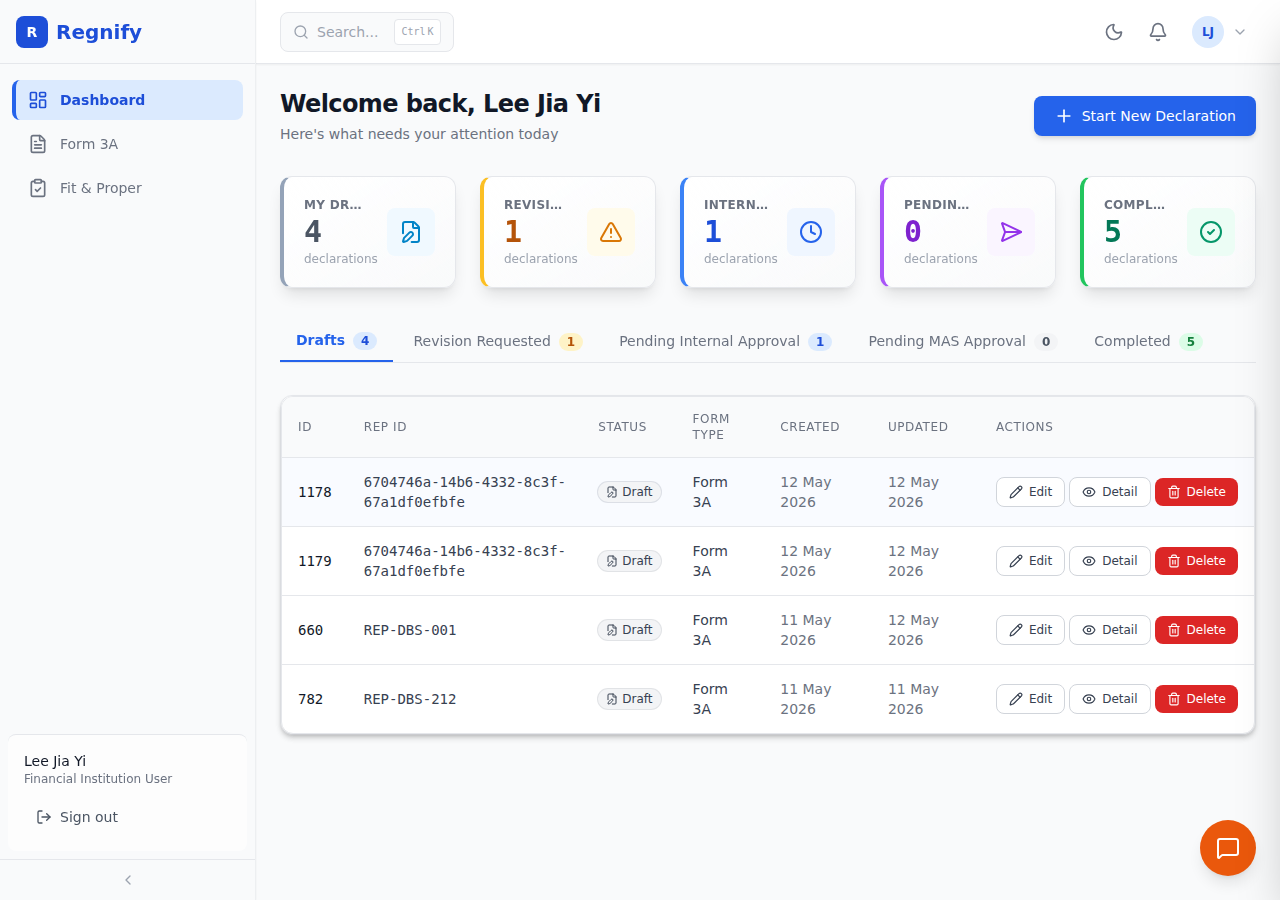 The FI_USER sidebar — Dashboard, Form 3A, Fit & Proper only. No Workflows, Users, Organisations, MAS Console, or Audit Logs.
| Item | Route |
|---|---|
| Dashboard | /dashboard |
| Form 3A | /form3a/new |
| Fit and Proper | /fit-and-proper |
Not shown: Workflows, Users, Organisations, Audit Logs, MAS Console. Representatives interact only with their own declarations.
Metric Cards (Four Cards)
| Card | Meaning |
|---|---|
| My Drafts | Declarations saved as drafts — not yet submitted to the approval chain |
| Submitted | Declarations currently in the internal approval chain (status: Pending Review, Approved, Good, or MAS Pending Review) |
| Requires Changes | Declarations sent back by an approver with comments requesting revisions |
| Completed | Declarations with a final status — MAS Approved or MAS Rejected |
Clicking a card switches the declaration table to the corresponding tab.
Declaration Table (Four Tabs)
| Tab | Declarations shown |
|---|---|
| Drafts | Status "Draft" or "Rejected" — editable and resubmittable |
| Submitted | Status "Pending Review", "Approved", "Good", or "MAS Pending Review" |
| Requires Changes | Status "Revision Requested" — sent back by an approver |
| Completed | Status "MAS Approved" or "MAS Rejected" — MAS-Rejected declarations remain editable and can be corrected and re-submitted |
Table columns (Drafts tab): ID, Rep ID, Status, Form Type, Created, Updated, Actions.
Additional column on Submitted and Requires Changes tabs only: Approval Progress — shows the current step number, total steps, and the name of the approver currently holding the item. A thin progress bar shows the fraction of steps completed. If a step has been rejected or sent back, the column shows the approver's name and an excerpt of their comment. This column is not shown on the Drafts or Completed tabs.
Action buttons per tab:
| Tab | Available actions |
|---|---|
| Drafts | Edit (pencil icon) — resume editing. Delete (red) — delete the draft. Detail — view the summary. |
| Submitted | View (read-only) — see the submitted form. Detail — view the summary. |
| Requires Changes | Edit and Resubmit (blue) — open the form for editing and resubmission. Detail — view the summary. |
| Completed | View — see the final submitted form. Detail — view the summary. |
Starting a New Declaration
Click the Start New Declaration button in the page header at any time. This opens the Form 3A wizard at /form3a/new.
Important business rule: A representative cannot submit a new Form 3A if another non-draft declaration already exists in the approval chain. Complete or withdraw the in-progress declaration first.
Fit and Proper (/fit-and-proper)
Accessible only to FI_USER accounts. This page provides Fit and Proper assessment tools for representatives at the financial institution. See the Fit and Proper section of the user guide for details.
6. Representative Portal User (REP_USER)
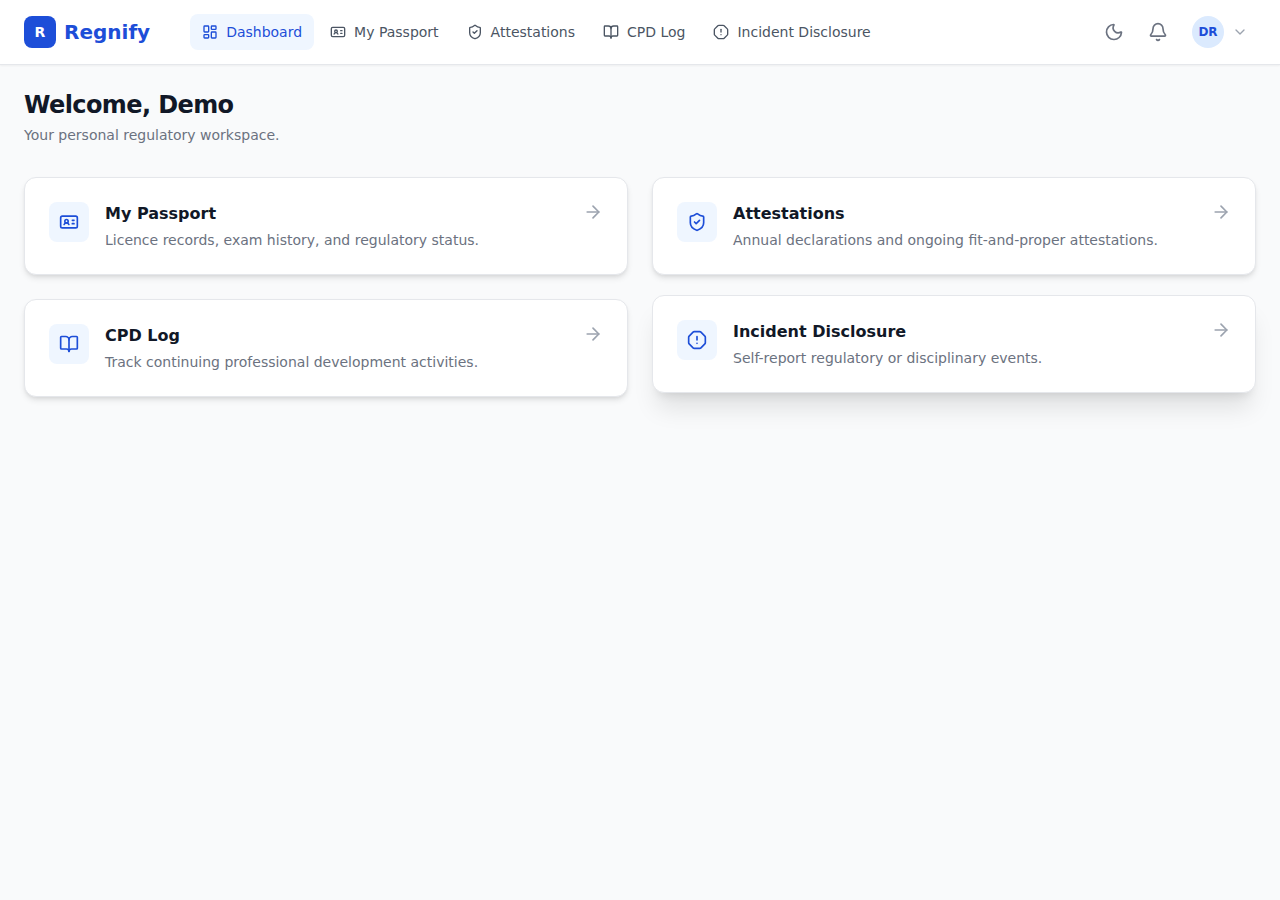 The Representative Portal at /rep — uses a separate layout with a horizontal tab navigation bar rather than the main admin sidebar.
The representative portal is a completely separate application shell from the main Regnify platform. When a REP_USER logs in, they are sent directly to /rep — not /dashboard. There is no sidebar. The main layout consists of a horizontal navigation bar at the top of the page.
Portal Navigation
All five tabs are always visible and always accessible (verified against RepNav.tsx REP_NAV_ITEMS and App.tsx route configuration):
| Tab | Route | Purpose |
|---|---|---|
| Dashboard | /rep |
Welcome page with shortcuts to each section |
| My Passport | /rep/passport |
Licence records, examination history, and regulatory status |
| Attestations | /rep/attestations |
Annual declarations and ongoing fit-and-proper attestations |
| CPD Log | /rep/cpd |
Continuing Professional Development activity tracking |
| Incident Disclosure | /rep/incidents |
Self-report regulatory or disciplinary events |
The active tab is highlighted with a blue background.
Portal Dashboard (/rep)
The representative portal dashboard displays a personalised welcome message ("Welcome, [First Name]") with four shortcut cards, one for each of the other four sections. Each card shows a title, a short description, and an arrow icon. Clicking a card navigates to that section.
| Shortcut Card | Navigates to |
|---|---|
| My Passport | /rep/passport |
| Attestations | /rep/attestations |
| CPD Log | /rep/cpd |
| Incident Disclosure | /rep/incidents |
My Passport (/rep/passport)
Displays the representative's regulatory passport: licence number, CMFAS examination history by module, status of each module (passed / not passed), and any active export token. The passport can be shared with third parties as a signed, verifiable PDF export.
Attestations (/rep/attestations)
Displays open and historical attestation cycles the representative has been invited to. Attestations are annual declarations confirming the representative's continued fit-and-proper status. Open attestations require a response before the cycle's deadline.
CPD Log (/rep/cpd)
Displays the representative's Continuing Professional Development (CPD) record for the current cycle year, including:
- Total CPD hours logged
- Hours broken down by category: Ethics, Product Knowledge, and Other
- A list of individual CPD records
CPD requirements under FAA-N26 are 30 total hours per annual cycle, with sub-requirements of at least 8 hours in ethics and at least 4 hours in product knowledge (source: MAS FAA-N26).
Incident Disclosure (/rep/incidents)
Allows the representative to self-report a regulatory or disciplinary incident. The form requires:
- Incident type — one of: Gift Received, Client Complaint, Third Party Report, Conflict of Interest, or Other.
- Narrative — a free-text description of the incident.
On submission, a DECLARATION_INCIDENT_DISCLOSURE declaration record is created and routed through the organisation's approval chain. The AI assistant can also initiate incident declarations on the representative's behalf using the create_incident_declaration tool.
5a. Financial Institution User — Approver Variant (FI_USER + isApprover = true)
Some representatives at an FI hold a supervisory position in their organisation's approval hierarchy — for example, a Supervisor, Manager, or Chief Executive Officer. These users have the FI_USER role in Keycloak but their account has isApprover set to true in the Regnify database.
When an isApprover = true user logs in, the frontend detects this flag and routes them to the Approver Dashboard instead of the standard Representative Dashboard described in Section 5.
What they see
The Approver Dashboard is identical to the HR Admin and Compliance Officer dashboard view described in Sections 3 and 4:
- Four metric cards — Awaiting Action, Total Declarations, Active Orgs, Compliance Rate.
- Status distribution donut chart — breakdown of declaration statuses across the organisation.
- Two-tab declaration table:
- My Approval Queue — declarations where this user is the currently active approver in the workflow chain. These show a Review button.
- All Applications — all declarations visible to this user's organisation.
What they do not see
- The standard representative dashboard (My Drafts, Submitted, Requires Changes, Completed metric cards).
- They still have access to the Form 3A wizard and Fit and Proper pages via the sidebar, because they may also need to submit their own declarations.
How this is set
The isApprover flag is set by an administrator in the User Management page (Section 12). When creating or editing a user with the FI_USER role, there is an Is Approver toggle. Enabling this makes the user eligible to be assigned as an approver in a workflow template step.
This flag is also used when an ORG_ADMIN configures a workflow template step — only users with isApprover = true appear in the approver selection dropdown for that step.
Related sections: Introduction | Getting Started