09 — Concierge Panel (Reggie)
The Concierge Panel — branded Reggie in the UI — is the same AI assistant described in Section 08, accessible from every page of the main admin interface via the floating orange button in the bottom-right corner. Reggie knows which page you are currently on and, when you are in Form 3A, which section you are filling in. It provides guidance specific to what you are doing at that moment. The panel header shows "Reggie" and the empty-state greeting reads:
"Hi, I'm Reggie. I read 200 MAS notices, regulations, and circulars so you don't have to. Ask me anything about Form 3A, fit-and-proper, or the licensing process."
Reggie is particularly useful for helping a representative or HR administrator complete a Form 3A declaration accurately and confidently, but it is equally available on dashboards, approval queues, MAS consoles, and every other page of the main admin interface — not just Form 3A.
Note: Reggie is not available in the Rep Portal (
/rep/*pages). Representatives using the Rep Portal for attestations, CPD log, and incident disclosure have access to a dedicated help system rather than the concierge AI.
While Reggie is thinking, you'll see a progress strip that names the current phase ("Reading the question…" → "Searching MAS knowledge base…" → "Composing your answer…") and a skeleton placeholder for the upcoming answer — no more guessing whether the system is frozen. A Cancel button is visible during generation so you can stop a long-running answer without leaving the form.
How the Concierge Relates to the General AI Assistant
The Concierge Panel and the AI Assistant described in Section 08 are the same underlying assistant, accessed through the same floating orange button. "Reggie" is simply the platform's branded name for it.
| Section 08 framing | Section 09 framing | |
|---|---|---|
| Name | AI Compliance Assistant | Concierge Panel (Reggie) |
| Access | Floating orange button, bottom-right | Same button |
| Available on | Every page of the main admin interface | Every page of the main admin interface |
| Key difference in emphasis | Regulatory research, tool dispatch, admin actions | Page-aware guidance, Form 3A co-pilot |
Both sections document the same assistant. Section 08 focuses on the full tool catalogue and compliance officer workflows; this section focuses on how Reggie is used in context — especially during Form 3A completion and approval workflows.
Opening the Concierge Panel
Reggie is available on every page of the main admin interface via the floating message-square button in the bottom-right corner. (The Rep Portal at /rep/* does not include the Concierge Panel.)
To open: - Click the floating button (message-square icon, bottom-right corner). - The Reggie panel expands on the right side of the screen. - The rest of the page remains fully visible and interactive.
Panel controls (five buttons in the header): - Toggle history — opens/closes the previous conversations list. - New chat — starts a fresh conversation. - Shrink — reduces the panel size. - Enlarge — expands the panel for more reading space. - Close concierge — collapses the panel back to the floating button.
The panel header shows: - "Reggie" as the assistant name. - The current page context — for example, "Dashboard" or "Form 3A" — so Reggie knows where you are when you ask a question.
To close: - Click the "Close concierge" button (rightmost icon in the panel header).
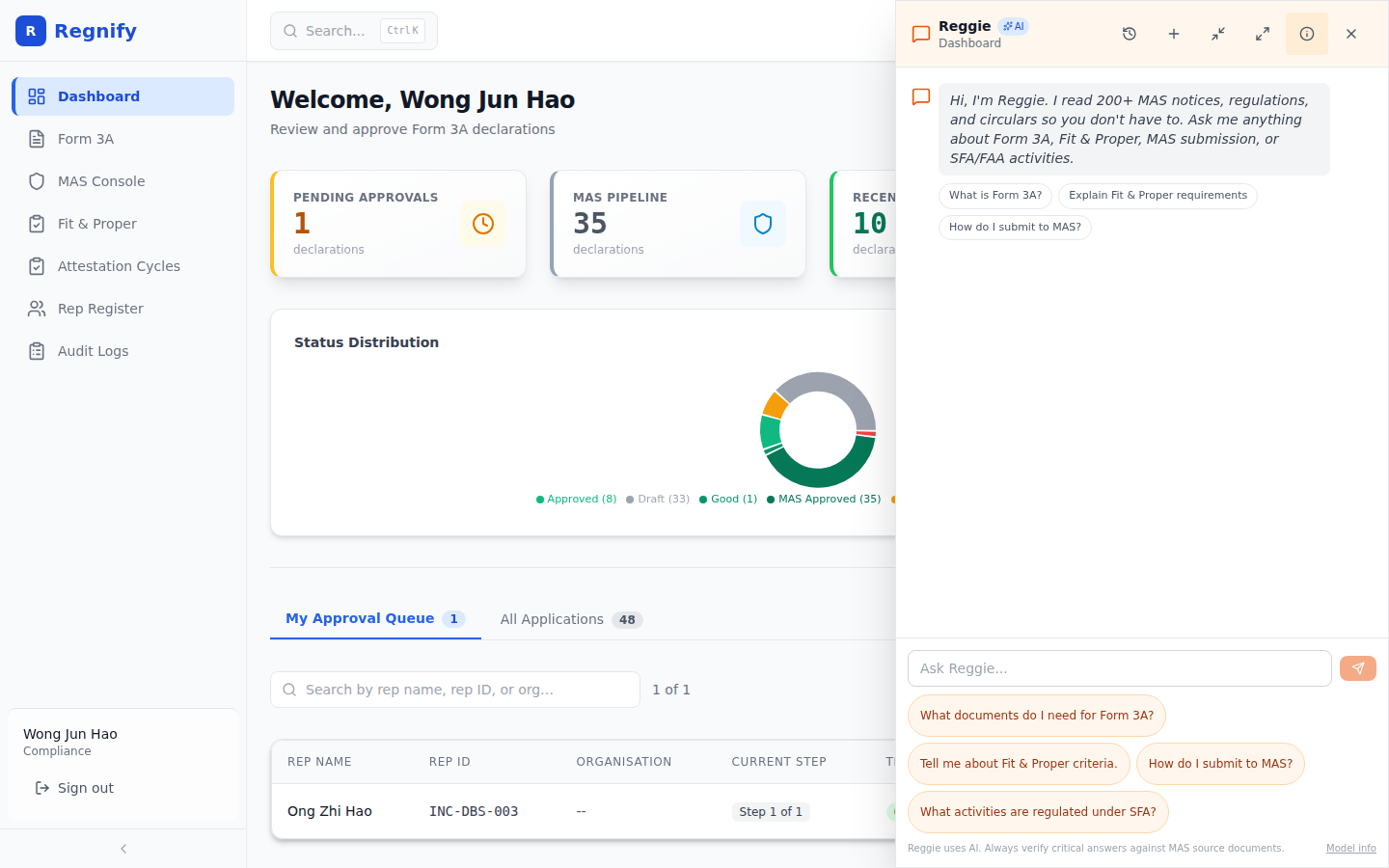 The panel initial (welcome) state with quick-start question pills — the same welcome screen shown on any page.
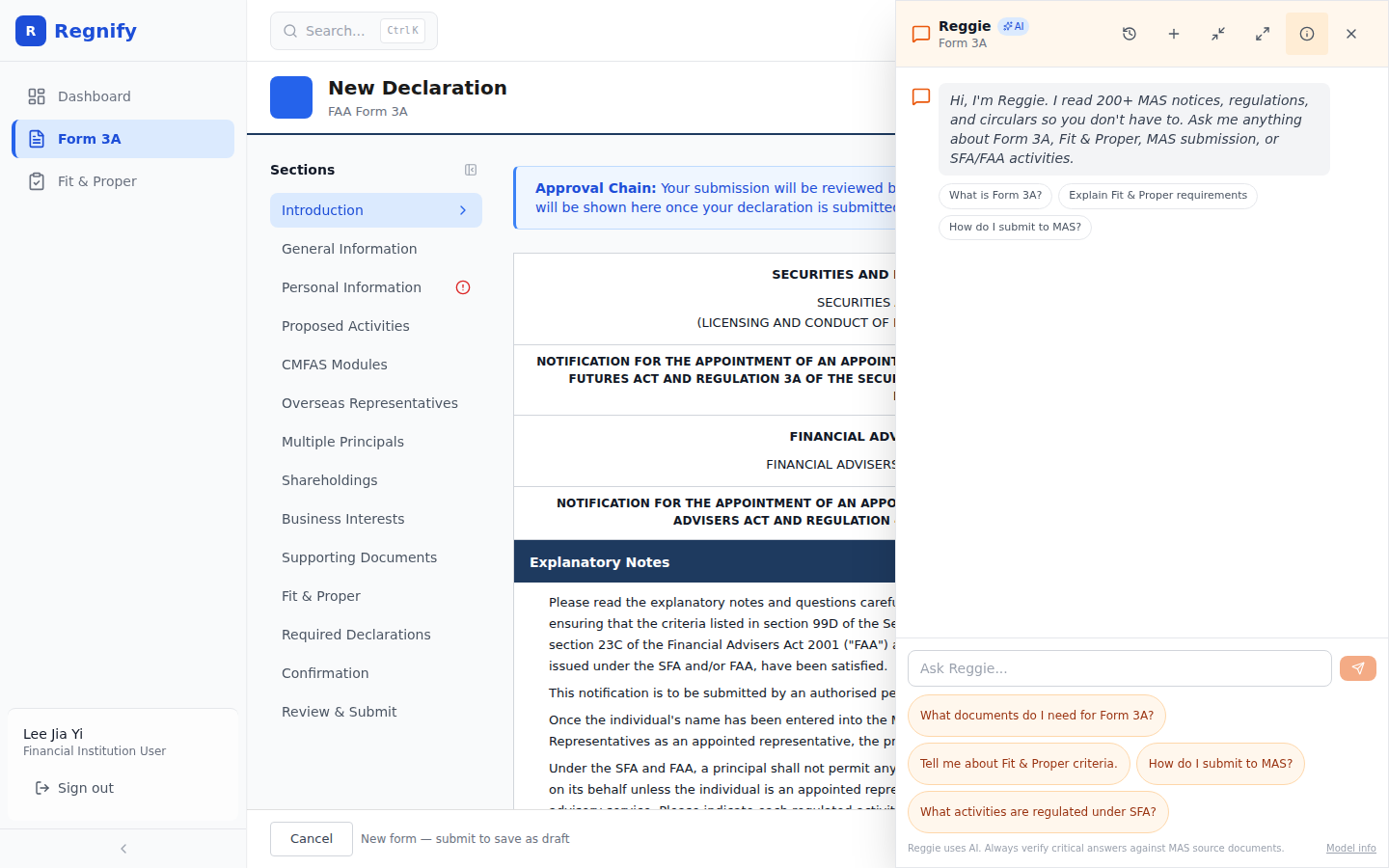 The Concierge panel slides in from the right while filling in Form 3A. The form remains accessible to the left.
Context Awareness
The Concierge knows your context through the RoomContextProvider — a React context layer that wraps the Form 3A wizard and makes the current route key and route title available to the panel. This means the Concierge is not just answering generic questions; it knows what page you are on when you ask.
What the Concierge knows: - Which wizard step you are currently on (General Information, Personal Information, Proposed Activities, Fit and Proper, Required Declarations, Supporting Documents) - The page title and route identifier
What this enables: - On the Proposed Activities step: "What Capital Markets and Financial Advisory Services (CMFAS) modules do I need for advising on securities?" - On the Fit and Proper step: "What does 'undischarged bankrupt' mean in MAS context?" - On the Supporting Documents step: "What evidence is acceptable for CMFAS pass records?"
The Concierge does not need to be told which step you are on — it already knows, and it uses that context to frame its responses.
Types of Guidance the Concierge Provides
Regulatory Clarification
Ask the Concierge to explain any term, requirement, or process you encounter while filling in the form. It searches the same MAS knowledge base as the general AI assistant and responds with cited regulatory text. Citation chips appear below the answer — clicking any chip opens the full document text in a side preview panel (see Section 08 for a screenshot of the document preview panel).
Example questions: - "What does 'provisional representative' mean and how is it different from 'appointed'?" - "Does the 10-year employment history need to include self-employment?" - "What qualifies as a fit-and-proper disqualifying event?"
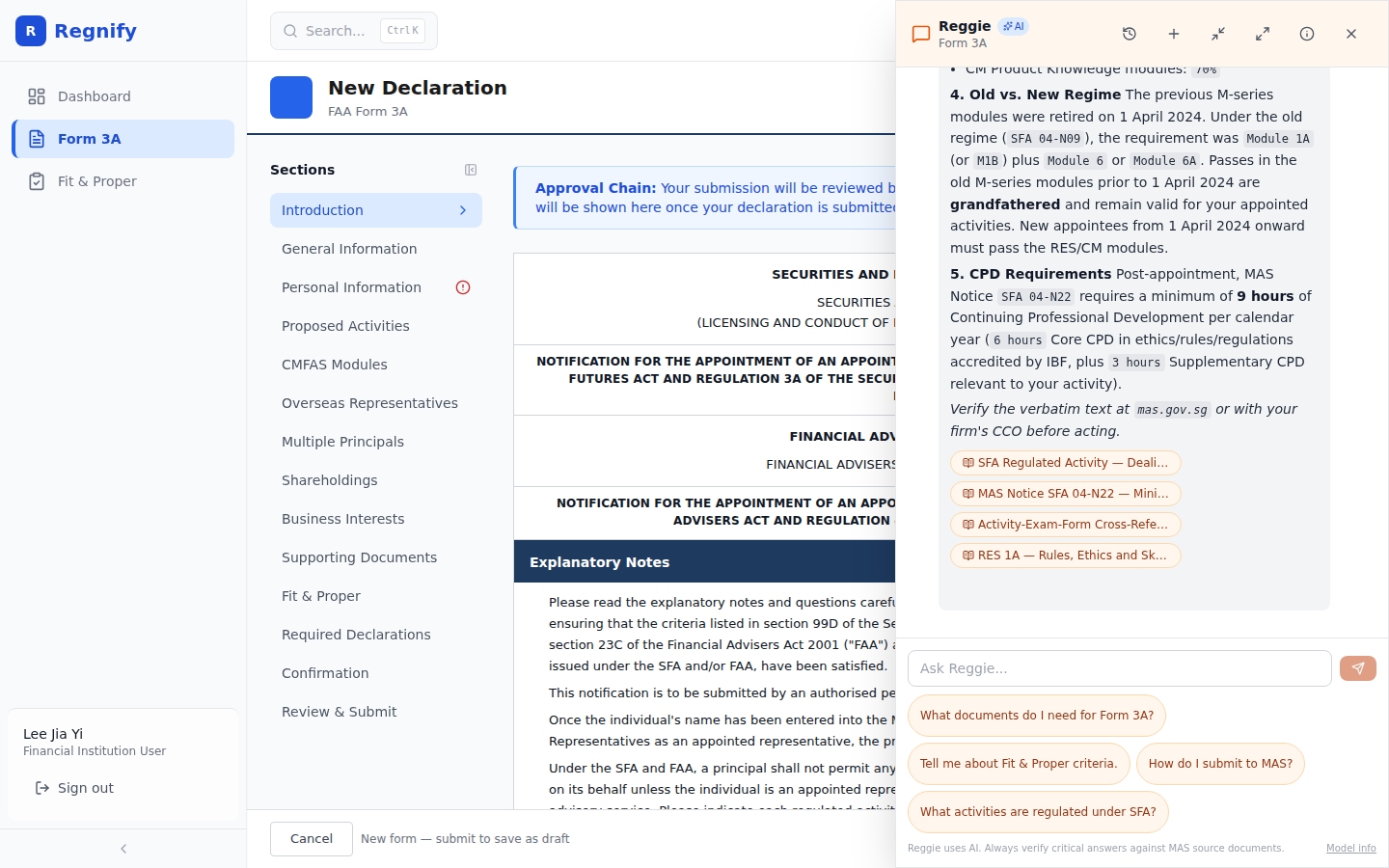 Reggie answering a regulatory question about Form 3A. Citation chips appear below the response; click any chip to open the full document.
CMFAS Certification Check
If you are on the Proposed Activities step and are unsure whether your current CMFAS passes cover the activities you plan to declare, ask the Concierge. It can run a gap analysis using the analyze_cert_gap tool (the same tool available in the general AI assistant) and tell you exactly which modules are required and whether you already have them.
Example:
User: I want to add "Advising on Corporate Finance" to my activities. I have passed M1A, M5, and M6A. Am I covered?
Concierge: For Advising on Corporate Finance under the SFA, the required modules are M4 (Rules and Regulations for Advising on Corporate Finance) plus M6 or M6A. You have M6A, but M4 is missing. You would need to pass M4 before this activity can be included in your Form 3A. Would you like me to run the full gap analysis and save the result to your rep profile?
Fit and Proper Guidance
The Concierge can walk you through the three MAS Fit and Proper criteria from FSG-G01 — Honesty/Integrity/Reputation, Competence and Capability, and Financial Soundness — and explain what each means in concrete terms. It can also clarify which declaration questions relate to each criterion.
Flagging Potential Issues
If the Concierge detects that a question you ask points to a potential issue with your application (for example, a disqualifying event you mention in passing), it will surface the relevant regulatory implication and suggest you speak with your Compliance Officer before submitting.
Tool Cards
When the Concierge takes an action — for example, calling analyze_cert_gap to check your CMFAS modules — it renders a visual tool card in the conversation. The tool card shows:
- Which tool was called
- The key parameters (activities checked, modules evaluated)
- The result (passed, missing, eligible status)
Tool cards provide transparency: you can see exactly what the AI did, not just its summary. The ChatStream and ToolCard components in the frontend handle this rendering.
Approval Modals for Write Actions
For any action that modifies data — such as running a CMFAS gap analysis and persisting the module statuses to your rep profile — the Concierge shows an approval modal before executing. The modal presents: - The proposed action in plain language - The specific data that will be written - An option to confirm or cancel
No data is written until you explicitly confirm. This applies to all write-capable tools accessible through the Concierge, including analyze_cert_gap (persists CMFAS module statuses), create_incident_declaration, and generate_passport.
Slash Commands
Type these commands directly in the Concierge input bar:
| Command | Effect |
|---|---|
/clear |
Clears the current Concierge conversation immediately. The form itself is unaffected. |
/stop |
Aborts a currently running tool call or response generation. |
The hint "/ clear to reset · /stop to abort" is always visible below the input bar.
AI Skill Playbooks
The Concierge's behaviour is shaped by a set of skill playbooks — authored Markdown files loaded into the AI's system prompt at startup. The playbooks relevant to Form 3A completion include:
rep/cpd-self-log — When a representative mentions a CPD activity or uploads a certificate while filling in qualification fields, this playbook guides the Concierge to extract the certificate details, check the rep's current CPD balance, propose a categorised CPD entry, and wait for confirmation before committing.
rep/attestation-self-coach — When the form includes attestation questions (Fit and Proper declaration steps), this playbook walks the representative through each question, cites the FSG-G01 paragraph that motivates it, and names the evidence to have on hand. The Concierge does not answer on the representative's behalf — it coaches, then waits.
incident/coach-incident-disclosure — If the representative needs to disclose an incident as part of their declaration, this playbook guides them through selecting the correct incident type from the five MAS-recognised categories and drafting the narrative before filing.
rep/passport-export-coach — When a representative on the passport page asks to share their credentials with a counterparty, this playbook guides the token generation and explains what the shared link exposes and what it protects.
Scope and Context Awareness
Reggie is available on every page of the main admin interface — not only Form 3A. On approval pages, dashboards, MAS consoles, and rep registers, the same floating orange button opens Reggie with awareness of the current page context. The Rep Portal (/rep/*) is the only area of the application where Reggie is not present.
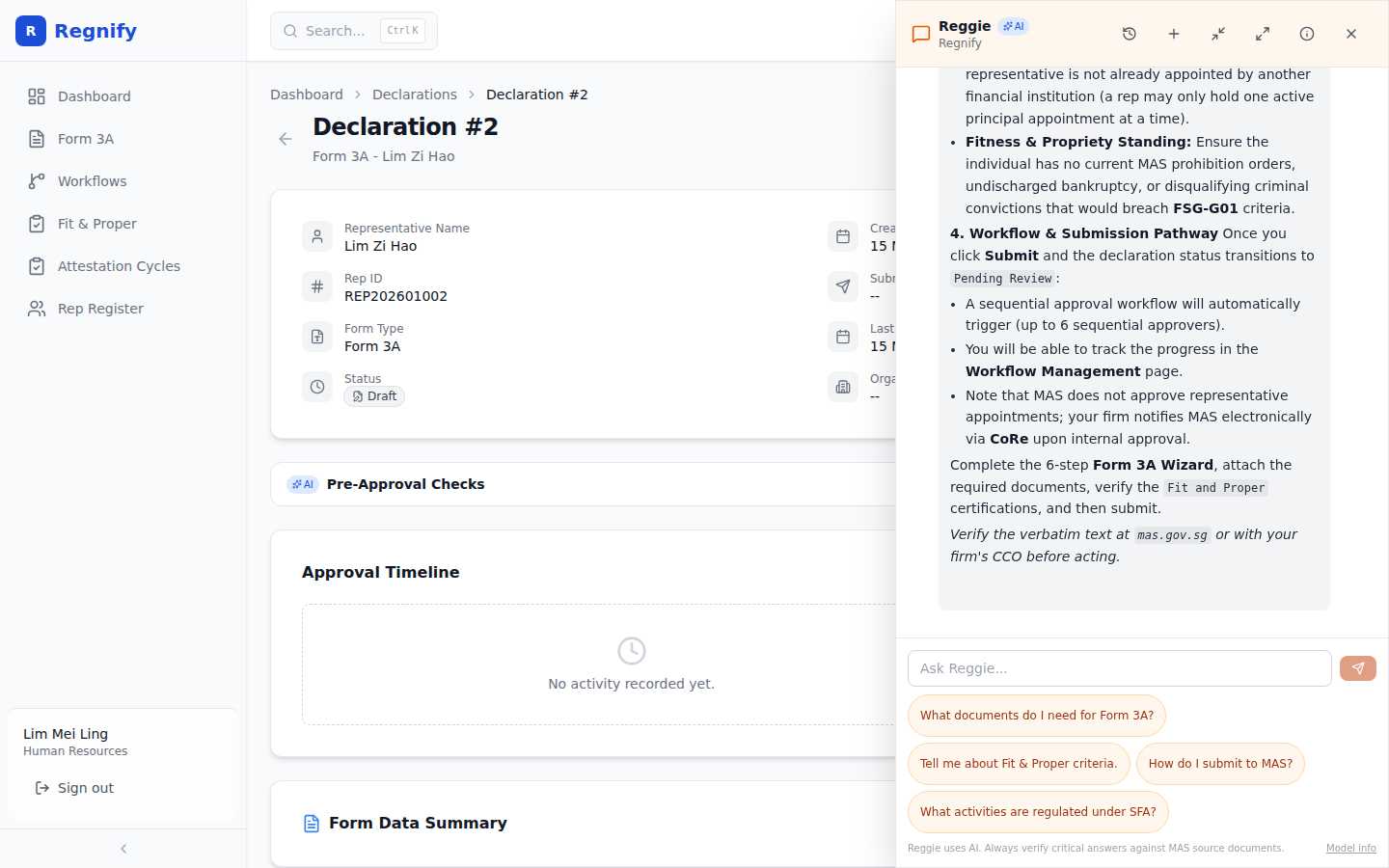 Reggie is available on approval pages too — an HR Admin can ask regulatory questions while reviewing a pending declaration without leaving the page.
On pages that carry a declaration context (such as Form 3A), Reggie is aware of the declaration ID and can answer questions specific to that declaration — such as which sections are incomplete or which CMFAS modules may be missing for the selected activities.
The Concierge operates within the same PII protection rules as the general AI assistant. It will not echo raw NRIC, passport numbers, phone numbers, or dates of birth in its responses. See Section 08 for full PII masking details.