05 — Declaration Lifecycle
A declaration is created when a representative fills in Form 3A and submitted through a multi-party approval chain before final submission to MAS (Monetary Authority of Singapore). Each declaration moves through a defined set of states, from initial draft creation to final regulatory resolution. Understanding these states helps representatives track their submission and helps approvers identify what action is required.
State Diagram
                         ┌─────────────────────────────┐
                         │                             │
                    ┌────▼────┐                        │
                    │  DRAFT  │ ◄──────────────────────┤
                    └────┬────┘    Re-edit after       │
                         │         send-back           │
                  Submit │                             │
                    ┌────▼──────────┐                  │
                    │ PENDING_REVIEW│ ──────────────►  │ REVISION_REQUESTED
                    └────┬──────────┘  Send Back       │
              Approved   │                (rep edits   │
              all steps  │                 + resubmits)│
                    ┌────▼────┐                        │
                    │ APPROVED│                        │
                    └────┬────┘                        │
                         │ Internal verification       │
                    ┌────▼────┐                        │
                    │  GOOD   │                        │
                    └────┬────┘                        │
                         │ Send to MAS                 │
              ┌──────────▼──────────┐                  │
              │  MAS_PENDING_REVIEW │                  │
              └──────────┬──────────┘                  │
              ┌──────────┴──────────┐                  │
              │                     │                  │
        ┌─────▼──────┐       ┌──────▼──────┐          │
        │ MAS_APPROVED│       │ MAS_REJECTED│          │
        └─────────────┘       └──────┬──────┘          │
                                     │                  │
                              At any step               │
                    ┌──────────────► │                  │
                    │          ┌─────▼───┐              │
                    │          │REJECTED │              │
                    └──────────┘         └──────────────┘
                   (Terminal — rep must
                    start a new declaration)
Note:
FORM_COMPLETED,CLEARED_FOR_MAS, andSUBMITTED_TO_MASare database-level enum values reserved for extended pipeline use and are not currently rendered by the frontend UI.
All Declaration States
DRAFT
Prisma value: DRAFT
Display label: Draft
Badge color: Grey (default)
The declaration has been created or saved but not yet submitted for review. The representative can freely edit all fields, upload or remove documents, and save as many times as needed. Auto-save keeps the draft current. No approver can act on a Draft declaration.
Who can see it: The representative who created it and SYS_ADMIN / ORG_ADMIN.
Actions available: Edit, Submit, Delete.
Triggered by: Creating a new Form 3A and saving, or receiving a declaration back (as REVISION_REQUESTED and saving a revised draft before resubmitting).
PENDING_REVIEW
Prisma value: PENDING_REVIEW
Display label: Pending Review
Badge color: Amber (warning) with pulsing dot
The representative has submitted the declaration and it is now in the approval queue. The declaration moves through workflow steps sequentially. The first approver in the chain is notified. The representative cannot edit the form while it is in this state.
The Declaration Detail page shows a blue "Currently waiting for" card, identifying the current approver and how long they have had the declaration.
Who can see it: The representative (read-only), current and future approvers, SYS_ADMIN / ORG_ADMIN.
Actions available (for the current approver): Approve, Reject, Send Back.
Actions available (for the representative): View only.
Triggered by: Clicking Submit Declaration in Section 14 — Review & Submit of the Form 3A.
REVISION_REQUESTED
Prisma value: REVISION_REQUESTED
Display label: Changes Requested
Badge color: Amber (warning) with pulsing dot
An approver has sent the declaration back to the representative requesting changes. The Declaration Detail page shows an orange "Changes Requested" card with the name of the approver who sent it back, the date, and the reason they provided.
The representative can open the form in edit mode, make the required changes, and resubmit. Upon resubmission, the declaration returns to PENDING_REVIEW and restarts the approval workflow from the step at which it was sent back.
Who can see it: The representative (edit mode restored), the approver who sent it back, SYS_ADMIN / ORG_ADMIN.
Actions available: Edit, Resubmit.
Triggered by: An approver clicking Send Back (Request Changes) on the Workflow Approval page.
APPROVED
Prisma value: APPROVED
Display label: Approved
Badge color: Green (success)
All approvers in the workflow chain have approved the declaration. The internal approval process is complete. The declaration is now eligible for MAS submission, pending a final internal review by a Compliance (COMP) or System Administrator (SYS_ADMIN) user to move it to the GOOD state.
Who can see it: All roles.
Actions available: None (status transitions are handled by system processes or admin actions).
Triggered by: The final approver in the workflow chain approving the declaration.
GOOD
Prisma value: GOOD
Display label: Good
Badge color: Green (success)
The declaration has passed internal review and is cleared for submission to MAS. It appears in the Ready for MAS tab of the MAS Approval Console. No further internal approvals are required.
Who can see it: All roles.
Actions available (for SYS_ADMIN / COMP): Send to MAS.
Triggered by: System or administrator advancing an APPROVED declaration after final internal verification.
MAS_PENDING_REVIEW
Prisma value: MAS_PENDING_REVIEW
Display label: MAS Pending
Badge color: Blue (info) with pulsing dot
The declaration has been submitted to MAS and is awaiting MAS's regulatory decision. It appears in the MAS Pending tab of the MAS Approval Console. No further internal action is possible while MAS is reviewing.
Who can see it: All roles.
Actions available (for SYS_ADMIN / COMP on the MAS console): Approve (record MAS approval) or Reject (record MAS rejection).
Triggered by: A SYS_ADMIN or COMP user clicking Send to MAS in the MAS Approval Console.
MAS_APPROVED
Prisma value: MAS_APPROVED
Display label: MAS Approved
Badge color: Blue (info)
MAS has approved the representative's appointment. This is the final successful state. The declaration is complete and archived. No further actions are required.
Who can see it: All roles.
Actions available: View only. Export to PDF or DOCX.
Triggered by: A SYS_ADMIN or COMP user recording MAS approval in the MAS Approval Console.
MAS_REJECTED
Prisma value: MAS_REJECTED
Display label: MAS Rejected
Badge color: Red (danger)
MAS has rejected the declaration. The declaration appears in the Resolved tab of the MAS Approval Console with a "Rejected" outcome label. The representative's principal must review the rejection reason, make necessary changes, and may need to submit a new declaration.
Who can see it: All roles.
Actions available: View only. Export to PDF or DOCX.
Triggered by: A SYS_ADMIN or COMP user recording MAS rejection in the MAS Approval Console.
REJECTED
Prisma value: REJECTED
Display label: Rejected
Badge color: Red (danger)
An approver in the internal workflow has rejected the declaration outright. Unlike "Send Back" (which allows revision and resubmission), a rejection is terminal for that declaration instance. The representative must create a new declaration and start the process again.
Who can see it: All roles.
Actions available: View only. Export to PDF or DOCX.
Triggered by: An approver clicking Reject on the Workflow Approval page.
Status Badge Reference
| Status | Display Label | Badge Color | Pulsing |
|---|---|---|---|
DRAFT |
Draft | Grey | No |
PENDING_REVIEW |
Pending Review | Amber | Yes |
APPROVED |
Approved | Green | No |
REVISION_REQUESTED |
Changes Requested | Amber | Yes |
GOOD |
Good | Green | No |
MAS_PENDING_REVIEW |
MAS Pending | Blue | Yes |
MAS_APPROVED |
MAS Approved | Blue | No |
MAS_REJECTED |
MAS Rejected | Red | No |
REJECTED |
Rejected | Red | No |
Pulsing badges (animated dot) indicate an action is pending. An additional Overdue badge (red) appears alongside PENDING_REVIEW declarations that have been waiting more than 5 days since submission.
Declarations List
From the Dashboard or the Declarations sidebar link, the declarations list shows all declarations for the logged-in representative, organized into tabs: Drafts, Revision Requested, Pending Internal Approval, and Completed.
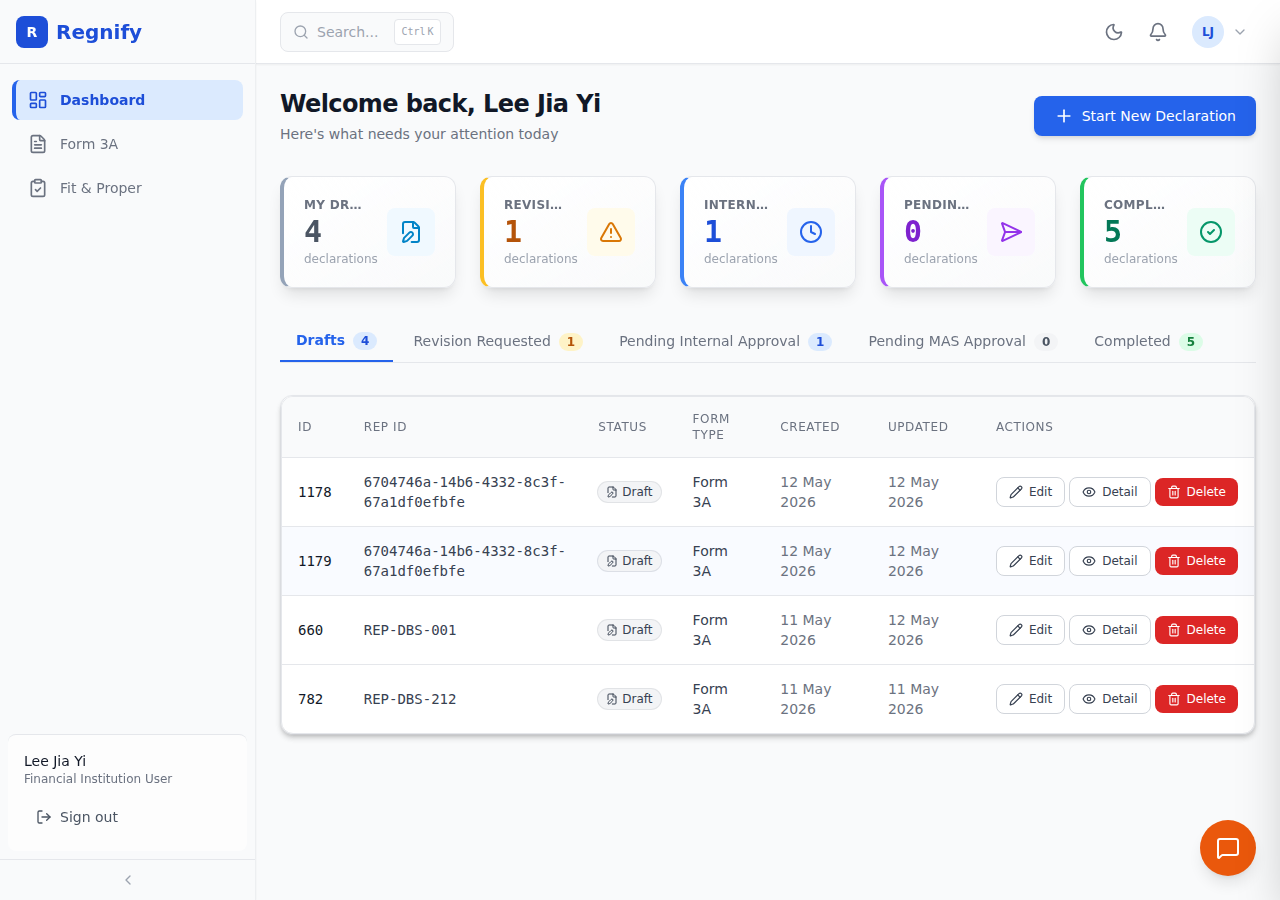 The declarations list showing multiple status tabs. Each row shows the declaration number, form type, status badge, and last-updated date.
Declaration Detail Page
Navigate to /declarations/{id} to view the full detail for any declaration. The page header shows a status badge that reflects the current state of the declaration.
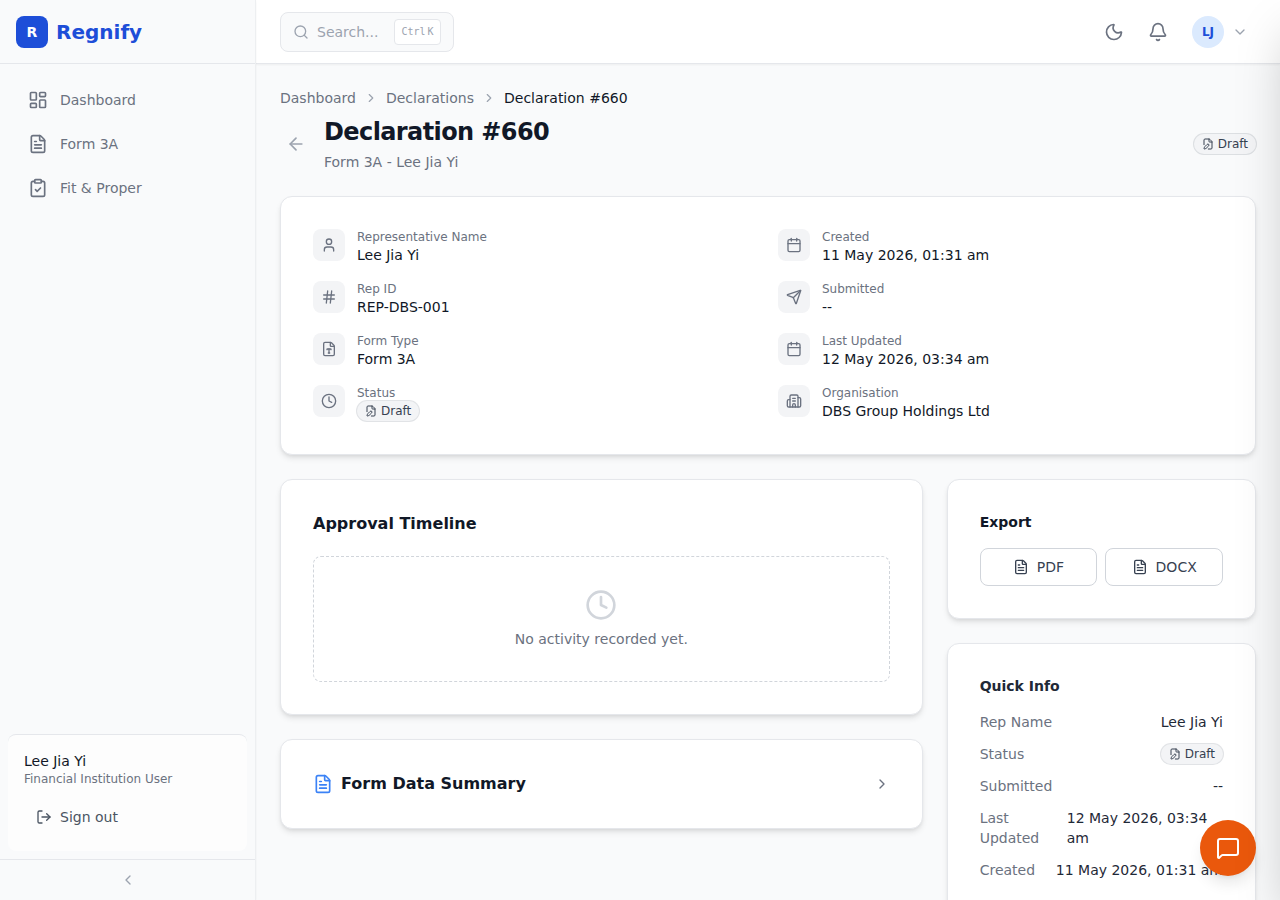 Declaration detail in Draft state: Edit and Submit buttons are available; the Workflow Stepper has not yet started.
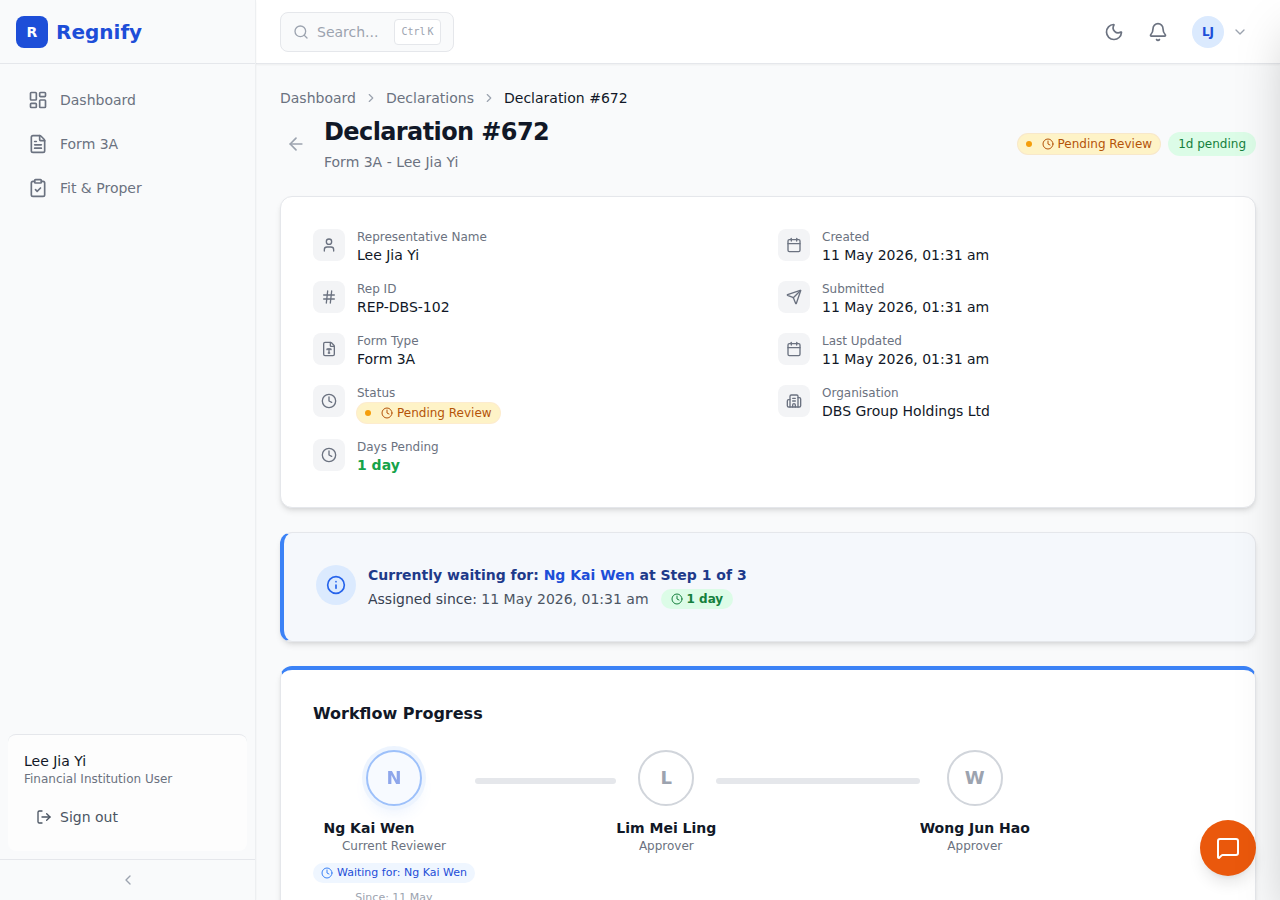
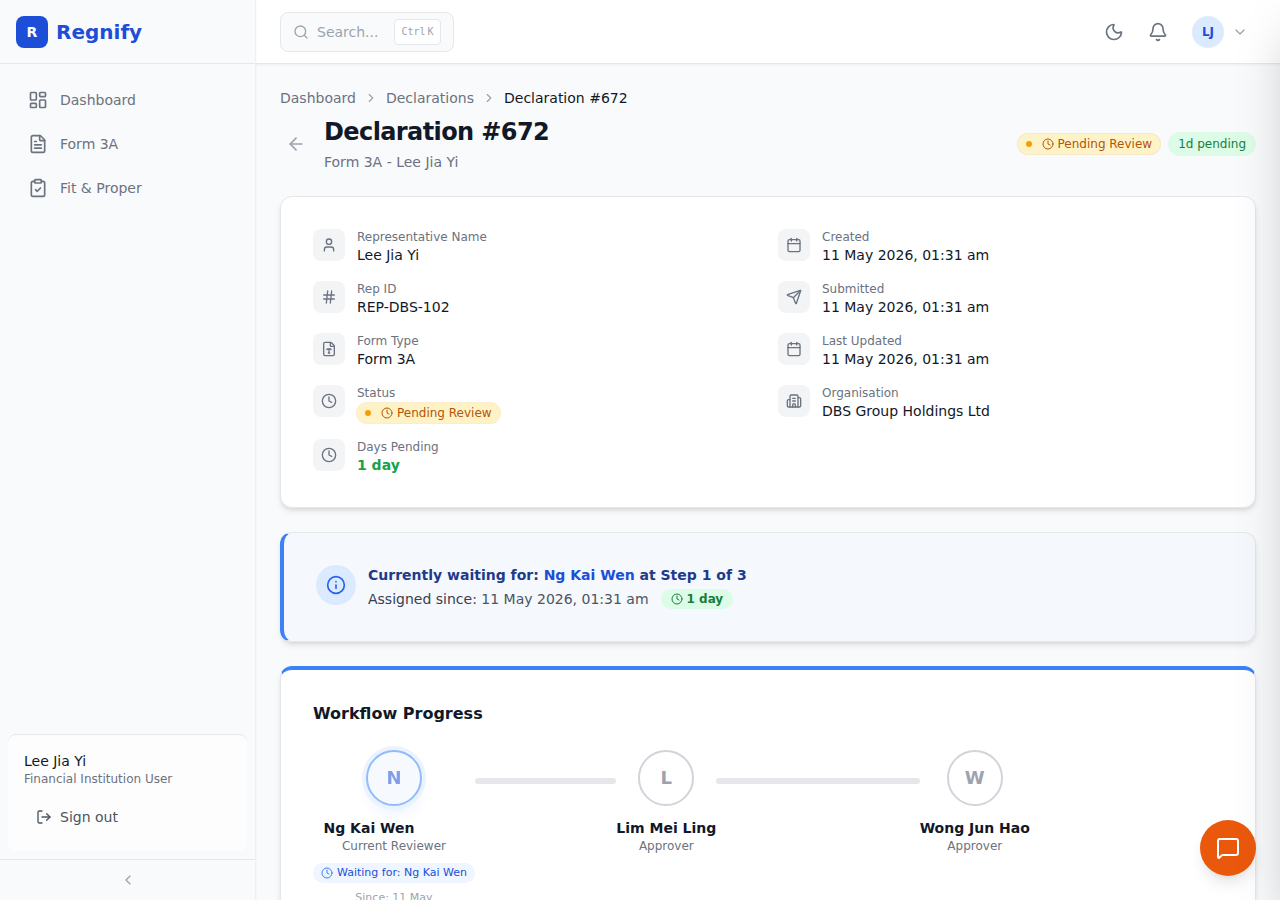 Declaration detail in Pending Review state: the "Currently waiting for" card identifies the active approver; the representative can only view.
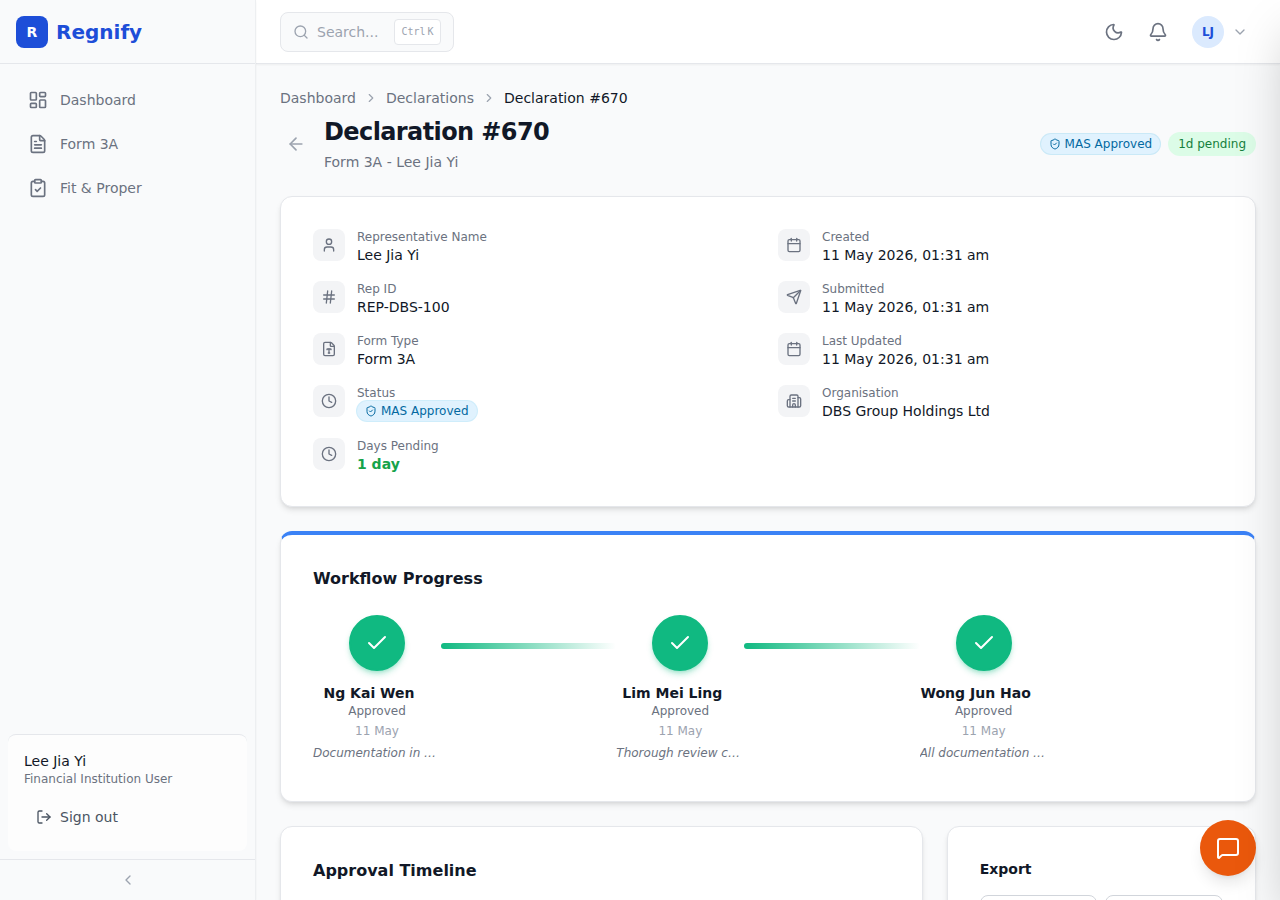 Declaration detail in Approved state: all internal workflow steps are complete; the declaration is awaiting MAS submission.
The page is divided into the following areas:
Page Header
- Declaration number, form type, and representative name.
- Current Status Badge (with overdue indicator if applicable).
- Days pending counter (color-coded: green ≤ 3 days, amber ≤ 5 days, red > 5 days).
Metadata Card
Displays in a two-column grid: - Left: Representative Name, Rep ID, Form Type, Status. - Right: Created date, Submitted date, Last Updated date, Organisation (principal company name).
Action Card (Contextual)
Appears only when an action is available: - For the current approver: Approve, Send Back, and Reject buttons. - For the representative (Draft): Edit and Submit buttons. - For the representative (Revision Requested): Edit and Resubmit buttons.
Changes Requested Card
Appears when status is REVISION_REQUESTED. Shows the approver who sent it back, the date, and their stated reason for the revision.
Waiting For Card
Appears when status is PENDING_REVIEW. Shows who the declaration is currently waiting on (approver name and step number) and how long they have had it.
Workflow Progress
The WorkflowStepper component shows each approval step visually. See Section 06 — Workflow Approvals for color codes and step states.
 The workflow stepper showing completed, current, and pending approval steps.
Approval Timeline
A chronological event log showing all actions taken on the declaration: - Created (blue) — declaration first saved. - Submitted (amber) — declaration submitted by representative. - Approved (green) — a workflow step was approved. - Changes Requested (orange) — declaration sent back for revision. - Resubmitted (amber) — representative resubmitted after revision. - Sent to MAS (indigo) — declaration forwarded to MAS. - MAS Approved (green) — MAS approval recorded. - MAS Rejected (red) — MAS rejection recorded. - Rejected (red) — internal rejection by an approver.
Each timeline entry shows the action type, the name of the actor, the date and time, and any comment provided.
Form Data Summary (Collapsible)
A read-only summary of the submitted form data, organized into expandable sections: General Information, Personal Information, Education and Qualifications, Employment History, and Regulatory Information. A View full declaration form link opens the Form 3A wizard in view-only mode.
Common Workflows
Resubmitting After a Send-Back
When an approver clicks Send Back on the Workflow Approval page, the declaration status changes from PENDING_REVIEW to REVISION_REQUESTED. The representative receives a notification and can see a "Changes Requested" card on the Declaration Detail page showing the approver's name and their stated reason.
To resubmit:
- Navigate to the declaration in the Drafts or "Revision Requested" tab.
- Click Edit and Resubmit — this opens Form 3A in edit mode with all previously entered data preserved.
- Make the requested changes across the relevant sections (Sections 1–10).
- Scroll to Section 14 — Review & Submit.
- Click Submit.
The declaration status returns to PENDING_REVIEW and the approval workflow restarts from the step at which it was sent back. Previous approvals earlier in the chain are not invalidated.
Responding to a MAS Rejection
If MAS rejects a declaration (status MAS_REJECTED), the declaration is visible in the Resolved tab of the representative's dashboard and in the MAS Console's Resolved tab. At this stage, the representative's principal FI must determine the appropriate response.
In the current implementation:
- The MAS_REJECTED status is a terminal state in the same way REJECTED is — the representative cannot edit or resubmit the rejected declaration directly.
- The representative's next step is to create a new Form 3A declaration, addressing whatever MAS objected to, and submit it through the internal approval workflow again.
- The rejected declaration is preserved as a historical record and can be viewed for reference.
Your principal organisation's compliance officer will typically advise on the appropriate corrective action before a new declaration is submitted.
Declaration Blocking Rule
The system prevents a representative from submitting a new Form 3A while an existing non-draft declaration is in the approval chain. This ensures that at most one Form 3A submission per representative is active in the workflow at any time.
What triggers the block: A representative already has a declaration with any status other than DRAFT, MAS_APPROVED, MAS_REJECTED, or REJECTED.
What the representative sees: Clicking Start New Declaration will open the wizard, but the final submission step displays a validation error preventing submission: "You have a declaration in progress. Please wait for it to be resolved before submitting a new one."
To unblock: The in-progress declaration must reach a terminal state — approved, rejected, or sent to MAS — before a new submission is permitted.
Exporting Declarations
Where to Trigger an Export
On the Declaration Detail page (/declarations/{id}), the export action buttons are available in the page header area. Look for the PDF and DOCX buttons in the top-right action cluster, alongside the status badge. The buttons are always visible for declarations in any state (including DRAFT, MAS_APPROVED, and REJECTED).
Available Formats
| Format | Button | Best for |
|---|---|---|
| PDF button | Human review, sharing with MAS, archival printing | |
| DOCX | DOCX button | Editing, internal archival, Word-compatible processing |
What Is Included in the Export
Both formats include the full declaration content: - All Form 3A field data (General Information, Personal Information, Proposed Activities, Additional Information, Fit and Proper Certification) - List of supporting documents (file names, categories, upload dates) - Complete workflow history (all approver actions, dates, and comments) - Approval chain configuration (step names, approver names) - Declaration metadata (status, form type, submission date, last updated)
The PDF format renders form data as formatted paragraphs within a pre-designed layout. The DOCX format uses paragraph-based text injection compatible with LibreOffice and Microsoft Word.
Who Can Export
Export is available to administrative and compliance roles only:
| Role | Can Export? |
|---|---|
| COMP | Yes |
| HR_ADMIN | Yes |
| ORG_ADMIN | Yes |
| SYS_ADMIN | Yes |
| FI_USER (representative) | No |
| REP_USER | No |
Why not FI_USER? The export contains the complete approval chain history and internal reviewer comments, which are considered internal compliance records. Representatives can view their own form data on the Declaration Detail page but cannot export the full record.
How Export Is Generated
Export is asynchronous. When you click PDF or DOCX:
- The frontend sends a request to the FastAPI backend.
- The backend queues a generation job via RabbitMQ (PDF worker or document worker depending on format).
- The worker processes the declaration data, renders the document, and stores it.
- A download link is returned to the user when the export is ready.
For most declarations, generation completes in a few seconds. Very large declarations with many supporting documents may take longer. The page shows a loading state while the export is being prepared.
Role-Based Visibility
| Role | Sees their own declarations | Sees all declarations | Can approve | Can MAS-submit |
|---|---|---|---|---|
| FI_USER (Representative) | Yes | No | No | No |
| HR_ADMIN | No | Yes (for their org) | Yes (if assigned as approver) | No |
| COMP | No | Yes | Yes (if assigned as approver) | Yes |
| ORG_ADMIN | No | Yes (for their org) | Yes (if assigned as approver) | No |
| SYS_ADMIN | No | Yes (all) | Yes (if assigned as approver) | Yes |
Related: Form 3A Wizard | Workflow Approvals | MAS Console