14 — Workflow Template Management
Workflow templates define the multi-party approval chain that a licensed representative's declaration must pass through before it can be submitted to MAS. Each template specifies an ordered sequence of approvers — typically one per step — that must review and approve the declaration before it advances. Without a workflow template, a submitted declaration cannot enter the approval process.
Access required: SYS_ADMIN, ORG_ADMIN, HR_ADMIN
Route: /workflows
14.1 Overview
When a representative submits a Form 3A (or Form 3B/3C), Regnify automatically creates a workflow instance from the template associated with the representative's organisation. The workflow instance tracks the approval progress step by step. The template is the blueprint; the instance is the live in-progress run.
The Workflow Management page has two tabs:
| Tab | Content |
|---|---|
| Approval Workflow Dashboard | Live view of all active workflow instances (in-progress approval runs). Shows declaration linkage, current step, total steps, and status. |
| Templates | The list of defined workflow templates. Create, edit, and delete templates here. |
14.2 Viewing the Approval Workflow Dashboard
Click the Approval Workflow Dashboard tab to see all workflow instances currently in the system.
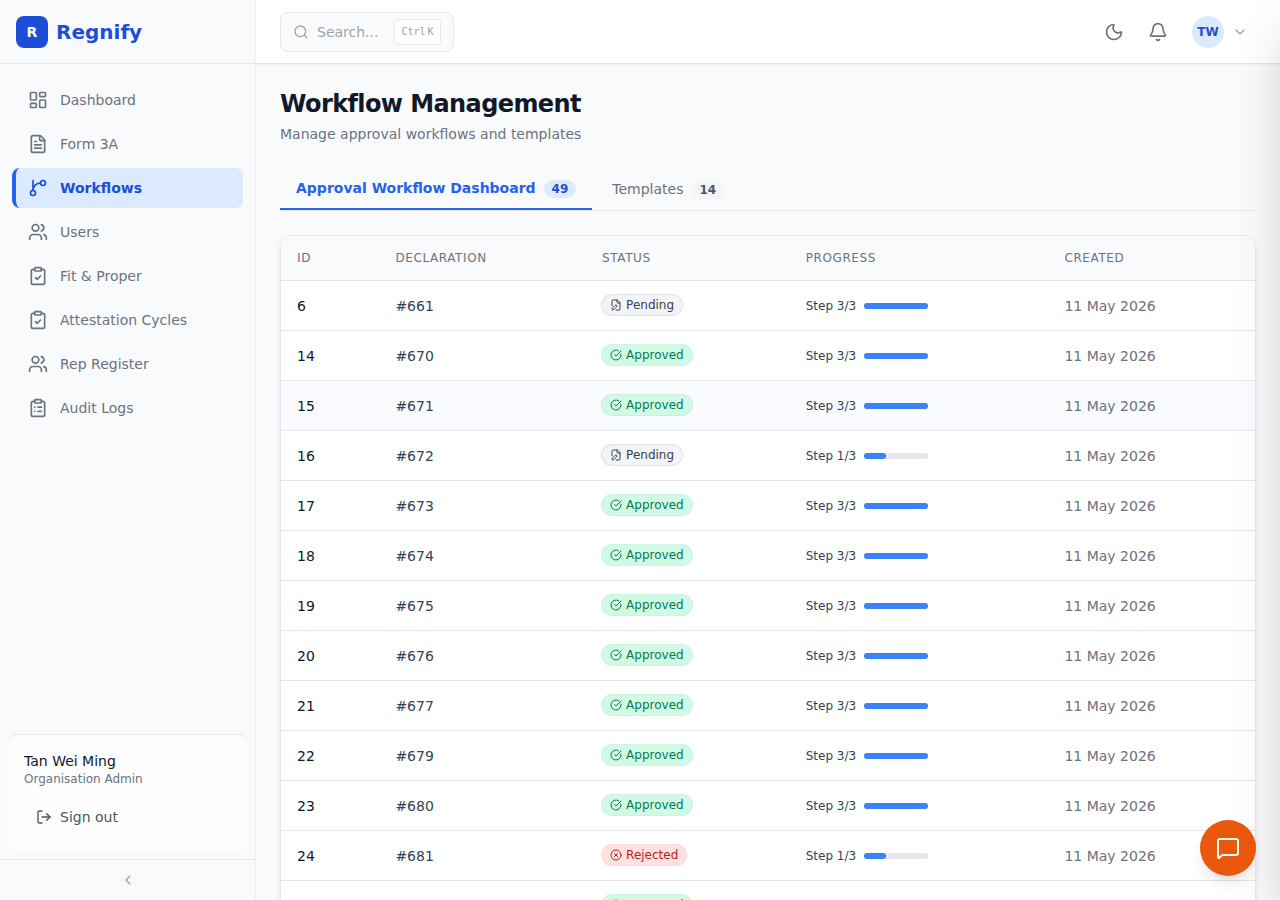 The Workflow Management page showing both tabs: Approval Workflow Dashboard (49 instances) and Templates (14 templates).
Instance Table Columns
| Column | Description |
|---|---|
| ID | Internal workflow instance identifier. |
| Declaration | The declaration ID this instance is running against (shown as #N). |
| Status | Current workflow status badge (e.g. In Progress, Completed, Rejected). |
| Current Step | The index of the step currently awaiting approval (zero-based). |
| Total Steps | Total number of approver steps in this instance. |
| Created | Date the instance was created. |
This view is read-only. Approvers act on workflow steps from the Workflow Approval page (/workflow/:declarationId), not from this dashboard.
14.3 Viewing Workflow Templates
Click the Templates tab to see all defined templates.
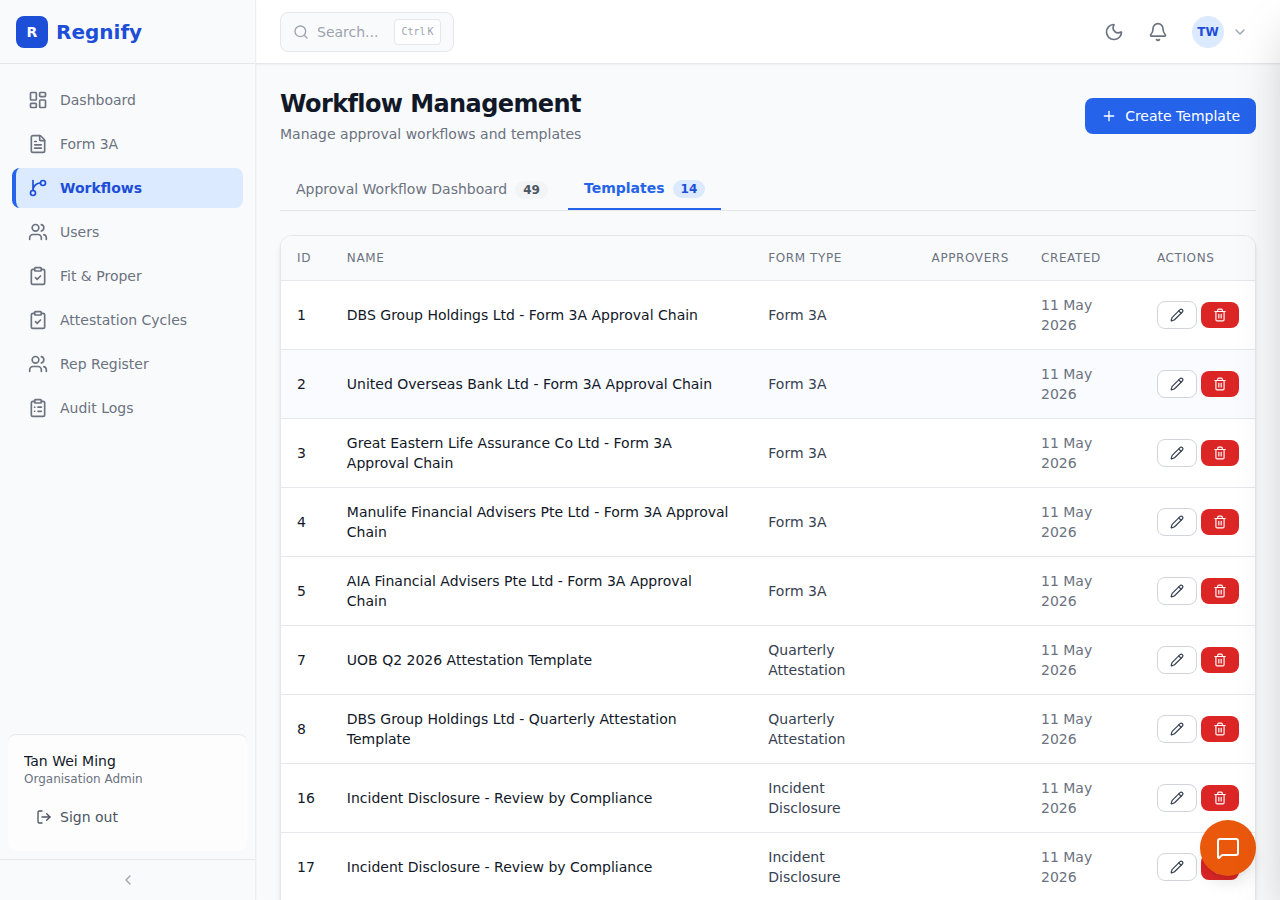 The Templates tab (14 templates). Visible examples include the DBS Group Holdings Ltd Form 3A Approval Chain, UOB and DBS Quarterly Attestation Templates, and Incident Disclosure workflow templates for multiple FIs.
Template Table Columns
| Column | Description |
|---|---|
| ID | Internal template identifier. |
| Name | Descriptive name for the template. Example: DBS Group Holdings Ltd - Form 3A Approval Chain |
| Form Type | The declaration form this template applies to: Form 3A, Form 3B, or Form 3C. |
| Approvers | Ordered badges listing the approvers in step sequence (Step 1 → Step 2 → Step N). |
| Created | Template creation date. |
| Actions | Edit (pencil icon) and Delete (trash icon). |
14.4 Understanding Workflow Steps
Each template consists of an ordered list of approver steps. When a declaration is submitted, the system creates a workflow instance that proceeds through these steps sequentially:
- Step 1 must approve before Step 2 is notified.
- Step 2 must approve before Step 3 is notified.
- And so on, up to the maximum of 6 steps.
Each step is assigned a specific user (the approver). The approver's name and role are stored at template creation time. When a step reaches an approver, they will see the pending declaration in their dashboard and in their Workflow Approval page.
If any approver rejects the declaration, the workflow stops and the declaration status changes to Rejected. The representative can then revise and resubmit.
If any approver sends the declaration back for revision (DECLARATION_SENT_BACK), the workflow pauses and the representative is notified to make corrections before the declaration re-enters the approval chain.
14.5 Creating a Template
Precondition: At least one user with an approver-eligible role (any role other than FI_USER, or an FI_USER with isApprover = true) must exist in the system.
- Select the Templates tab.
- Click Create Template in the top-right corner.
- The Create Template modal opens.
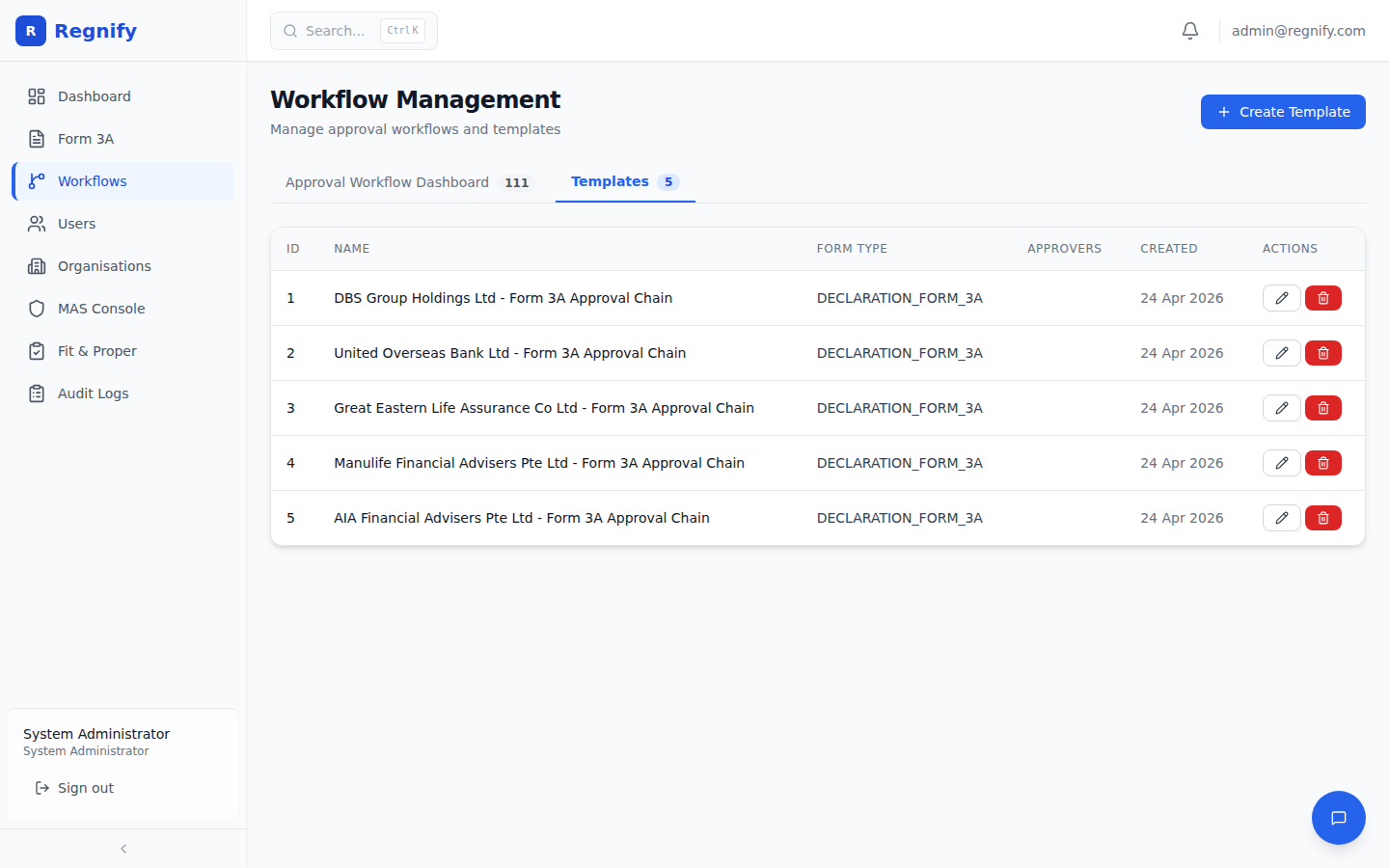 The template creation form showing name, form type, and ordered approver list.
- Fill in the form:
| Field | Required | Notes |
|---|---|---|
| Template Name | Yes | A descriptive name. Convention: {Organisation Name} - {Form Type} Approval Chain. Example: UOB - Form 3A Approval Chain |
| Form Type | Yes | Select Form 3A, Form 3B, or Form 3C. Defaults to Form 3A. One template per organisation per form type is the recommended practice. |
| Approvers | Yes | An ordered list of approvers. At least one approver is required before the template can be saved. |
- Building the approver chain:
- The approver dropdown lists all eligible users — specifically, users who are not
FI_USER, orFI_USERusers marked as approvers. - Select the first-step approver from the dropdown and click Add.
- The approver appears in the list with a step number badge (Step 1).
- Select the next approver and click Add again. They appear as Step 2.
- Repeat until the chain is complete (up to 6 steps).
- To remove an approver from the chain, click the minus icon next to their name. The remaining approvers' step numbers are automatically renumbered.
-
Drag-to-reorder is not available; remove and re-add approvers to change their sequence.
-
Click Save Template. The Save button is disabled until at least one approver has been added.
- A success toast confirms creation and the template appears in the table.
Note: A user can only appear once per template. The dropdown automatically excludes already-added users from the selection list.
14.6 Editing a Template
- In the Templates tab, click the pencil icon (Edit) for the target template.
- The Edit Template modal opens with the current name, form type, and approver chain pre-filled.
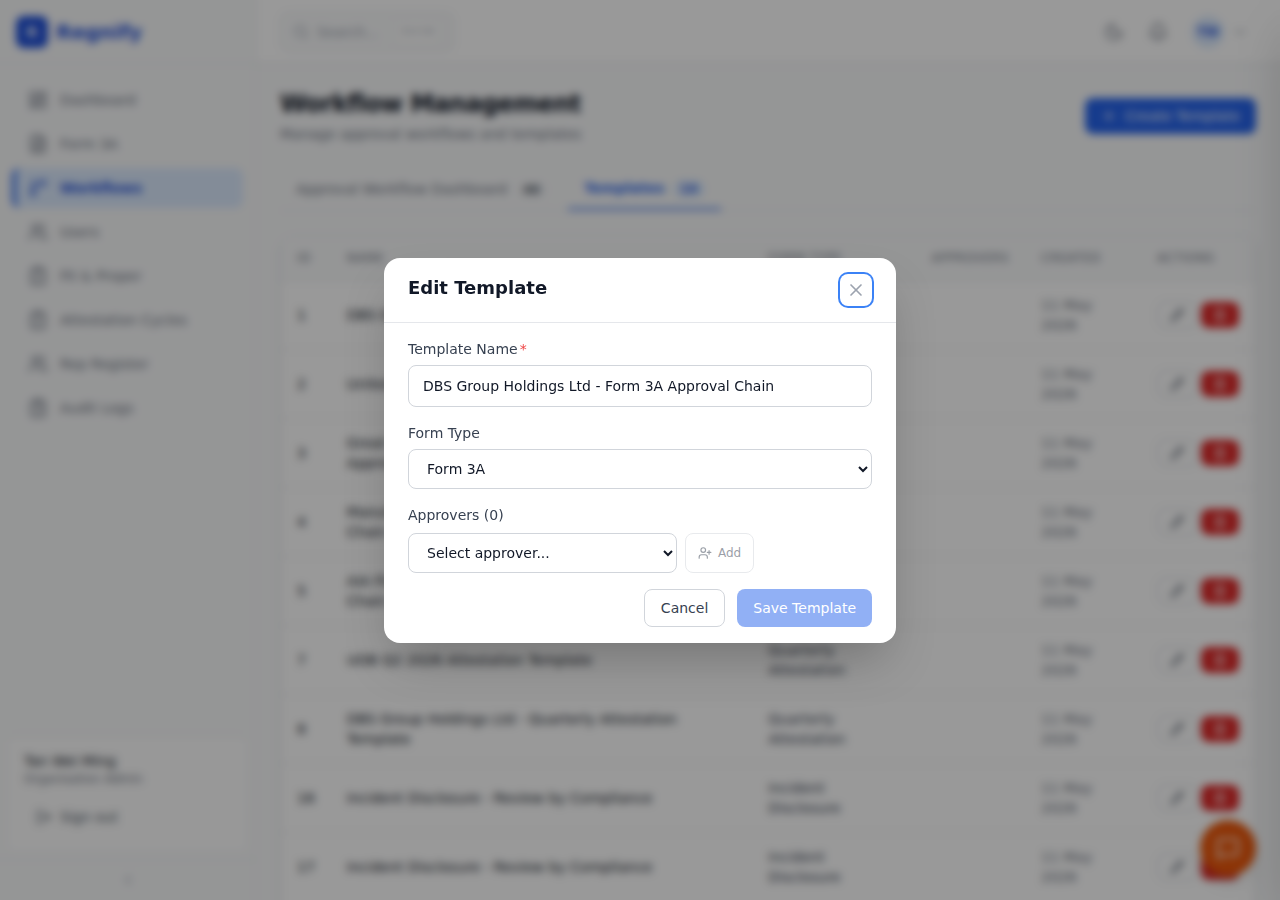 The Edit Template modal showing Template Name, Form Type, and the ordered Approvers section.
- Modify as needed:
- Change the template name.
- Change the form type.
- Add new approvers to the end of the chain.
- Remove existing approvers using the minus icon.
- Click Save Template.
Warning: Editing a template changes the blueprint for future workflow instances only. Any workflow instances already created from this template continue to run with the configuration that existed when they were created. Editing a template does not affect in-progress approvals.
14.7 Template-to-Declaration Matching
When a representative submits a declaration, Regnify selects the workflow template using the following logic:
- The system looks up the template whose organisation identifier matches the submitting organisation (e.g.
ORG-DBS) and whose form type matches the submitted form (e.g.DECLARATION_FORM_3A). - Each organisation should have one template per form type. If multiple templates match, the first match is used.
- If no template is found for the organisation and form type combination, the submission will fail. Create a template before representatives can submit declarations.
In the seed data, each of the five FI organisations has one Form 3A template with three approvers: Supervisor → HR → Compliance (in that order).
14.8 Deleting a Template
- In the Templates tab, click the trash icon (Delete) for the target template.
- A browser confirmation dialog asks: "Delete this workflow template?"
- Click OK to confirm.
Warning: Deleting a template prevents future declarations from being submitted for the affected organisation and form type, because no template will exist to generate a workflow instance. Existing in-progress workflow instances are not affected — they continue to run. Only delete a template if you intend to replace it with a new one or if the FI no longer operates on the platform.
14.9 Best Practices
Recommended Approval Chain Structure
For MAS Form 3A compliance, the standard three-step chain used in seed data covers the required internal signoff levels:
| Step | Role | Rationale |
|---|---|---|
| 1 | Supervisor (FI_USER, isApprover = true) |
Line manager closest to the representative. Validates day-to-day suitability. |
| 2 | HR Administrator (HR_ADMIN) |
Confirms employment status, qualifications, and disciplinary history. |
| 3 | Compliance Officer (COMP) |
Final internal gate. Signs off on regulatory fit and proper criteria before MAS submission. |
Additional Guidance
- Name templates clearly: Include the organisation name and form type in the template name so it is unambiguous in the table.
- One template per form type per organisation: The system expects a one-to-one relationship between an organisation and a form type. Creating duplicates can cause unpredictable template selection.
- Assign approvers by person, not by role: Templates reference specific user IDs. If an approver leaves the organisation, edit the template to replace them before new declarations are submitted.
- Keep chains concise: MAS does not mandate a specific number of internal approvers. Chains longer than three steps add latency to the submission process without proportional compliance benefit for most FIs.
- Test before go-live: Submit a test declaration in a non-production environment to verify the template resolves correctly and that each approver receives the expected notifications.