07 — MAS Approval Console
The MAS Approval Console is the final stage in the Regnify declaration workflow. Once a declaration has passed all internal approvals and been verified as ready, an authorised user forwards it to MAS (Monetary Authority of Singapore) for regulatory review. The Console provides visibility into all declarations at this stage and allows authorised users to record MAS decisions.
Access: Restricted to users with the SYS_ADMIN or COMP (Compliance) role. FI_USER, HR_ADMIN, and ORG_ADMIN roles cannot access the MAS Console.
URL: /mas-console
Overview Page Layout
Navigate to /mas-console from the sidebar or by typing the URL directly.
The page header reads MAS Approval Console with subtitle "Review and manage declarations submitted to MAS."
Below the header, three summary cards provide an at-a-glance count of declarations in each stage:
| Card | Color | Description |
|---|---|---|
| Ready for MAS | Amber | Declarations internally approved and awaiting MAS submission |
| MAS Pending Review | Blue | Declarations submitted to MAS, awaiting MAS decision |
| Resolved | Green | Declarations with a final MAS outcome (approved or rejected) |
Three tabs below the summary cards switch the table view between these categories.
Three Tabs
Tab 1 — Ready for MAS
Declaration status shown: GOOD
Prerequisites: A declaration must have passed all internal workflow approvals (APPROVED state) and been verified internally before it appears here with GOOD status.
This tab lists all declarations that are ready to be submitted to MAS. Each row shows:
- Representative name and Rep ID
- Form type (e.g. Form 3A)
- Status badge (Good)
- Submitted date
- View button — navigates to /mas-details/{id} for full submission detail
- Send to MAS button (primary, blue)
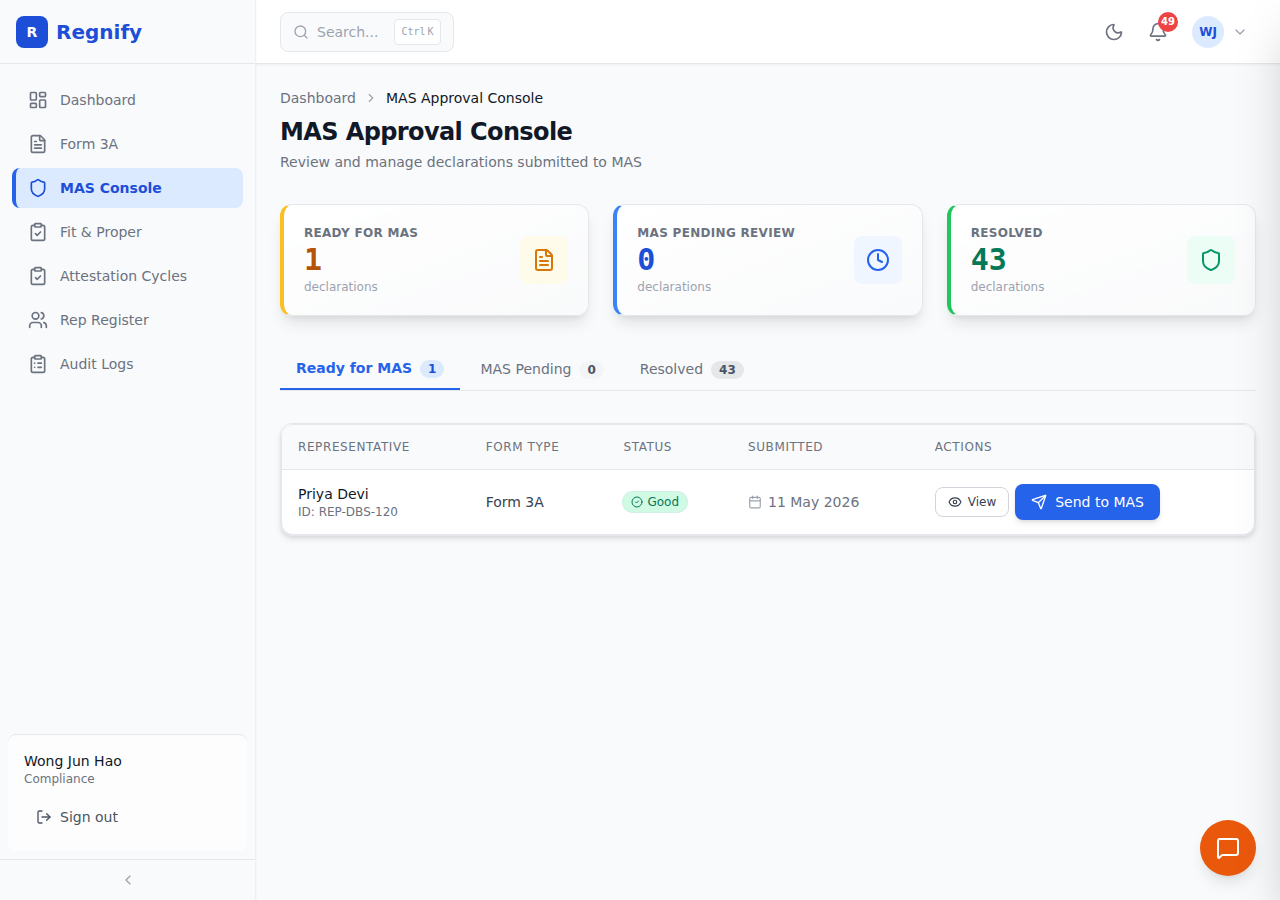 The Ready for MAS tab listing declarations with GOOD status awaiting MAS submission.
Tab 2 — MAS Pending Review
Declaration status shown: MAS_PENDING_REVIEW
This tab lists all declarations that have been submitted to MAS and for which a regulatory decision has not yet been recorded. Each row shows:
- Representative name and Rep ID
- Form type
- Status badge (MAS Pending)
- Submitted date
- View button
- Approve button (green) — records MAS approval
- Reject button (red) — records MAS rejection
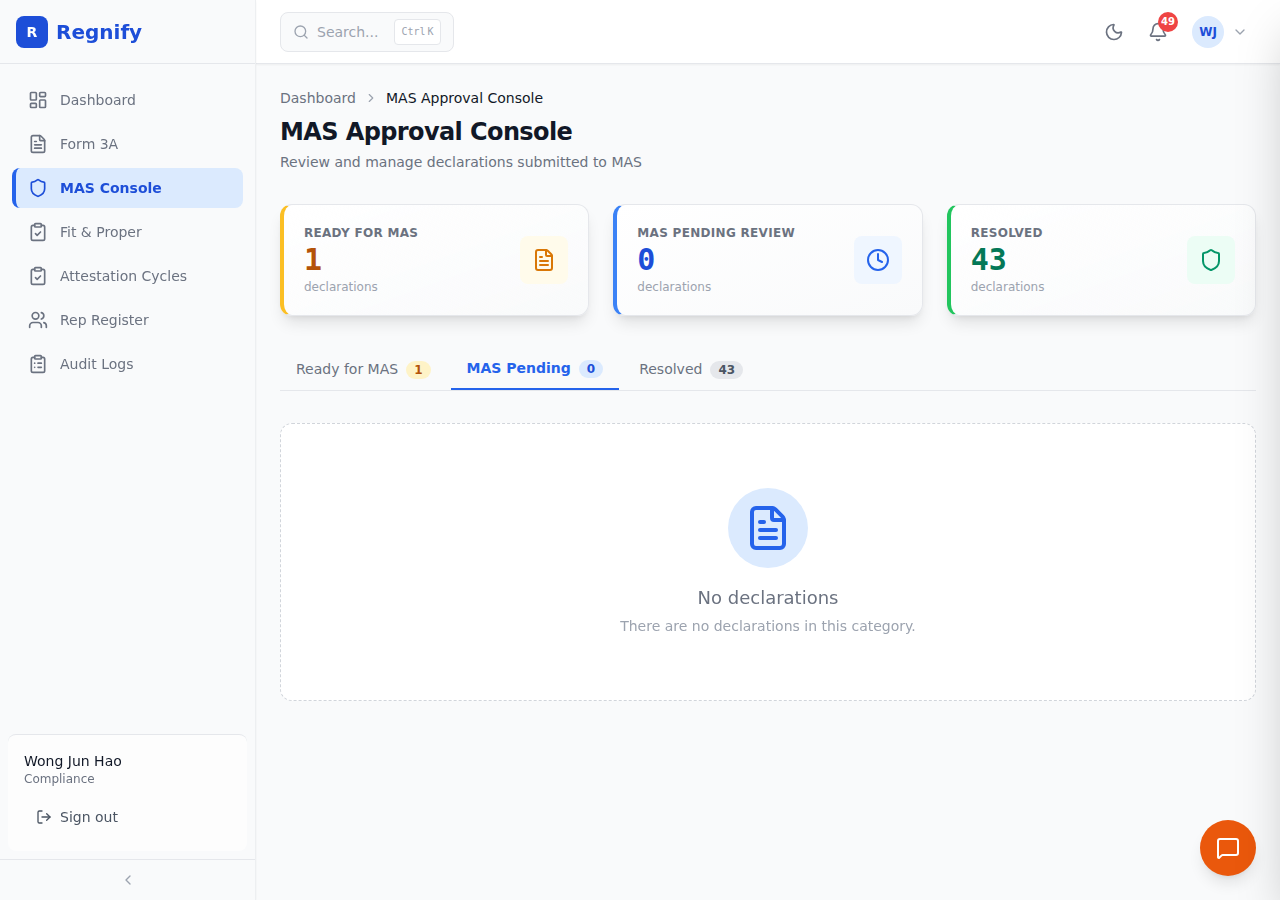 The MAS Pending Review tab showing declarations awaiting a recorded MAS decision. An empty state here is normal when all submitted declarations have already been resolved.
Tab 3 — Resolved
Declaration statuses shown: MAS_APPROVED or MAS_REJECTED
This tab shows the historical record of all declarations that have received a final MAS outcome. Each row shows:
- Representative name and Rep ID
- Form type
- Status badge (MAS Approved or MAS Rejected)
- Resolved date (date of the last update)
- Outcome column: "Approved" (green, user-check icon) or "Rejected" (red, X icon)
- View button
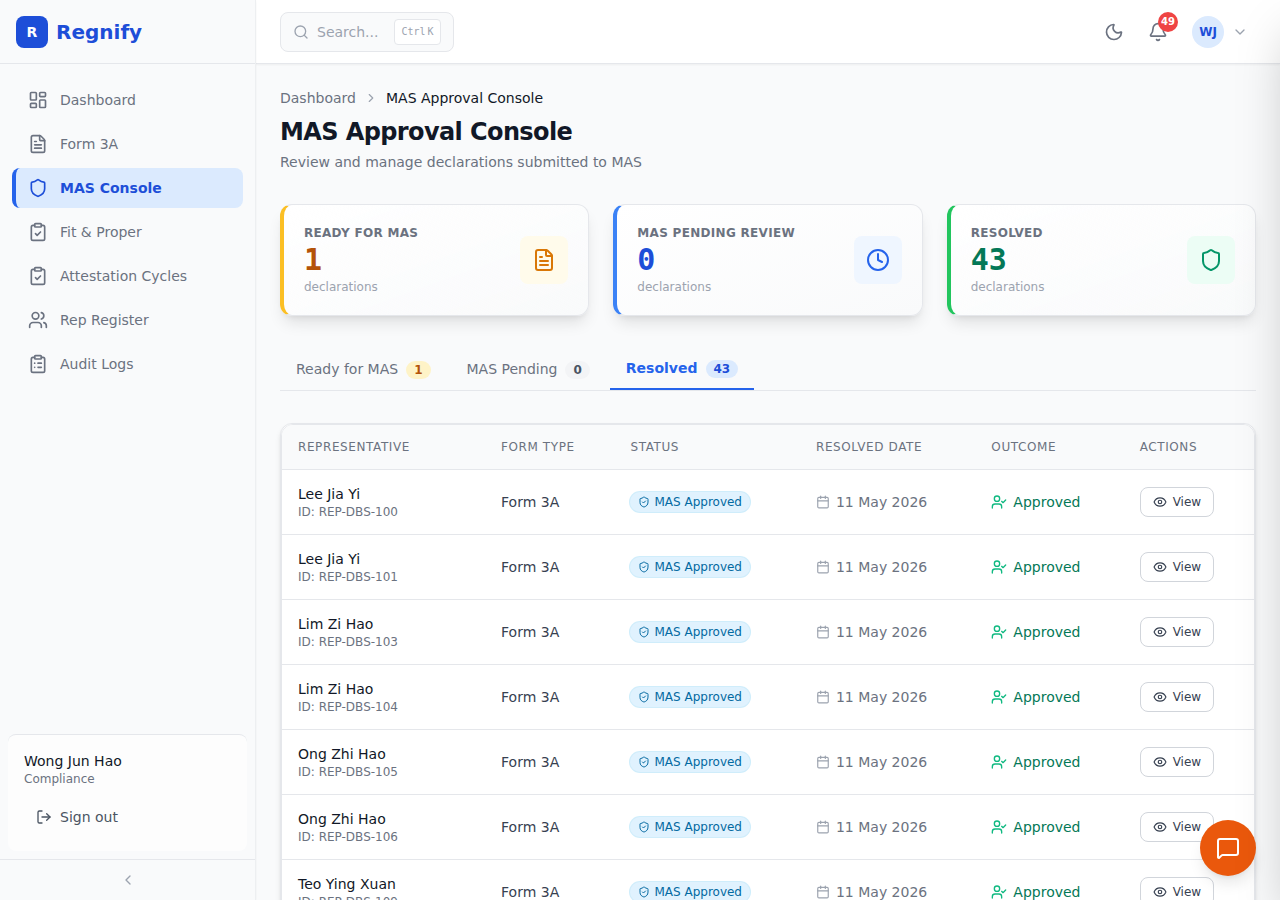 The Resolved tab shows 43 MAS Approved declarations for DBS representatives including Lee Jia Yi (REP-DBS-100/101) and Lim Zi Hao (REP-DBS-103/104).
Submitting a Declaration to MAS
Prerequisites: The declaration must be in GOOD status. It must appear in the Ready for MAS tab.
- Navigate to
/mas-consoleand select the Ready for MAS tab. - Find the declaration by representative name or Rep ID.
- Optionally click View to open
/mas-details/{id}and verify the declaration details and supporting documents before submission. - Click Send to MAS on the row of the declaration you wish to submit.
- A confirmation modal appears:
"Submit to MAS"
Warning: "This action cannot be undone."
"You are about to submit the declaration for [Representative Name] to MAS for regulatory review."
"Please ensure all declaration details and supporting documents have been verified before proceeding."
- Click Confirm & Send to proceed, or Cancel to abort.
Result: The declaration status changes from GOOD to MAS_PENDING_REVIEW. It moves from the Ready tab to the MAS Pending Review tab. A success toast notification confirms the action: "Declaration sent to MAS for review."
Important: This action cannot be undone. Once submitted to MAS, the declaration can only be resolved by recording a MAS approval or rejection — it cannot be recalled or edited.
Recording a MAS Decision
After MAS has communicated their decision (approval or rejection), an authorised user records that decision in Regnify. This is done from the MAS Pending Review tab.
Prerequisites: The declaration must be in MAS_PENDING_REVIEW status.
Recording MAS Approval
- Navigate to
/mas-consoleand select the MAS Pending tab. - Find the declaration by representative name or Rep ID.
- Click Approve on that declaration's row.
- A confirmation modal appears:
"Approve Declaration"
"You are about to approve the MAS submission for [Representative Name]."
A required Comment field (e.g. "MAS approved on 24 Apr 2026").
- Enter an approval remark in the Comment field (required).
- Click Approve.
Result: The declaration status changes to MAS_APPROVED. It moves to the Resolved tab with "Approved" outcome. A success toast confirms: "Declaration approved by MAS."
Recording MAS Rejection
- Navigate to
/mas-consoleand select the MAS Pending tab. - Find the declaration by representative name or Rep ID.
- Click Reject on that declaration's row.
- A confirmation modal appears:
"Reject Declaration"
"You are about to reject the MAS submission for [Representative Name]."
A required Comment field (e.g. "MAS rejected — CMFAS module not completed").
- Enter the rejection reason in the Comment field (required).
- Click Reject.
Result: The declaration status changes to MAS_REJECTED. It moves to the Resolved tab with "Rejected" outcome. A success toast confirms: "Declaration rejected by MAS."
After MAS Approval
When a declaration reaches MAS_APPROVED:
- The declaration is in its final successful state. No further actions are required in Regnify.
- The declaration is visible to all roles in view-only mode on the Declaration Detail page.
- The representative and their principal are notified via the notification system.
- Export to PDF or DOCX remains available from the Declaration Detail page for record-keeping.
After MAS Rejection
When a declaration reaches MAS_REJECTED:
- The declaration is in a terminal rejected state. The representative cannot edit this specific declaration.
- The rejection reason is recorded as part of the comment in the MAS console action.
- To re-apply, the representative must create a new Form 3A declaration, address the issues identified in the rejection reason, and pass through the full internal approval workflow again before a new MAS submission can be made.
- The rejected declaration remains visible in the Resolved tab for audit and reference purposes.
MAS Details View
The View button on any declaration in the MAS Console opens the detailed view at /mas-details/{declarationId}. This page provides:
- Full declaration metadata (representative, organisation, form type, dates).
- The current status badge and a complete approval timeline showing all workflow events.
- Form data summary organized by section.
- Links to download the declaration as PDF or DOCX.
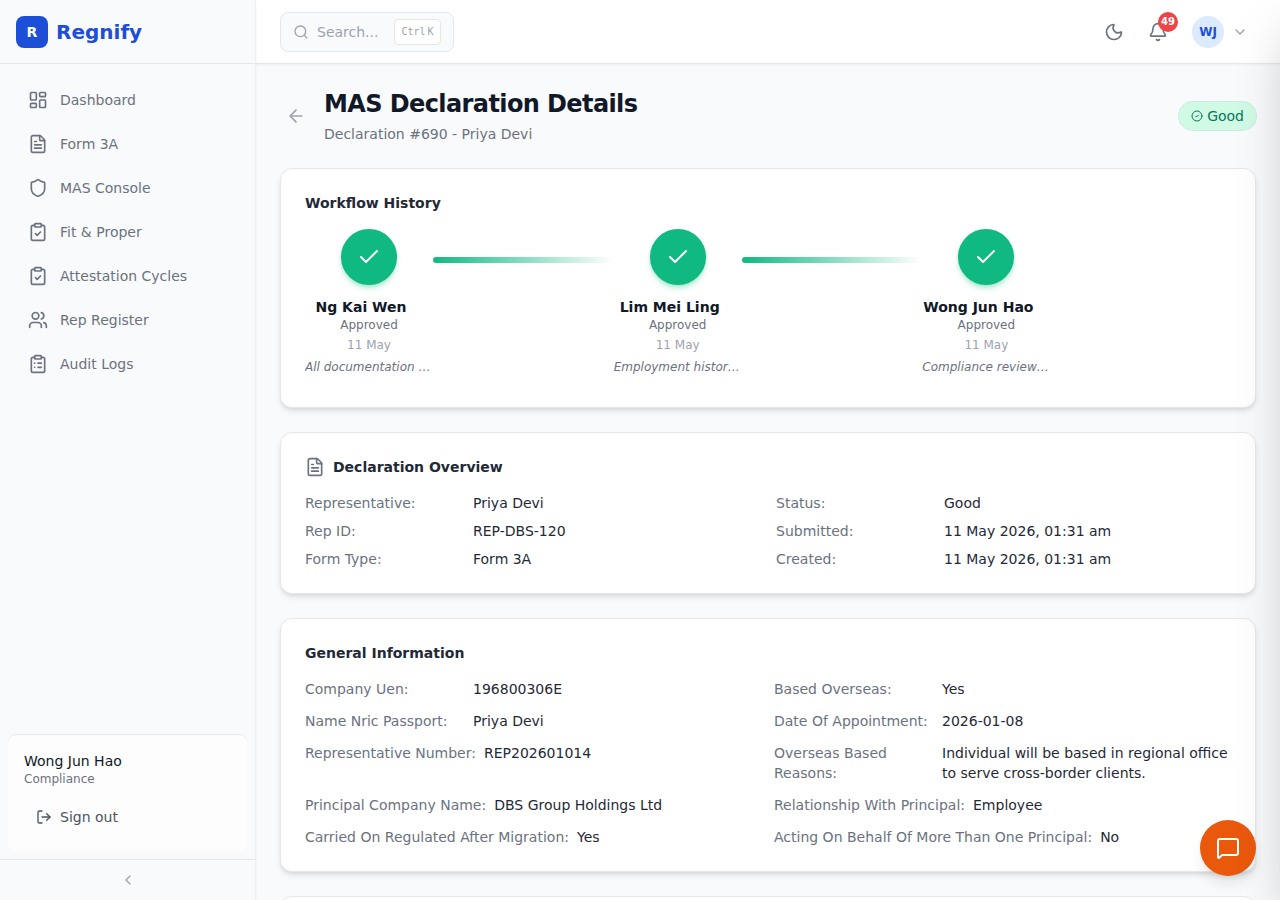 Declaration detail view — shows the full declaration metadata, status badge, workflow history timeline, and action buttons for recording a MAS decision.
Use this page to verify all declaration details, documents, and the approval history before submitting to MAS.
Access Control Summary
| Action | SYS_ADMIN | COMP | ORG_ADMIN | HR_ADMIN | FI_USER |
|---|---|---|---|---|---|
View MAS Console (/mas-console) |
Yes | Yes | No | No | No |
View MAS Details (/mas-details/*) |
Yes | Yes | No | No | No |
| Send to MAS | Yes | Yes | No | No | No |
| Record MAS Approval | Yes | Yes | No | No | No |
| Record MAS Rejection | Yes | Yes | No | No | No |
State Transition Reference
GOOD  ──► Send to MAS ──► MAS_PENDING_REVIEW ──► Record Approval ──► MAS_APPROVED
                                               └──► Record Rejection ──► MAS_REJECTED
Both MAS_APPROVED and MAS_REJECTED are final states. No further status transitions are possible.
Related: Declaration Lifecycle | Workflow Approvals