16 — Attestation Cycles
Quarterly attestations are how your principal Financial Institution demonstrates ongoing compliance with MAS (Monetary Authority of Singapore) fit-and-proper requirements. Every licensed representative must periodically declare that they remain honest, solvent, free of criminal records, and on track with their professional development obligations. Regnify operationalises this cycle for both the administrators who run it and the representatives who complete it.
The regulatory basis is MAS Guidelines FSG-G01 (Guidelines on Fit and Proper Criteria) and the standing notification regime under MAS Notice FAA-N26 (Minimum Entry and Examination Requirements for Representatives of Licensed Financial Advisers) and MAS Notice SFA04-N22 (equivalent for Securities and Futures Act representatives).
Admin Side — Compliance Officers, HR Admins, Org Admins
What Is a Quarterly Attestation Cycle?
A cycle is a group of Declaration records — one per representative — all sharing the same cycleId. Each declaration is of type DECLARATION_ATTESTATION_QUARTERLY and is bound to a specific rep's profile. When the cycle is launched, every rep in scope receives a notification inviting them to complete their attestation.
Cycles are the mechanism by which the principal FI operationalises its ongoing fitness-and-propriety obligation. Running a cycle at least quarterly (typically on 1 January, 1 April, 1 July, and 1 October) satisfies the standing notification regime.
Navigating to Attestation Cycles
Route: /admin/attestation
From the main sidebar, navigate to Attestation Cycles under the Compliance section. The page defaults to showing cycles for your own organisation. SYS_ADMINs can switch organisations using the organisation selector at the top.
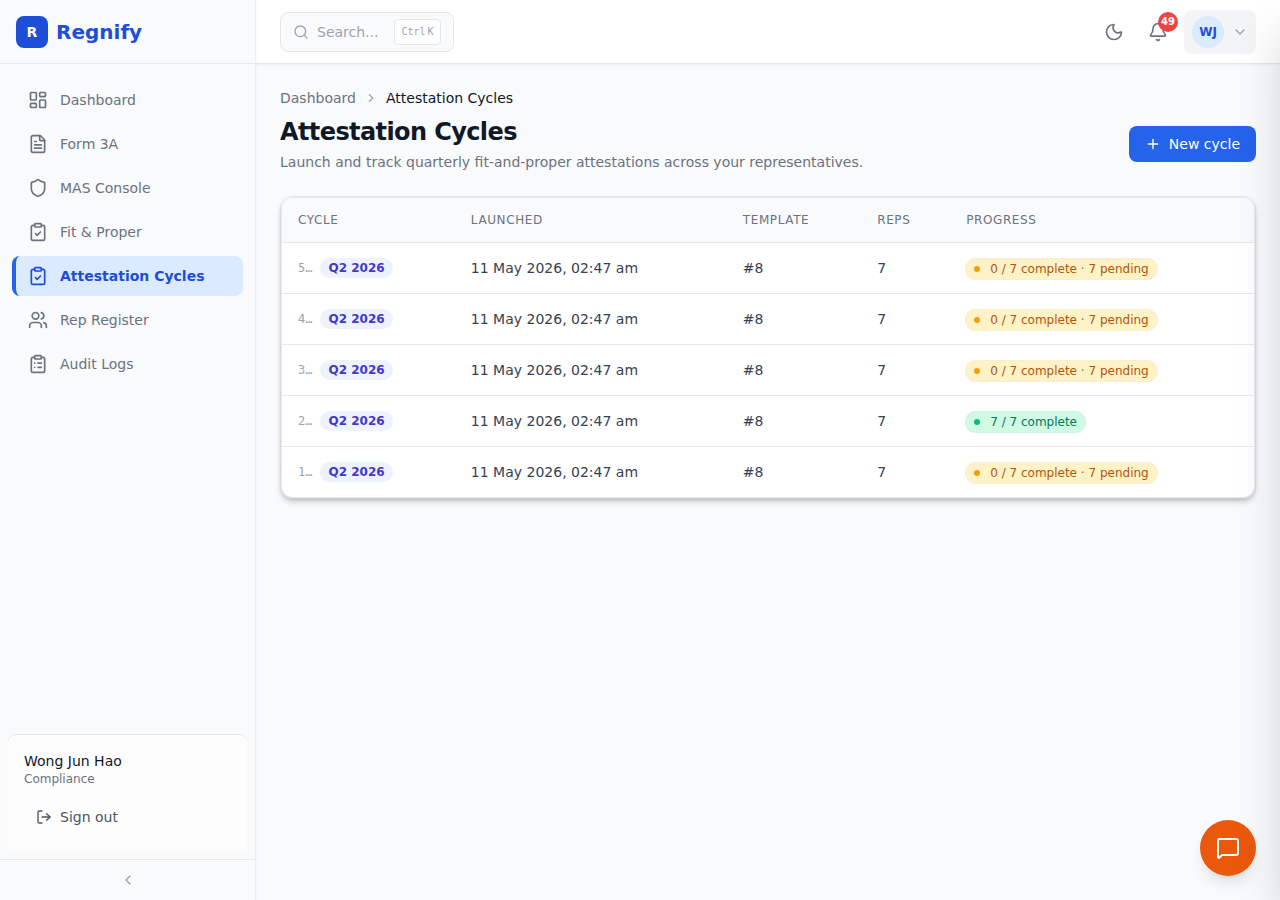 The attestation cycles list showing multiple cycles across organisations (Q1 2026, Q2 2026, Spot Check cycles), each with rep count, progress, and launch date.
Launching a New Cycle
- Select the target organisation using the Organisation dropdown at the top of the page.
- Click New cycle — a modal opens with the launch form.
- Select a workflow template — this determines the approval chain the attestation declarations will follow. If workflow templates have been configured for the organisation, a dropdown lists them by name and form type. If none are available, enter the template ID manually.
- Select representatives — all rep profiles linked to the selected organisation are listed. Use the search box to filter by name, username, rep number, or email address. Use Select all to include everyone, or check individual boxes for a targeted rollout.
- Click Launch cycle to submit.
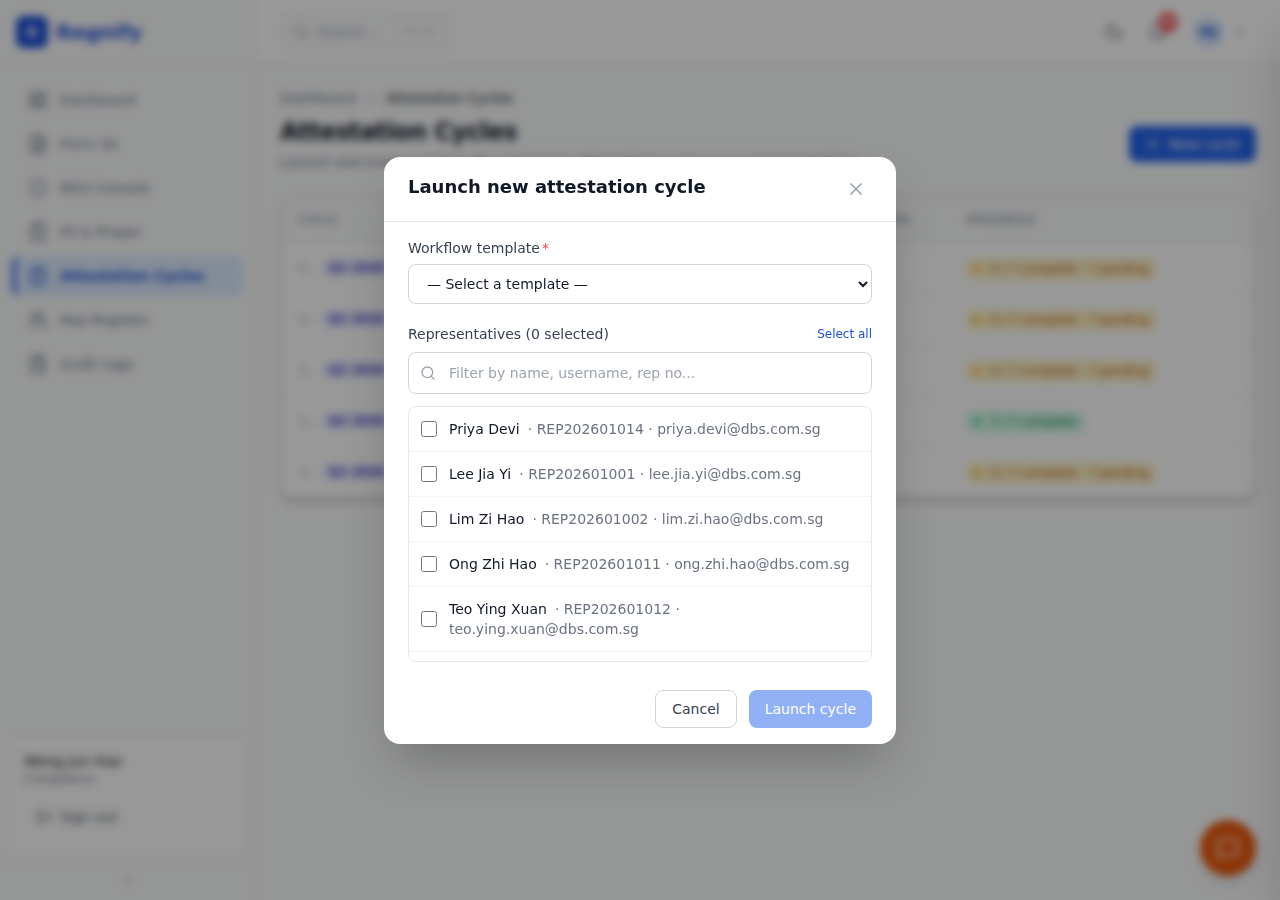 The Launch New Cycle modal: select a workflow template, choose representatives from the org, and confirm.
A success toast confirms how many representatives were included. The attestation cycle row appears in the table immediately.
Required permissions: COMP, HR_ADMIN, ORG_ADMIN, or SYS_ADMIN. The mutation will be rejected at the server if the caller's role does not have launch authority.
Tracking Completion
The cycle table shows, for each cycle:
| Column | What it means |
|---|---|
| Cycle | First 8 characters of the cycle UUID |
| Launched | Date and time the cycle was created |
| Template | Workflow template ID used |
| Reps | Total number of representatives in scope |
| Progress | Count of completed vs total, and how many remain pending |
The progress badge colour indicates overall status: - Green — all reps have completed their attestation - Amber — at least one rep has completed, but others are still pending - Grey — no reps have submitted yet (cycle just launched or no responses)
Chasing Non-Completers
To find out who has not yet submitted, ask the AI assistant:
"Who hasn't submitted their Q2 attestation for [organisation name]?"
The AI will use the non-completion chase playbook to pull the pending list from the current cycle, sorted by longest-pending first. It will then draft personalised reminder emails for each non-responder and present them to you for approval before sending anything.
Important: The AI will never send reminder emails without your explicit confirmation — either "send all" or by specifying individual recipients.
For reps who have been pending for more than 21 days, the AI flags them separately and recommends direct COMP officer intervention rather than an automated reminder.
Reviewing Individual Attestation Responses
Submitted attestations appear in the declarations list (/declarations). Each attestation declaration can be opened to see:
- The rep's answers to each fit-and-proper question (Yes / No)
- Any additional notes or disclosures the rep provided
- The declaration status and workflow progression
Anomaly Detection
After responses have landed, ask the AI to review them for inconsistencies:
"Run the anomaly check on cycle [cycleId] for rep [rep name]"
or
"Any red flags on this quarter's responses?"
The AI uses the detect_attestation_anomaly tool, which is an LLM-based review — not a keyword filter. It examines three sources of evidence:
- The rep's current attestation answers
- The rep's prior Form 3A declaration history
- Recent audit log entries for the rep
It returns a structured verdict with has_anomaly (yes/no), severity (low/medium/high), the specific question keys that were flagged, and a plain-English explanation of what was found.
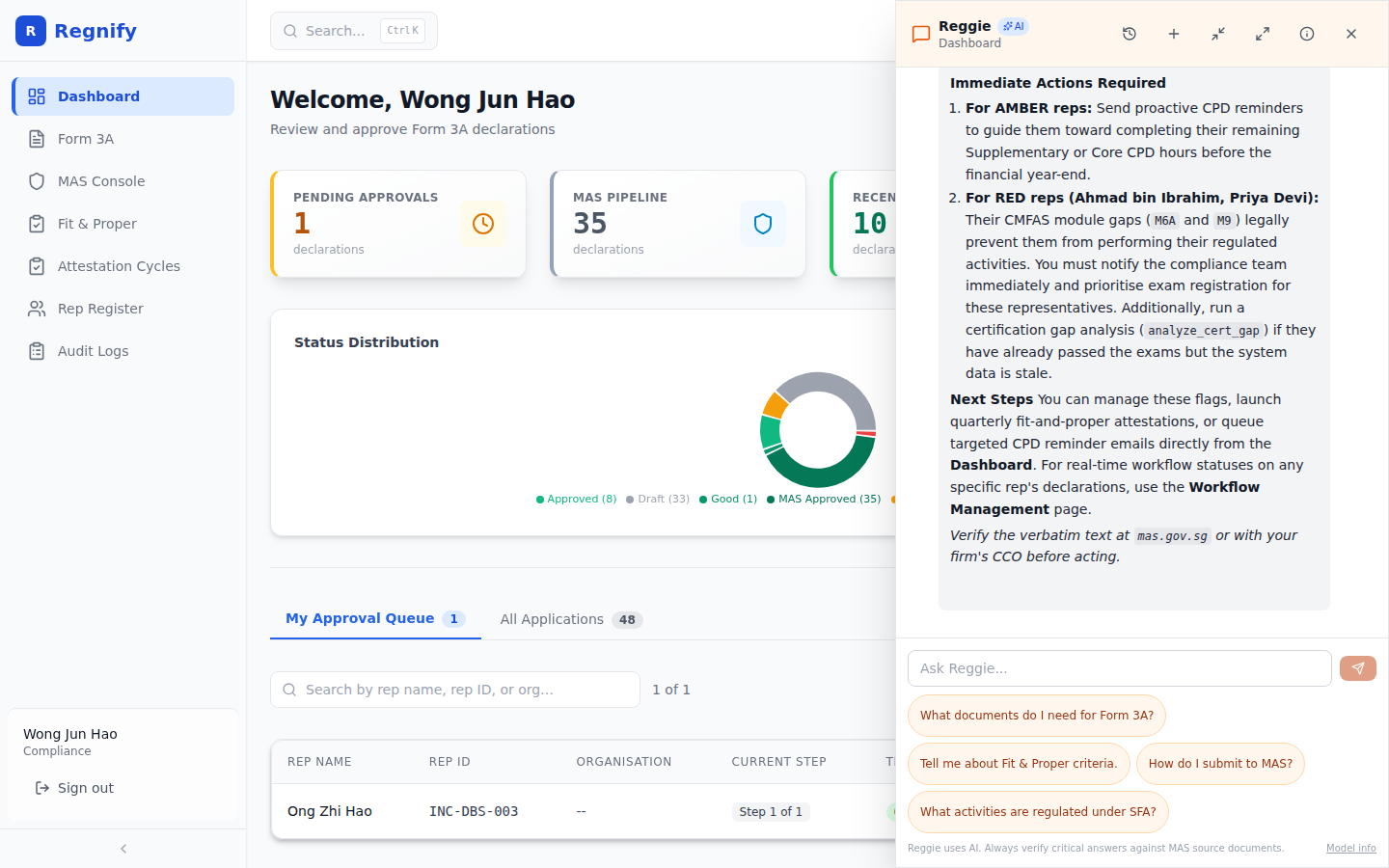 The AI's anomaly detection output: a structured report showing severity, flagged question keys, and the plain-English reason. High-severity findings include a regulatory escalation notice referencing the SFA s.99D(2) / FAA s.23A(2) duty to notify MAS.
Severity levels: - Low — minor inconsistency, low likelihood of regulatory significance; listed but not narratively expanded - Medium — potential contradiction with prior declarations or rapid-submit behaviour; the AI surfaces the declaration ID and verbatim response for your review - High — serious flags such as a criminal conviction denial contradicted by prior disclosures, or regulator-action inconsistency
Escalation for high-severity findings: If a high-severity finding involves a criminal conviction, regulator prohibition, or bankruptcy, the AI will append a warning that this may trigger a Section 99D(2) / FAA s.23A(2) duty to notify MAS of a material change. It will direct you to escalate to your COMP head and legal counsel immediately.
The anomaly detection surface is restricted to COMP, HR_ADMIN, and ORG_ADMIN roles. Plain FI_USER cannot access other reps' sensitive disclosures.
Rep Side — Licensed Representatives
Receiving an Invitation
When your principal FI launches an attestation cycle that includes you, you receive a notification in the Regnify notification bell. The notification reads something like: "Your quarterly fit-and-proper attestation is ready. Please complete it by [date]."
Navigating to Your Attestations
Route: /rep/attestations
In the Rep Portal, click Attestations in the top navigation bar. The page lists two sections:
- Pending attestations for you — cycles that have been launched and are awaiting your response
- Submitted attestations — completed cycles, shown with their current status (Pending Review, Approved, etc.)
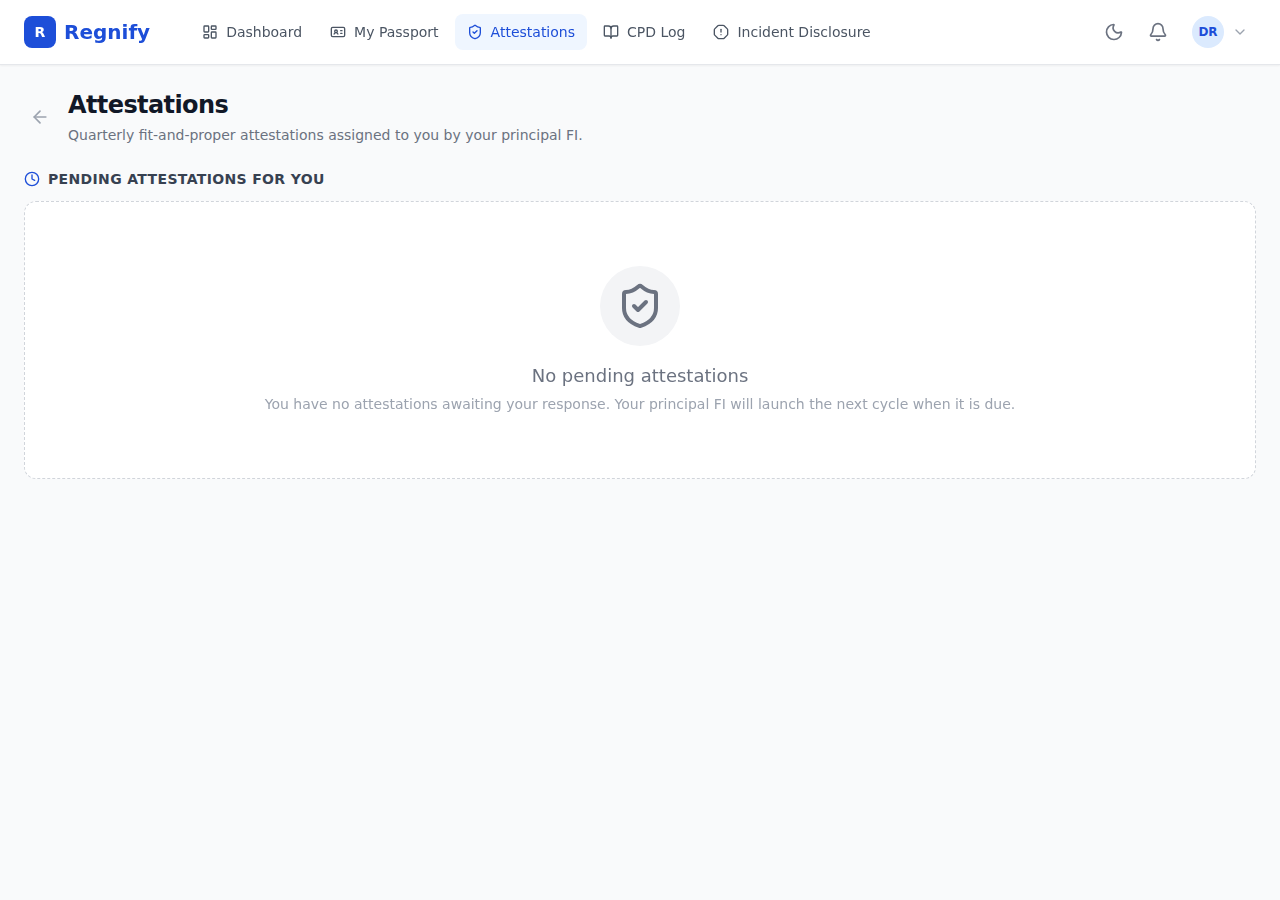 The Attestations tab in the Rep Portal. When no cycles have been assigned to your rep profile, it shows an empty state. Once an administrator launches a cycle that includes you, an invitation card appears here.
The Fit and Proper Questions
Each quarterly attestation presents five standardised questions aligned with the MAS fit-and-proper criteria narrative (FSG-G01):
- Honesty, integrity, and fair dealing — "I continue to meet the honesty, integrity, and fair-dealing standards required of a licensed representative."
- No new criminal record — "I have not been convicted of, or charged with, any criminal offence since my last attestation."
- No bankruptcy — "I have not been made bankrupt and there are no unsatisfied civil judgments against me."
- No MAS or regulatory action — "No MAS or foreign regulator has initiated disciplinary, enforcement, or investigative action against me."
- CPD on track — "I am on track to meet my CPD obligations for the current cycle (FAA-N26 / SFA04-N22 as applicable)."
Answering the Questions
Click Open on a pending attestation card. The attestation form opens with:
- A header card showing the declaration number, cycle ID, and current status
- The five questions, each with two radio options:
- Yes, I confirm — you meet the stated standard
- No — I need to disclose below — you have an adverse fact to disclose
- An Additional notes or disclosures text area at the bottom — use this to provide context for any "No" answer, or leave it blank if all answers are "Yes"
All five questions must be answered before the form can be submitted.
Submitting the Attestation
Once all questions are answered, click Submit attestation. A loading state shows while the submission is processed, then a success toast confirms: "Attestation submitted for review."
The attestation moves from "Draft" status to "Pending Review". Your compliance officer or HR Admin will review and approve it. You will receive a notification when action is taken.
If you answered "No" to any question, your disclosure is visible to your approver when they review the declaration. It is important that every answer reflects reality as of the attestation date — amendments after submission are possible but are logged and flagged to your COMP officer.
Viewing Past Attestations
Past completed attestations appear in the Submitted attestations section of the page. Each card shows the declaration number, the submission date, and the current status badge.
Getting AI Help with Your Attestation
Ask the AI assistant in the Rep Portal:
"Walk me through each attestation question."
or
"I had a late CPF payment last month — do I have to disclose it?"
The AI will use the attestation self-coach playbook to provide item-by-item guidance, citing the specific FSG-G01 paragraph or SFA/FAA section that motivates each question.
Important: If you signal a materially adverse fact — a criminal conviction, regulator action, or bankruptcy — the AI will stop coaching and direct you to speak with your firm's COMP officer before submitting. Disclosures of this nature deserve compliance input on how they are phrased.
AI Integration — Attestation-Specific Tools
launch_attestation_cycle Tool
The launch_attestation_cycle tool fires the NestJS GraphQL mutation that creates the cycle row and enqueues invitation notifications. It requires org_id, template_id, and a list of rep_ids.
Critical design: the tool requires explicit user confirmation before executing the write. The AI will never launch a cycle silently. Before calling the mutation, it restates back to you:
"I will launch a cycle on org [name] using template [ID], covering [N] active representatives ([first three names], …). Reply confirm to proceed."
Only after you reply "confirm" (or equivalent) does the tool fire. This is the #1 regret-prevention mechanism: launching against the wrong template corrupts the approval chain for every rep in the cycle.
detect_attestation_anomaly Tool
This tool makes a semantic judgement — it uses an LLM, not a rule engine. The AI receives all three evidence slices (attestation responses, prior declarations, audit logs) and reasons across them holistically.
The tool returns:
- has_anomaly — boolean
- severity — low / medium / high
- fields_flagged — list of question keys that triggered concern (e.g., no_new_criminal, no_bankruptcy)
- reason — one paragraph explaining what was found
Severity definitions in context: Severity is not a fixed threshold — it is the LLM's judgement of the regulatory weight of the inconsistency, considering all three evidence slices together. A "high" finding does not mean the rep has committed a violation; it means the inconsistency is serious enough to warrant immediate human review by a COMP officer.