04 — Form 3A — Declaration Filing
Form 3A is the Monetary Authority of Singapore (MAS) notification form for the appointment or re-appointment of a licensed representative under the Securities and Futures Act (SFA) and the Financial Advisers Act (FAA). In Regnify, Form 3A is a single scrollable page with 14 MAS-specified sections and a collapsible Table of Contents sidebar. This replaces the legacy multi-step wizard — the representative fills in their sections continuously, and approvers fill in the remaining sections during the review process.
Prerequisites: You must be logged in with the FI_USER role. You must not have another non-Draft declaration in the approval chain — a representative can have only one active declaration at a time.
Overview
When you open Form 3A, you see two areas:
- Left — Sections sidebar: Lists all 14 sections with a completion indicator for each — a green tick when complete, an N/A badge when not applicable, a red error indicator when a required field is missing, and no badge when in progress.
- Right — Content area: The selected section's fields and a blue Approval Chain banner at the top showing the current workflow state.
The header shows the current declaration type (e.g. "FAA Form 3A"), a Save Draft button, and a Submit button.
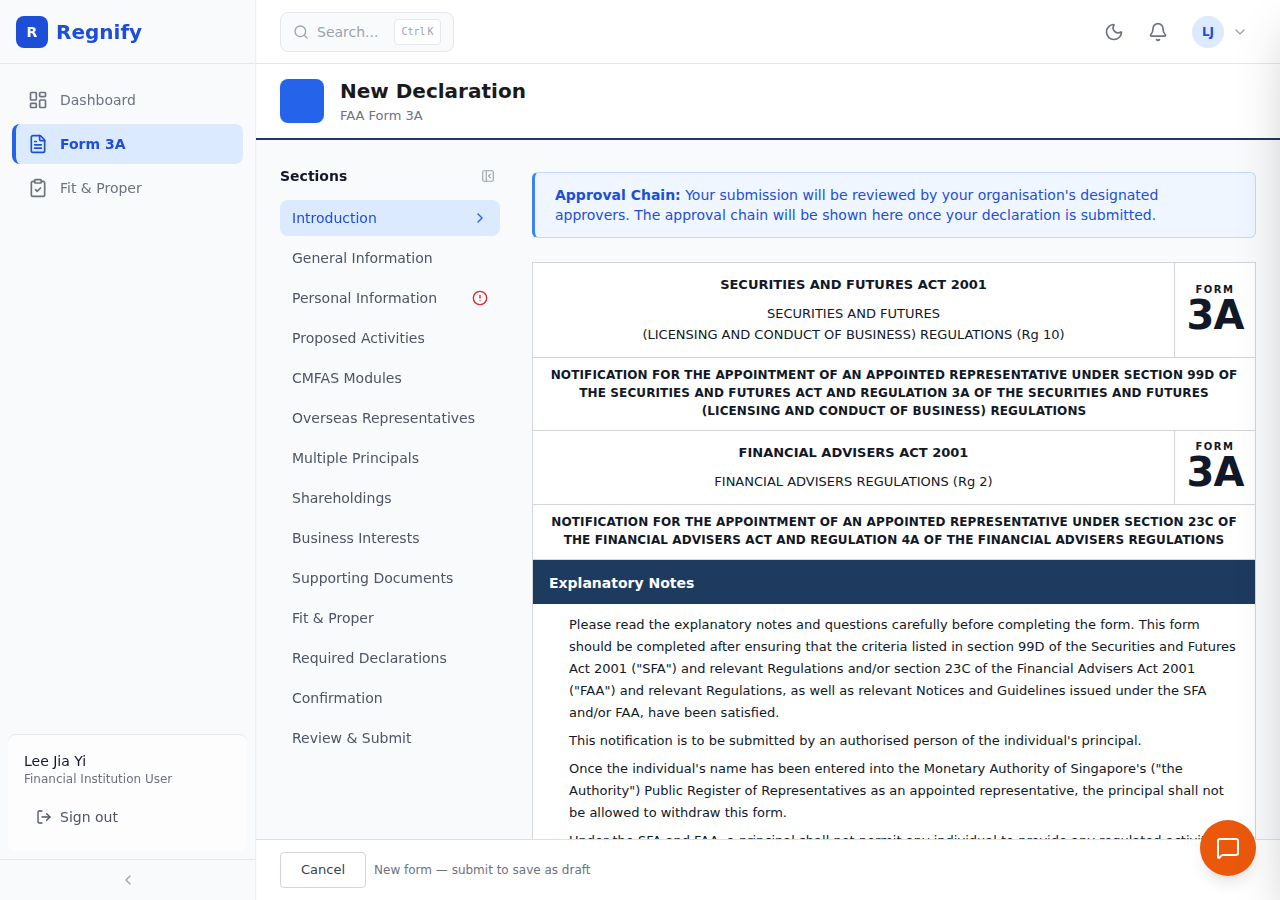 Form 3A overview: left TOC sidebar with 14 sections, right content area showing the Introduction and Approval Chain banner.
Four Modes
The same form URL adapts to the user's role and the declaration's status:
| Mode | Who uses it | Sections accessible |
|---|---|---|
| edit | FI_USER representative |
Sections 1–10 (their own data) |
| approver-edit | HR_ADMIN / COMP during review |
Sections 1–10 read-only; Sections 11–13 editable |
| view | SYS_ADMIN, ORG_ADMIN, or any role on a finalised declaration |
All sections read-only |
| preview | Representative reviewing before submission | Sections 1–10 editable; Review & Submit visible |
A blue banner near the top of sections 11–13 reads: "Sections 11–13 are completed by your HR / Compliance approver during the review process."
TOC Sidebar
The sidebar lists all 14 sections in submission order. Click any section name to scroll directly to it. Each entry shows one of the following indicators:
| Indicator | Meaning |
|---|---|
| Green tick | Section complete — all required fields filled |
| N/A badge | Section marked not applicable (e.g. overseas question answered No) |
| Red circle | Section has one or more missing required fields |
| No badge | Section not yet started |
The sidebar can be collapsed using the arrow icon in its top-right corner to give the content area more space.
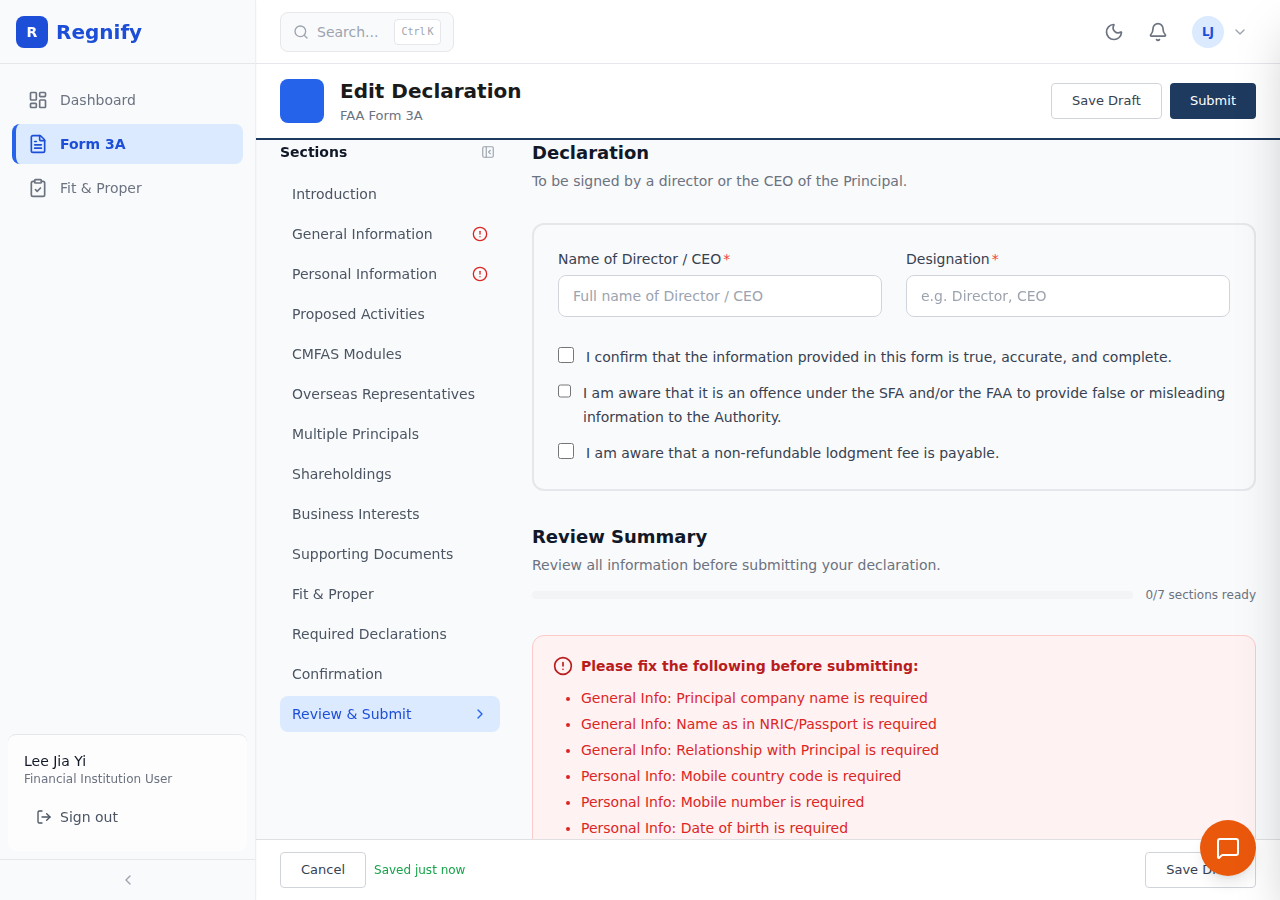 TOC sidebar after completing several sections: green ticks for complete sections, N/A badge for inapplicable sections, and no badge for sections not yet started.
Auto-Save
The form automatically saves every 30 seconds as a Draft. A status indicator in the bottom footer bar shows the save state at all times:
| Indicator | Meaning |
|---|---|
| Draft not yet saved | New form, no save has occurred yet |
| Saving… | Save in progress |
| Saved just now (green) | Changes persisted as Draft |
| Error — Retry (red) | Save failed; click Retry |
On a new form, a draft record is created automatically on the first save (auto-save or manual). If you close the browser, the draft is preserved and reopened from the Dashboard.
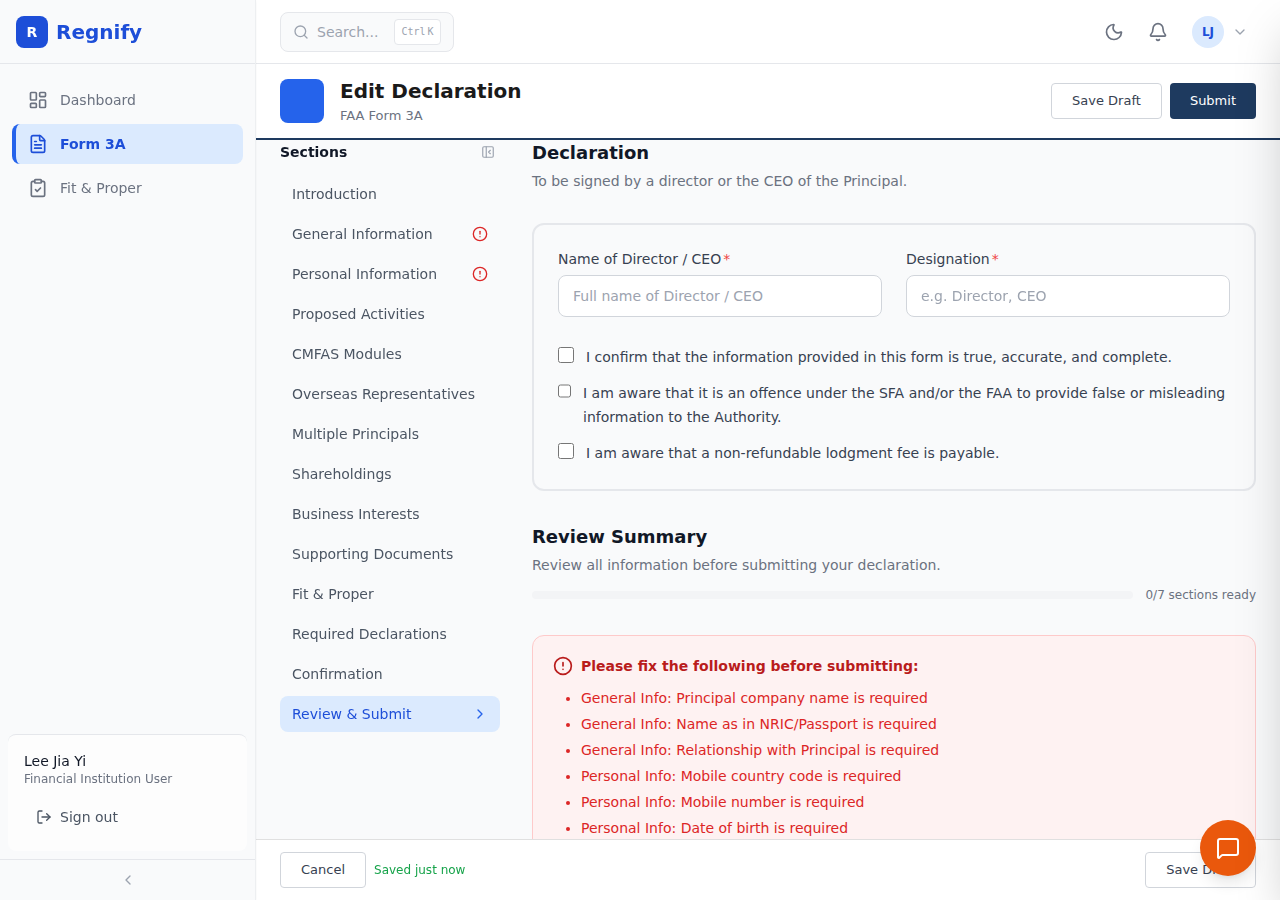 The footer bar showing "Saved just now" in green. The status cycles through: Draft not yet saved → Saving… → Saved just now → Error — Retry.
The 14 Sections
Section 1 — Introduction
Displays the official MAS Form 3A header text from the Securities and Futures Act 2001 (SFA) and the Financial Advisers Act 2001 (FAA), along with the Explanatory Notes. Read and scroll through before filling in the form.
The blue Approval Chain banner at the top of this section shows the workflow chain once the declaration has been submitted.
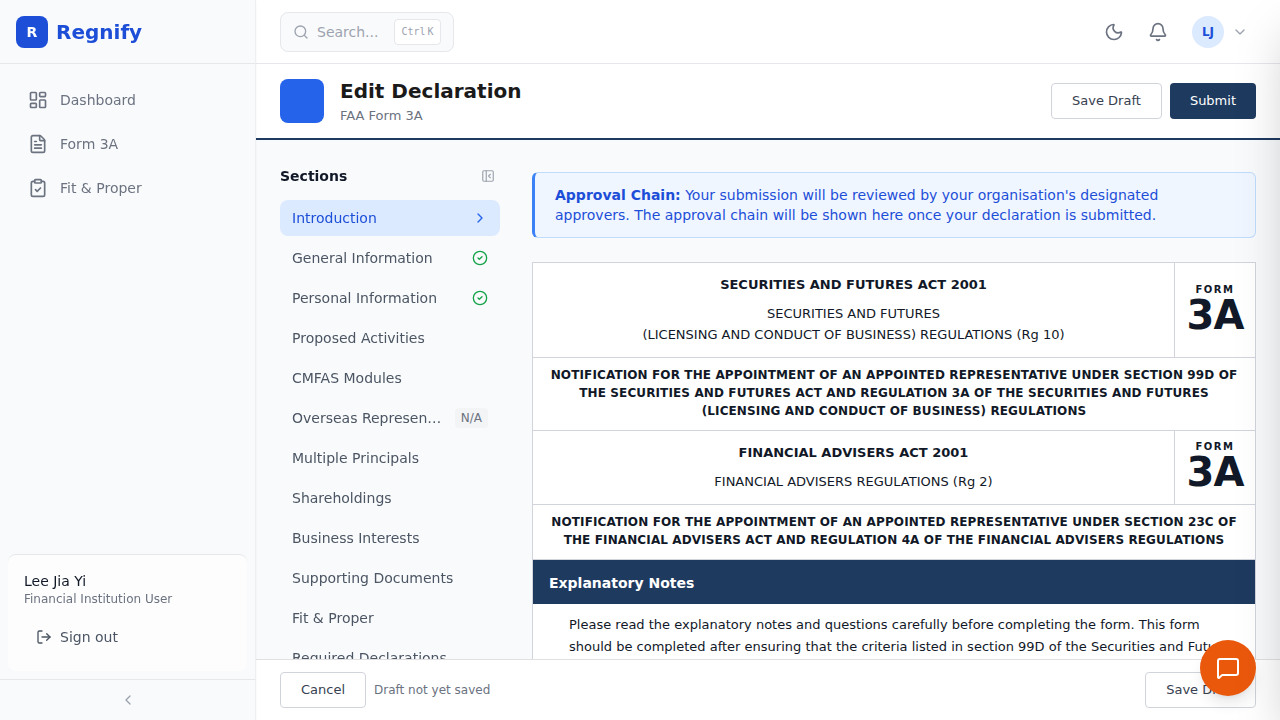 Section 1: the official SFA and FAA Form 3A headers, Explanatory Notes, and the Approval Chain banner — shown alongside the TOC sidebar with N/A already set on Overseas Representatives.
Section 2 — General Information
Captures the Principal's company details and the representative's identity.
| Field | Required | Notes |
|---|---|---|
| Full name of company (the Principal) | Yes | Legal registered name |
| Has the individual carried on regulated activity on or after 26 Nov 2010? | Yes | Radio — Yes / No |
| Representative number | Conditional | Required if "Yes" above |
| Name as reflected in NRIC / FIN / Passport | Yes | Must match identity document exactly |
| Relationship with the Principal | Yes | Radio — Employee / Self-employed |
| Company UEN | No | e.g. 196800306E |
| Date of appointment | No | Date picker |
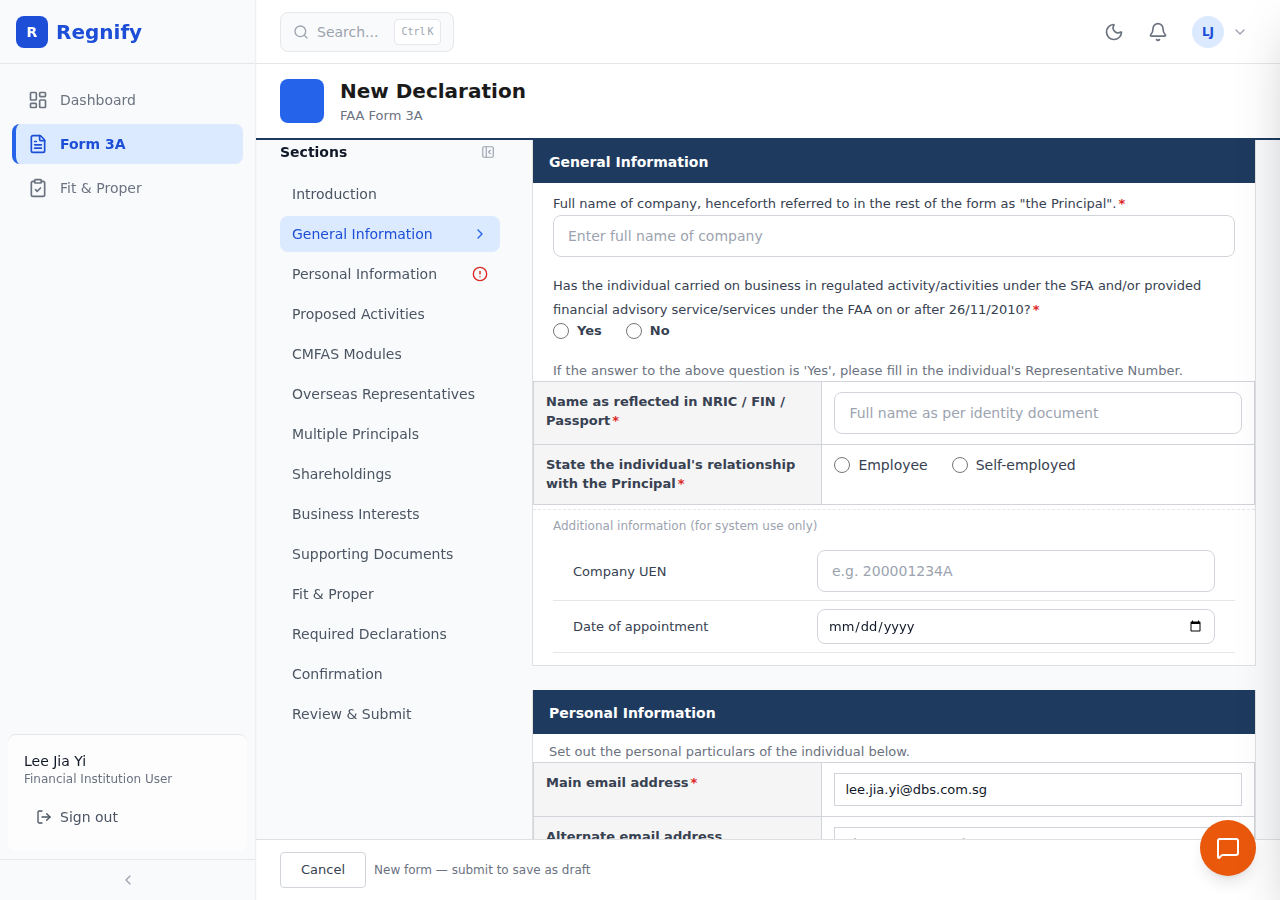 General Information section: company name, regulated activity history question, name as on NRIC, relationship to Principal.
Section 3 — Personal Information
Collects the representative's contact details and identity document particulars.
| Field | Required | Notes |
|---|---|---|
| Main email address | Yes | Pre-filled from your Keycloak profile |
| Alternate email address | No | Secondary contact |
| Mobile telephone | Yes | Country code + number, e.g. +65 91234567 |
| Date of birth | Yes | Date picker |
| Gender | Yes | Radio — Male / Female |
| Nationality type | Yes | Singapore Citizen / Singapore PR / Others |
| Country of citizenship | Conditional | Required if "Others" |
| NRIC number | Conditional | For Singapore Citizens and PRs, e.g. S1234567A |
| FIN | Conditional | For non-residents, e.g. G1234567A |
| Passport number | Conditional | For non-residents |
NRIC and FIN are validated against the ICA checksum algorithm at submit time.
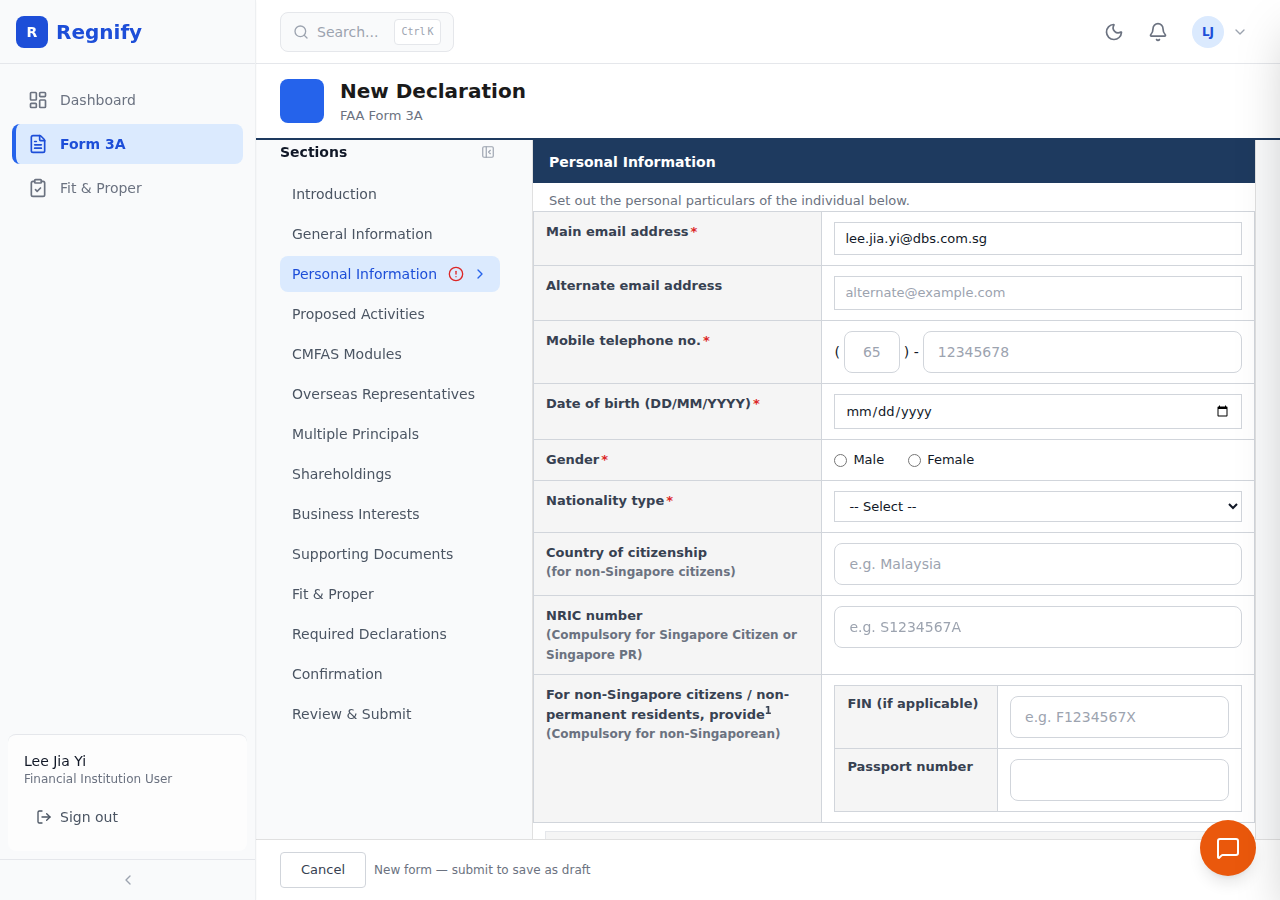 Personal Information section: email, mobile, date of birth, gender, nationality type, NRIC/FIN fields.
Section 4 — Proposed Activities
Declares which regulated activities the representative will carry out. At least one activity must be selected before the declaration can be submitted.
Under the Securities and Futures Act (SFA)
| Activity | Notes |
|---|---|
| Dealing in capital markets products | Parent checkbox with sub-options: Securities, Units in CIS, ETD, OTC derivatives, Spot FX (leveraged) |
| Fund management | Standalone |
| REIT management | Standalone |
| Providing credit rating services | Standalone |
| Advising on corporate finance | Standalone |
Under the Financial Advisers Act (FAA)
| Activity | Notes |
|---|---|
| Advising on investment products | Parent checkbox with 8 product sub-options |
| Issuing investment analyses / reports | Parent checkbox with the same 8 sub-options |
| Arranging contracts of insurance (life) | Standalone |
Checking a parent checkbox enables its sub-options. The activities selected here determine which Fit & Proper certification items appear in Section 11.
| Field | Required | Notes |
|---|---|---|
| Proposed date of commencement | Yes | Date picker |
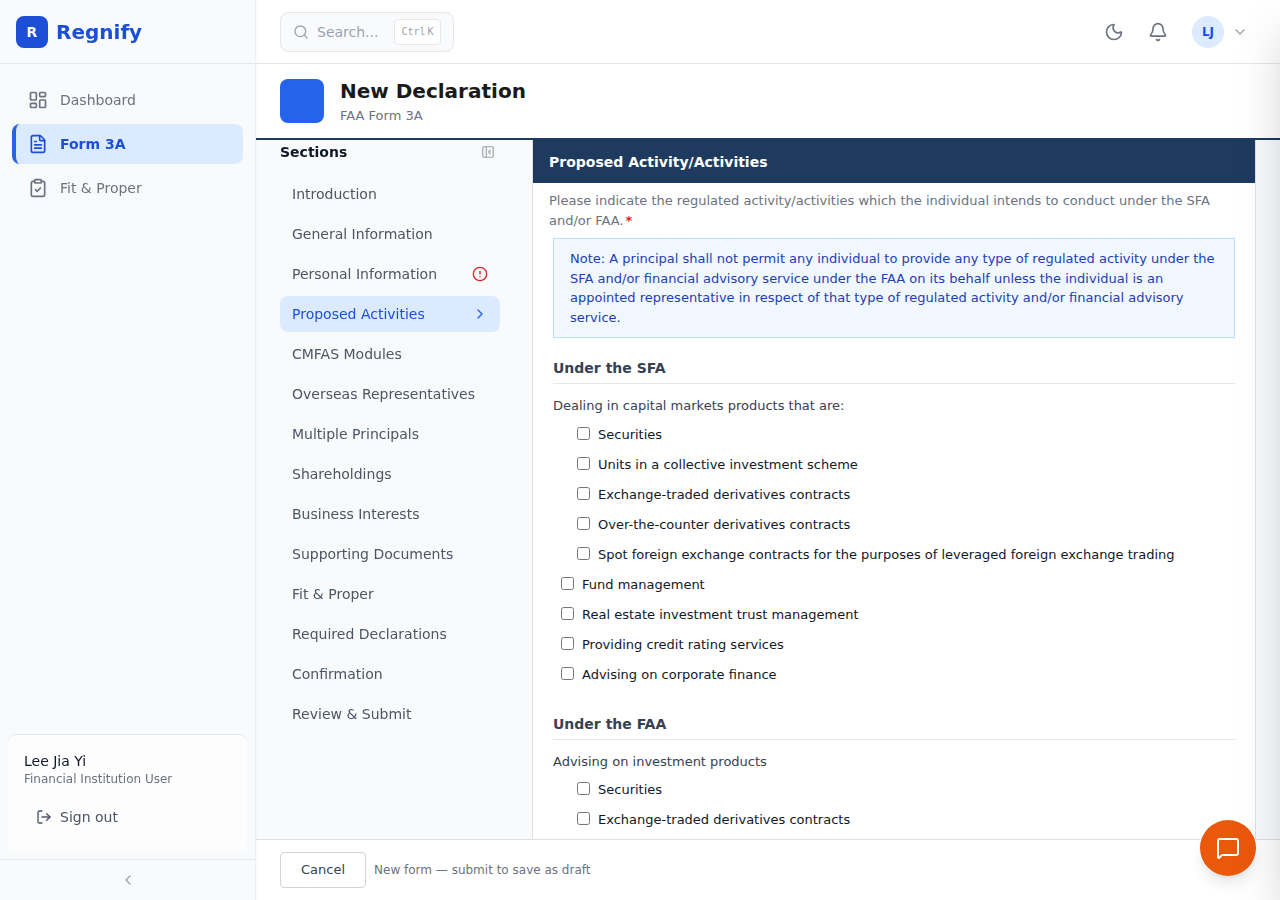 Proposed Activities: SFA and FAA panels with hierarchical activity checkboxes.
Section 5 — CMFAS Modules
Lists the Capital Markets and Financial Advisory Services examination modules the representative has passed, relevant to their proposed activities.
Click Add Module to record each module. For each entry:
| Field | Required | Notes |
|---|---|---|
| Module name | Yes | Select from dropdown — M1A, M5, M6, M6A, M8, M8A, M9, M9A, etc. |
| Passing date | Yes | Date the examination was passed |
| IBF Registration number | No | IBF-issued certificate ID |
Modules appear as a list once added. Each can be removed with the delete icon.
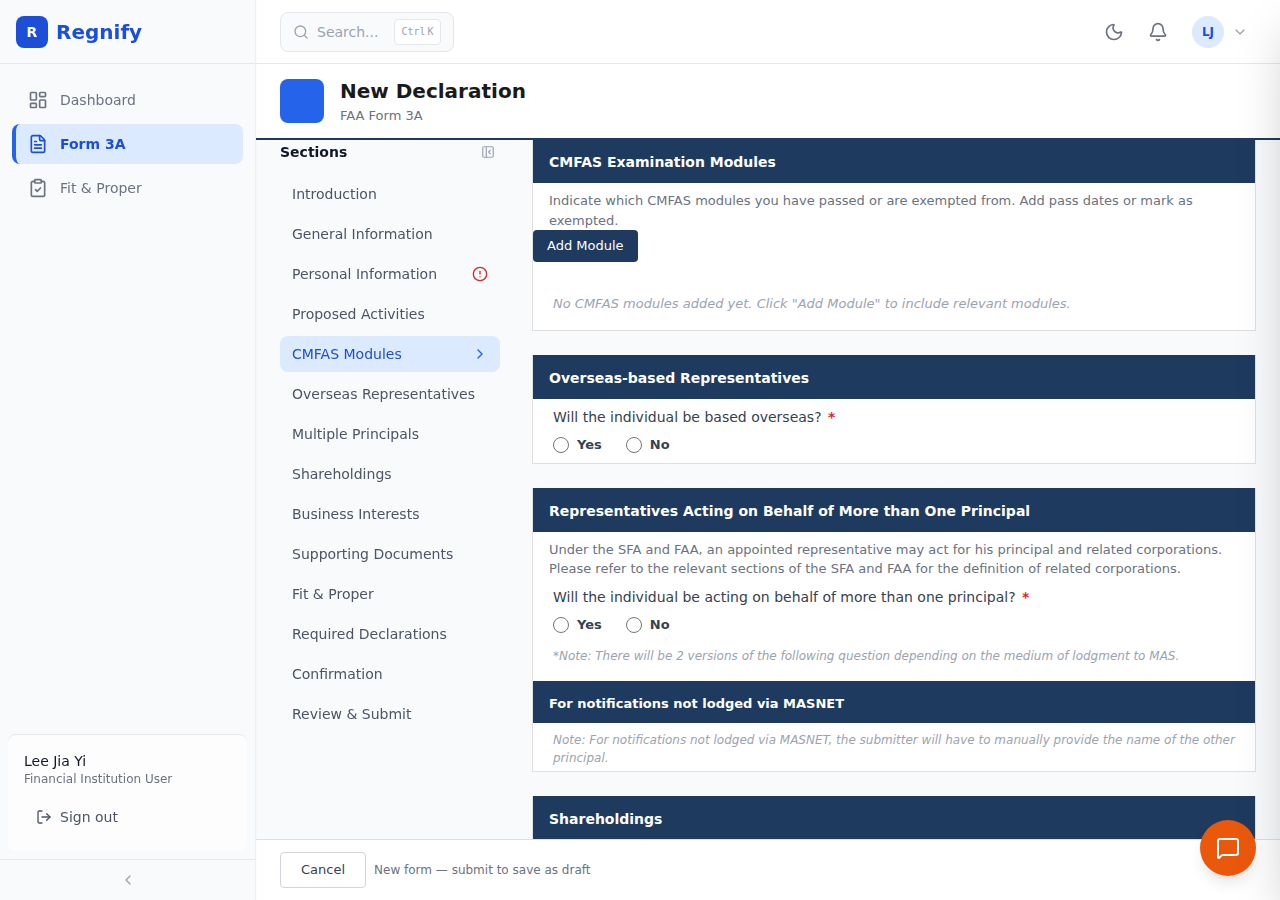 Section 5: Add Module interface for recording passed CMFAS examination modules.
Section 6 — Overseas-based Representatives
Applies only when the representative will be based outside Singapore.
| Field | Required | Condition |
|---|---|---|
| Will the individual be based overseas? | Yes | Radio — Yes / No |
| Reason for overseas placement | Conditional | Required if "Yes" |
When answered No, the section collapses to a compact "Not applicable" state, and the TOC sidebar shows an N/A badge next to the section name. The collapse logic uses === 'No' — blank forms always start fully expanded so unanswered questions do not trigger a false N/A.
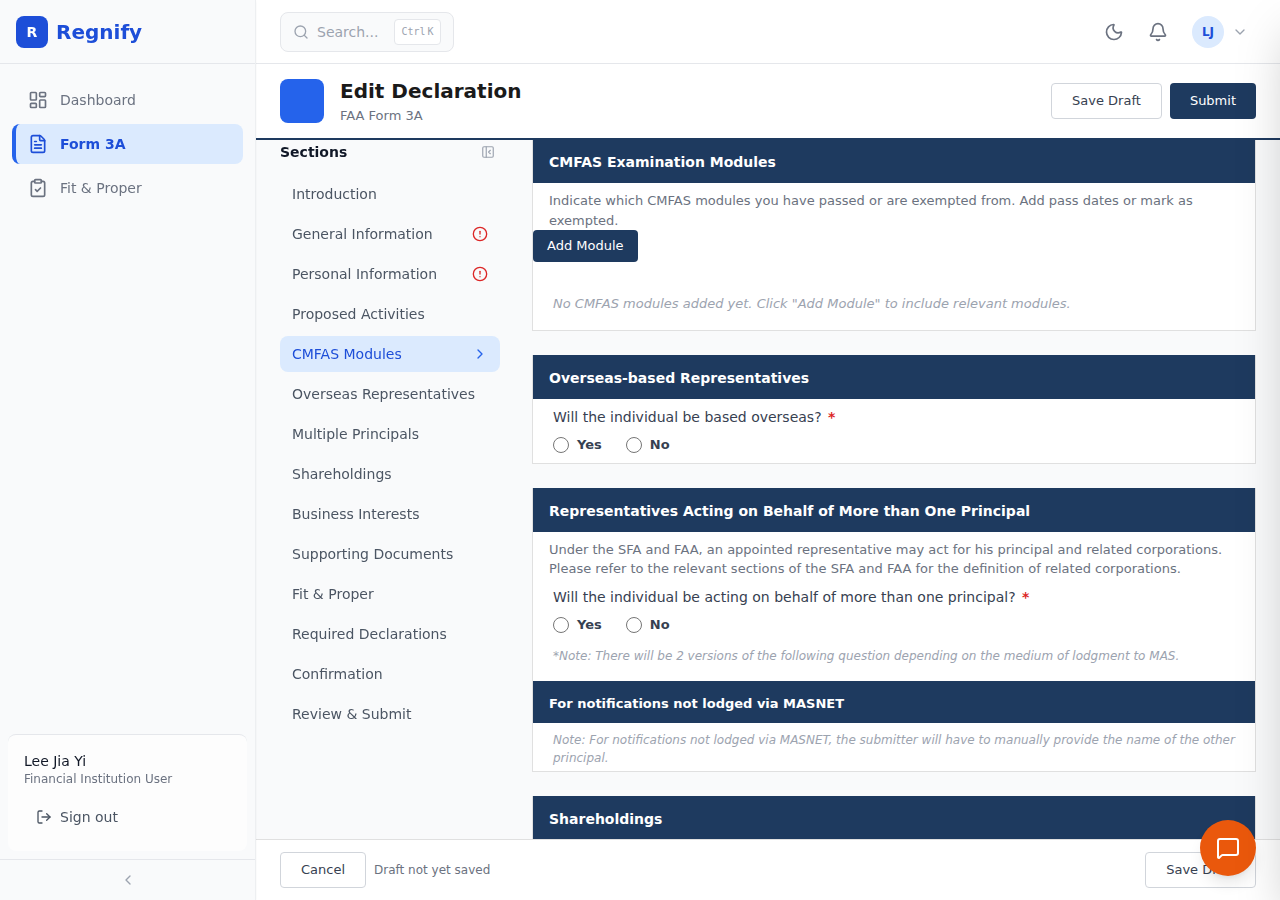 Section 6 after answering "Based overseas = No": the section body collapses to a grey "Not applicable" message and the TOC badge changes to N/A.
Section 7 — Multiple Principals
Applies only when the representative acts on behalf of more than one Principal.
| Field | Required | Condition |
|---|---|---|
| Will the individual act for more than one Principal? | Yes | Radio — Yes / No |
| Name of other principal(s) | Conditional | Required if "Yes" |
| Are the other principals related corporations? | Conditional | Radio — Yes / No, if multiple confirmed |
When answered No, this section also collapses to N/A with the same logic as Section 6.
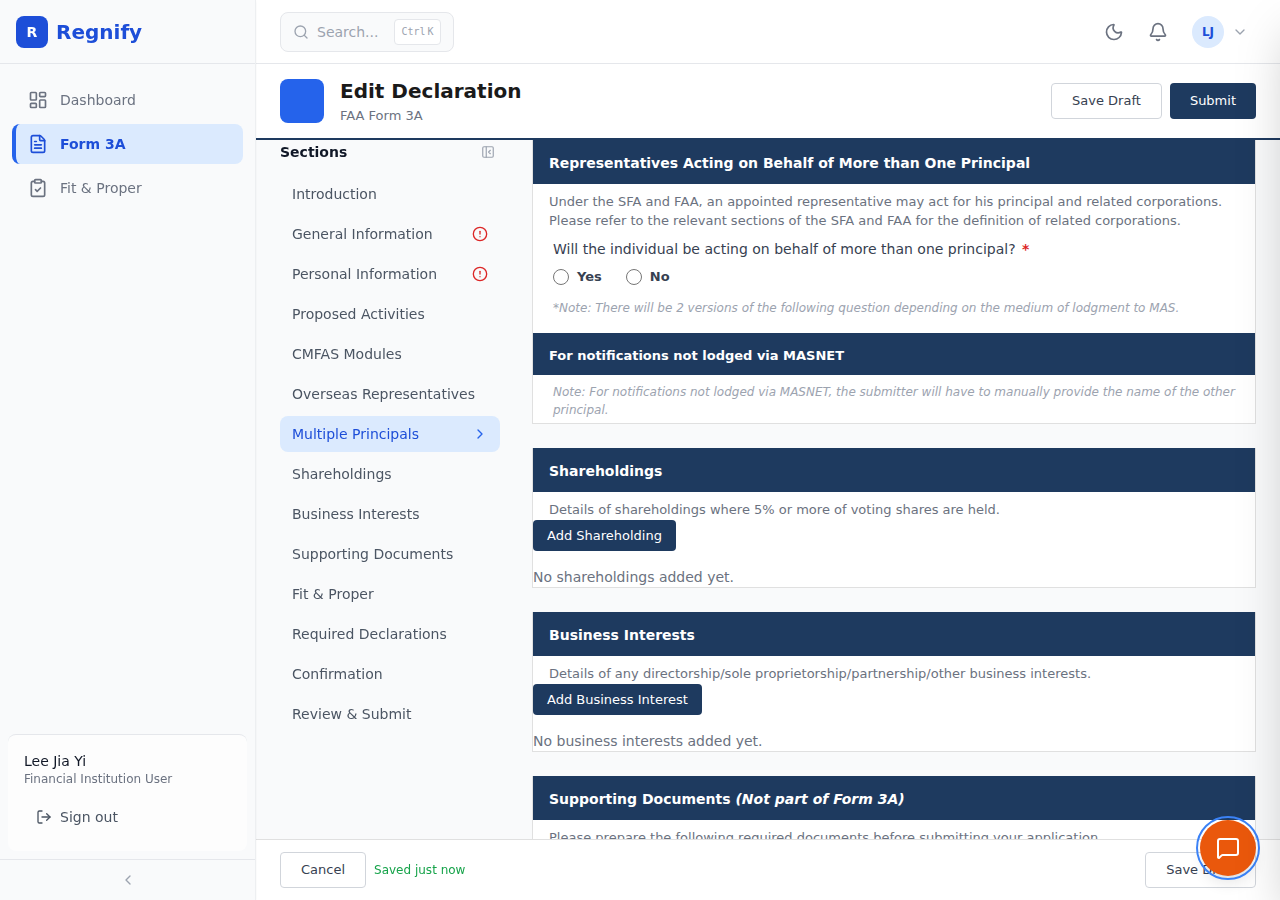 Section 7: radio choice for whether the representative acts for more than one Principal, with conditional follow-up fields.
Section 8 — Shareholdings
Captures any significant shareholding interests the representative holds that could create a conflict of interest.
| Field | Notes |
|---|---|
| Does the individual hold substantial sharehold interests? | Radio — Yes / No |
| Details of shareholding | Required if "Yes"; company name, percentage |
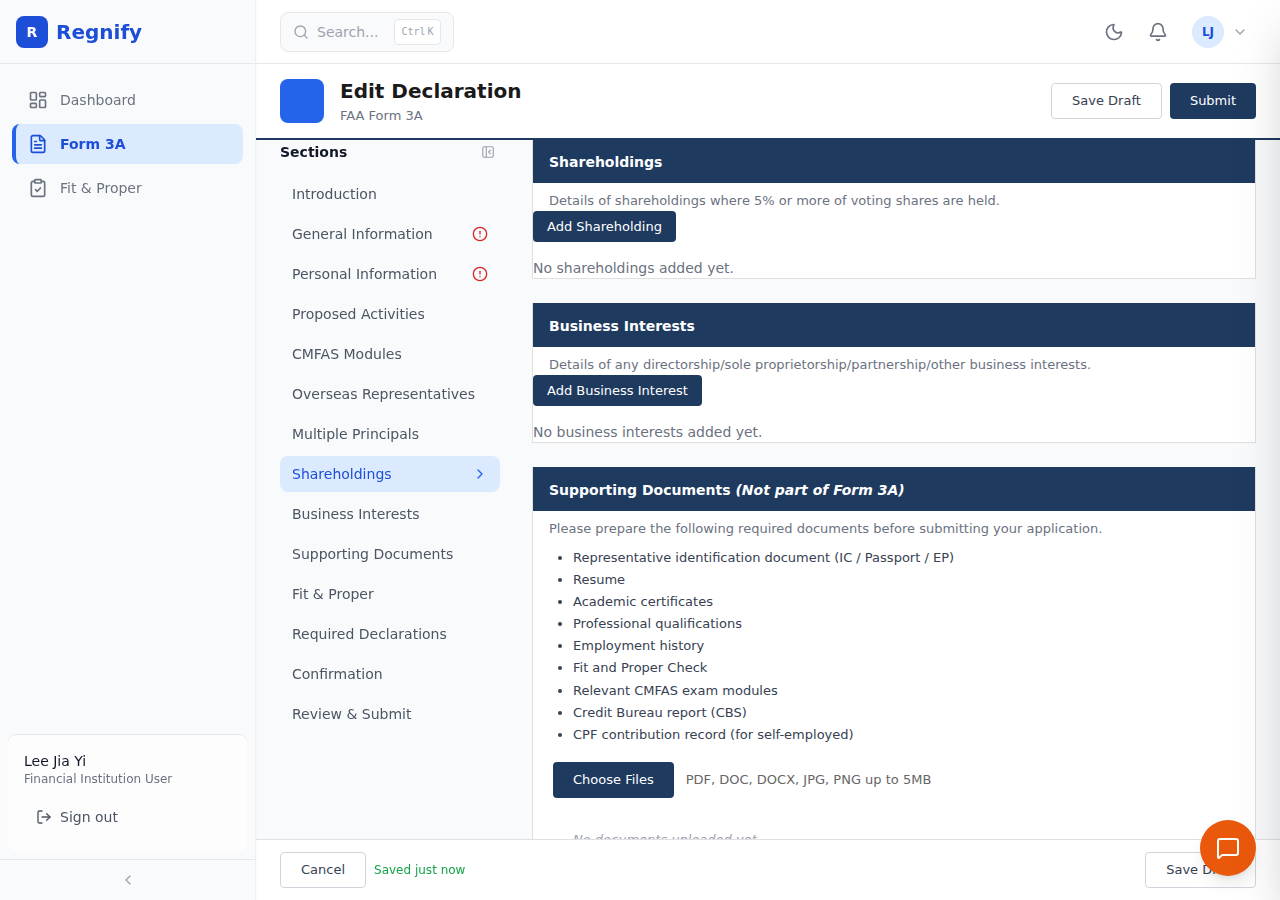 Section 8: shareholding disclosure with conditional detail fields when "Yes" is selected.
Section 9 — Business Interests
Captures other business interests and directorships.
| Field | Notes |
|---|---|
| Does the individual hold any other business interests or directorships? | Radio — Yes / No |
| Details | Required if "Yes"; company, nature of interest |
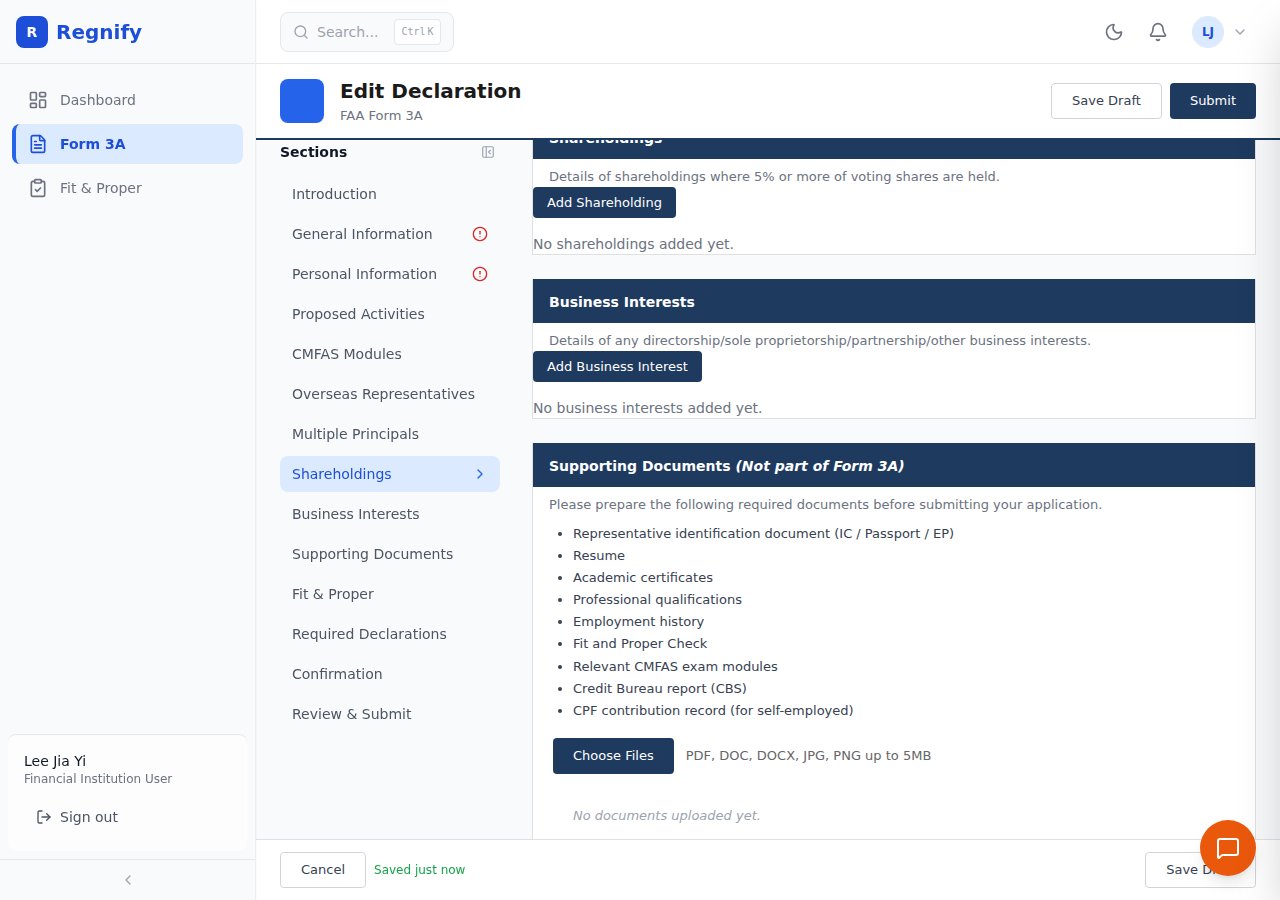 Section 9: business interests and directorship disclosure.
Section 10 — Supporting Documents
At least one document must be uploaded before the declaration can be submitted.
Upload method: Click Choose Files or drag and drop. Multiple files can be added at once.
Accepted formats: PDF, DOC, DOCX, JPG, PNG — up to 5 MB per file.
After uploading, each file appears in a table:
| Column | Notes |
|---|---|
| File Name | The uploaded file's original name |
| Document Type | Dropdown — choose the category (NRIC/FIN, Educational Certificate, CMFAS Results, Employment Contract, Reference Letter, Other) |
| Size | File size |
| Actions | Remove button |
AI document extraction: After you upload a document, Regnify uses Gemini Vision AI to automatically extract structured fields (name, NRIC, date, etc.) and pre-fills matching form fields with confidence scores. You do not need to manually copy data from documents.
Sections 11–13 note: A blue banner below the document list reminds FI_USER accounts that Sections 11, 12, and 13 are filled in by the HR / Compliance approver — not by the representative.
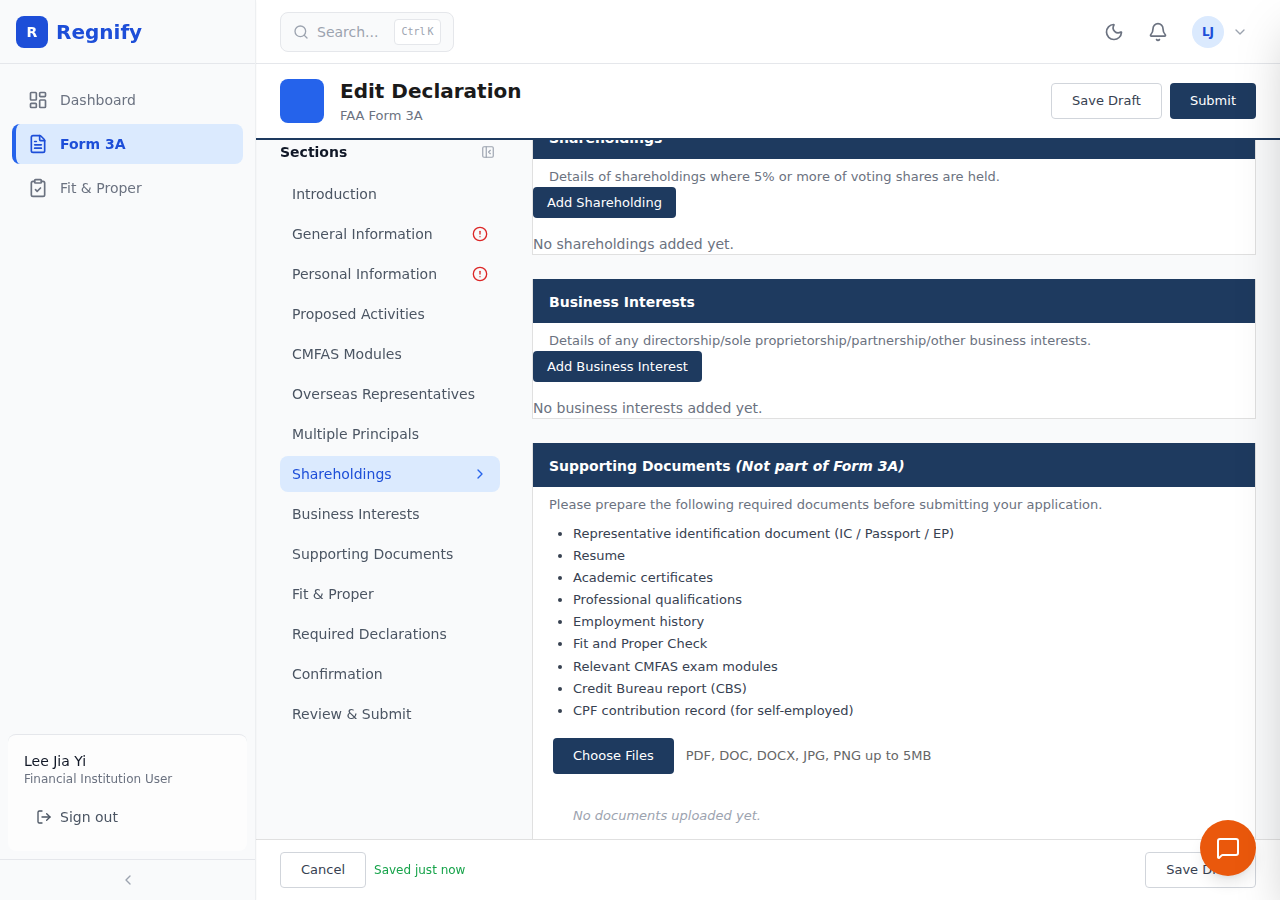 Section 10: document upload table with file names, type dropdowns, and the informational banner about Sections 11–13.
Sections 11–13 — Approver Sections (HR / Compliance)
These three sections are completed by the Principal's HR Administrator or Compliance Officer during the internal review process. They are not editable by the representative (FI_USER) — the form displays a blue informational banner in this area when viewed by the representative.
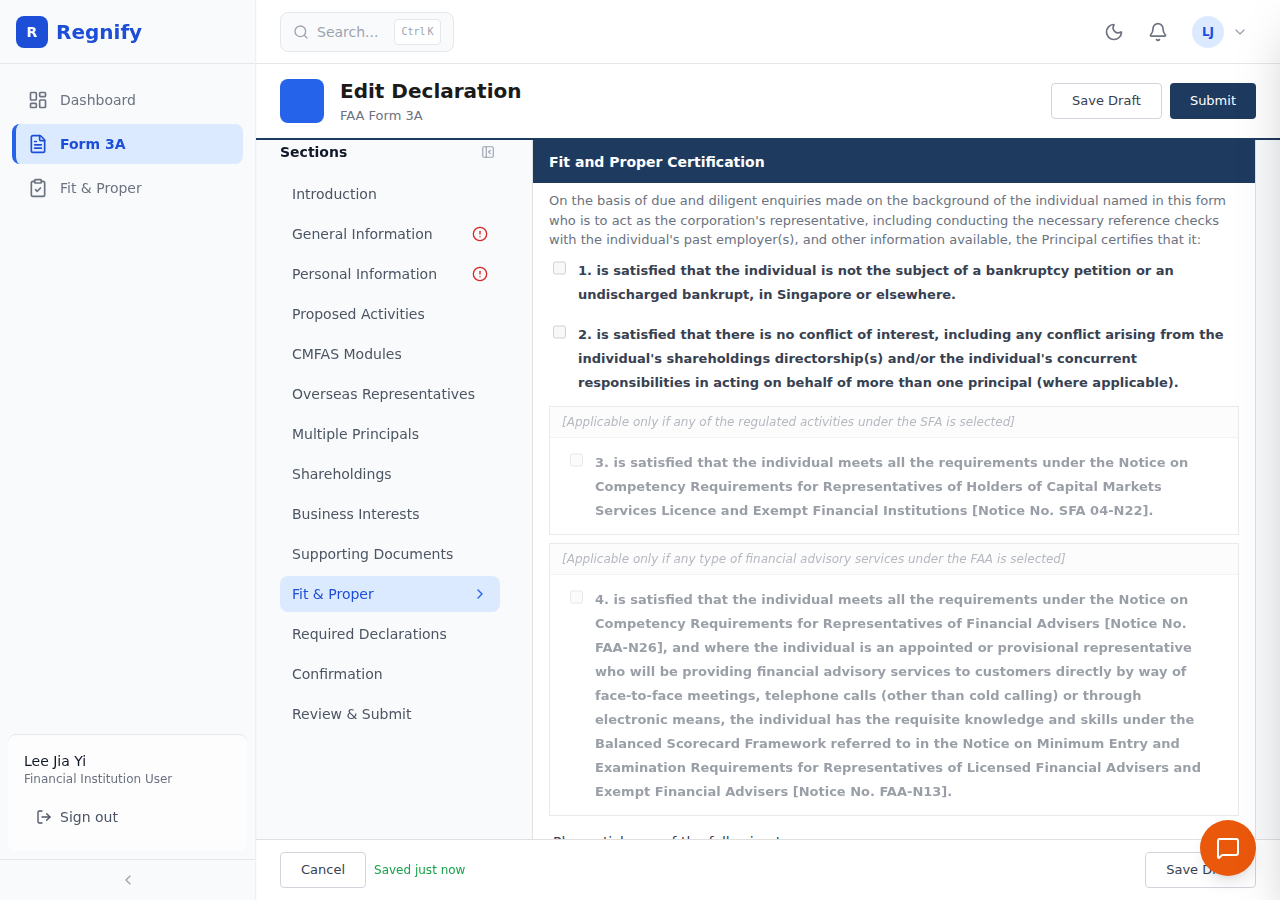 The blue banner that FI_USER sees below Section 10: "Sections 11–13 are completed by your HR / Compliance approver during the review process."
Section 11 — Fit and Proper Certification
The Principal certifies that due diligence has been conducted. Up to 8 items are presented as numbered checkboxes. Items 3 and 4 appear conditionally based on the activities declared in Section 4.
| Item | Description | Condition |
|---|---|---|
| 1 | Not subject to bankruptcy petition or undischarged bankrupt | Always |
| 2 | No conflict of interest from shareholdings or concurrent responsibilities | Always |
| 3 | Meets competency requirements under Notice SFA 04-N22 | SFA activities selected |
| 4 | Meets competency requirements under Notice FAA-N26 and Balanced Scorecard Framework | FAA activities selected |
| 5 | Adverse information assessment (radio: not aware / aware and assessed) | Always |
| 6 | Meets Fit and Proper criteria under Guideline FSG-G01 | Always |
| 7 | Due diligence conducted per SFA s.99H(4) and/or FAA s.23F(4) | Always |
| 8 | CPF contributions not in arrears (where applicable) | Always |
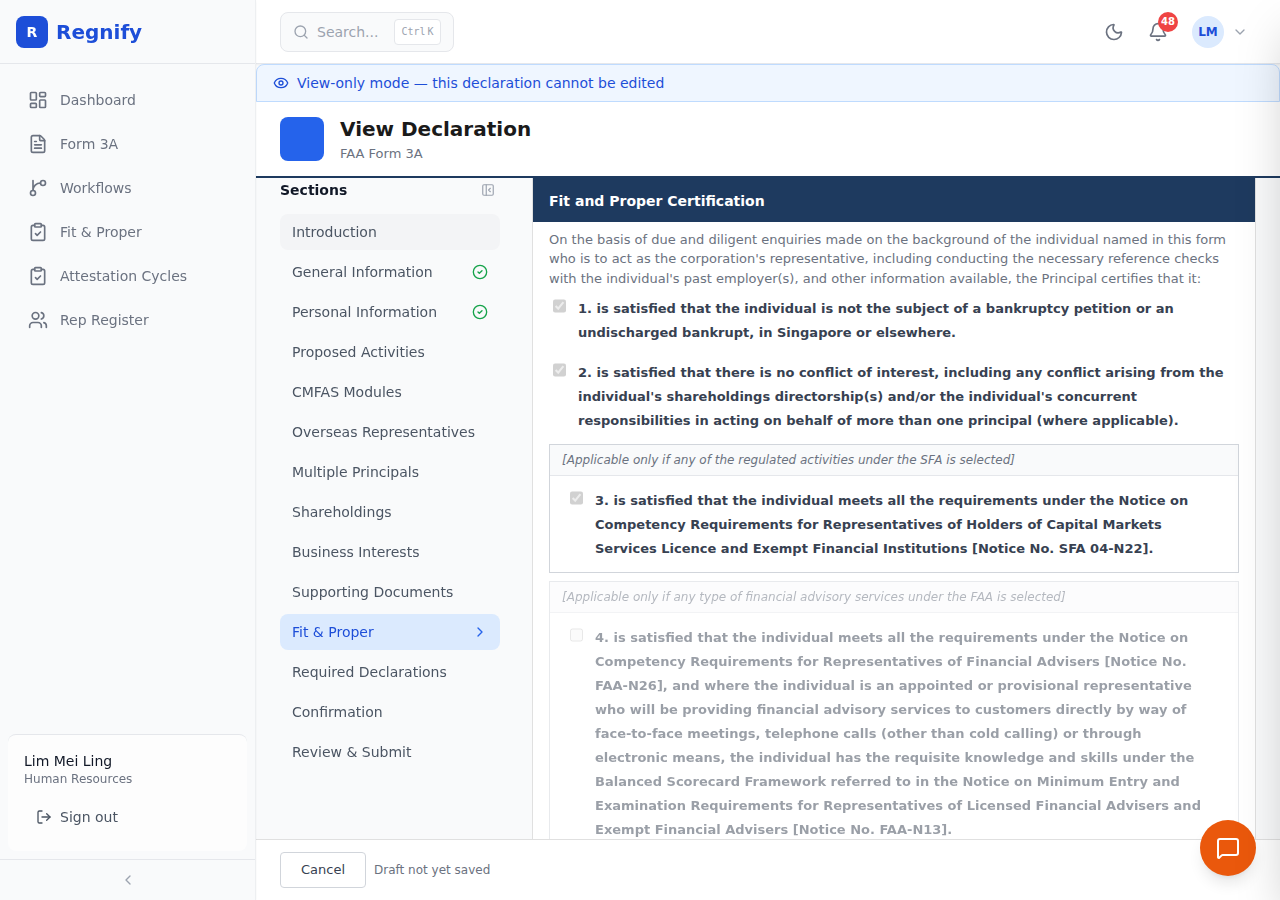 Section 11 as seen by an HR_ADMIN approver: checkboxes are editable and the approver must complete each applicable item.
Section 12 — Required Declarations
Statutory declarations by a Director or CEO of the Principal confirming the information is true, accurate, and complete.
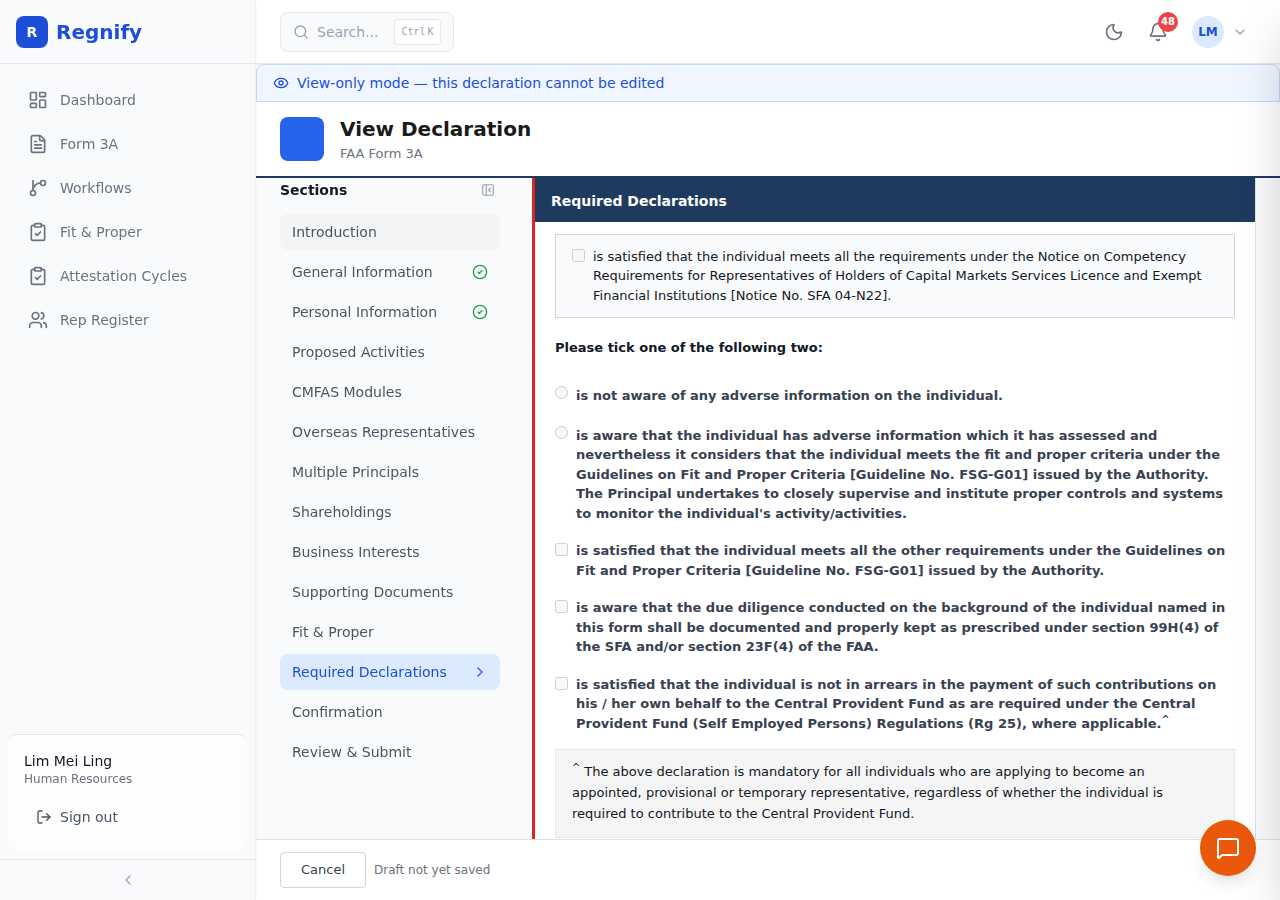 Section 12 as seen by an HR_ADMIN approver: statutory declaration fields editable for completion during review.
Section 13 — Confirmation
Final confirmation of lodgment, including the representative's awareness that a non-refundable lodgment fee is payable.
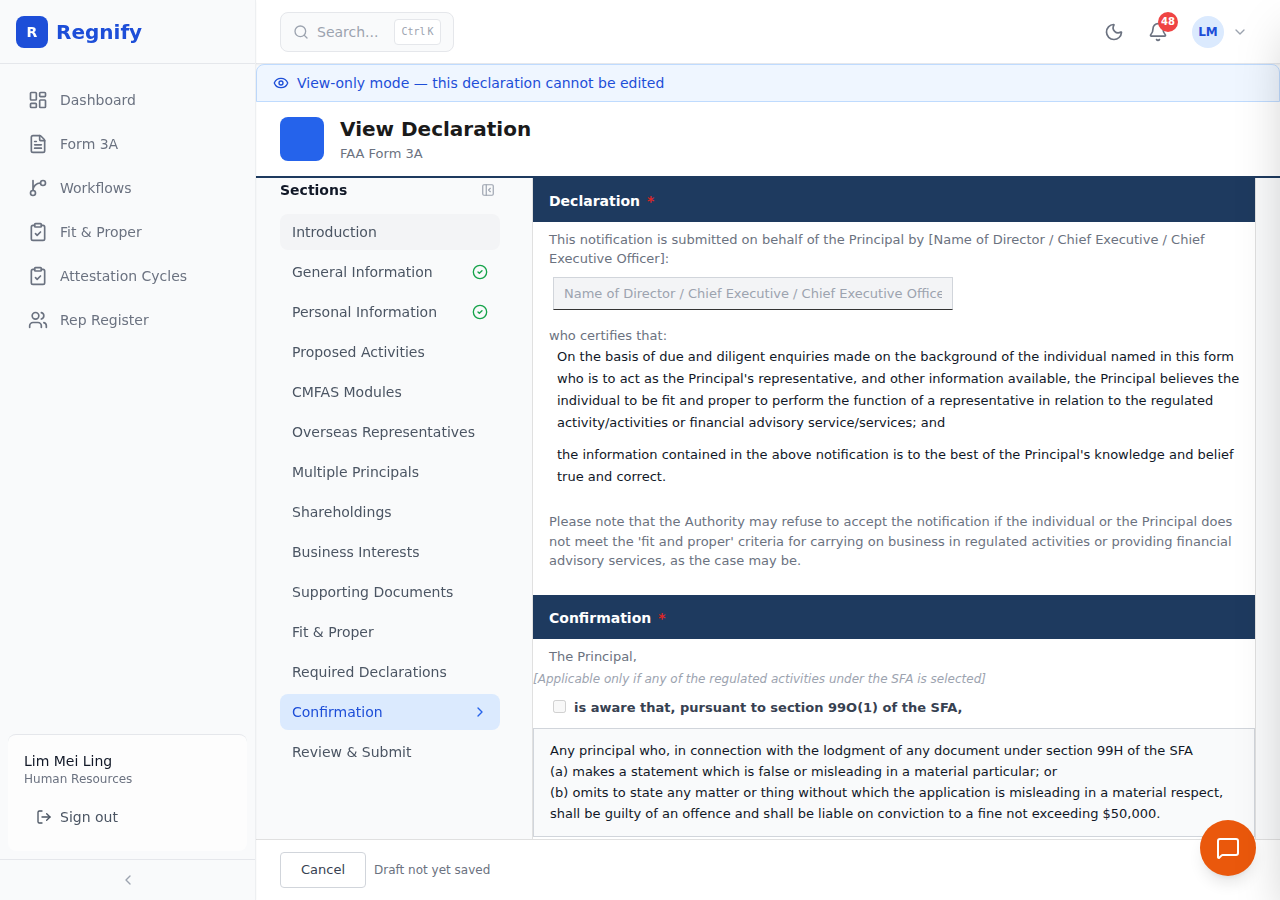 Section 13 as seen by an HR_ADMIN approver: final confirmation fields prior to forwarding the declaration.
Section 14 — Review & Submit
The final section is visible to the representative in preview mode and to approvers at all times.
Validation: Clicking Submit triggers all 29 validation rules across sections 1–10. Errors appear as red circle indicators in the TOC sidebar next to each failing section. The form scrolls to the first failing section automatically.
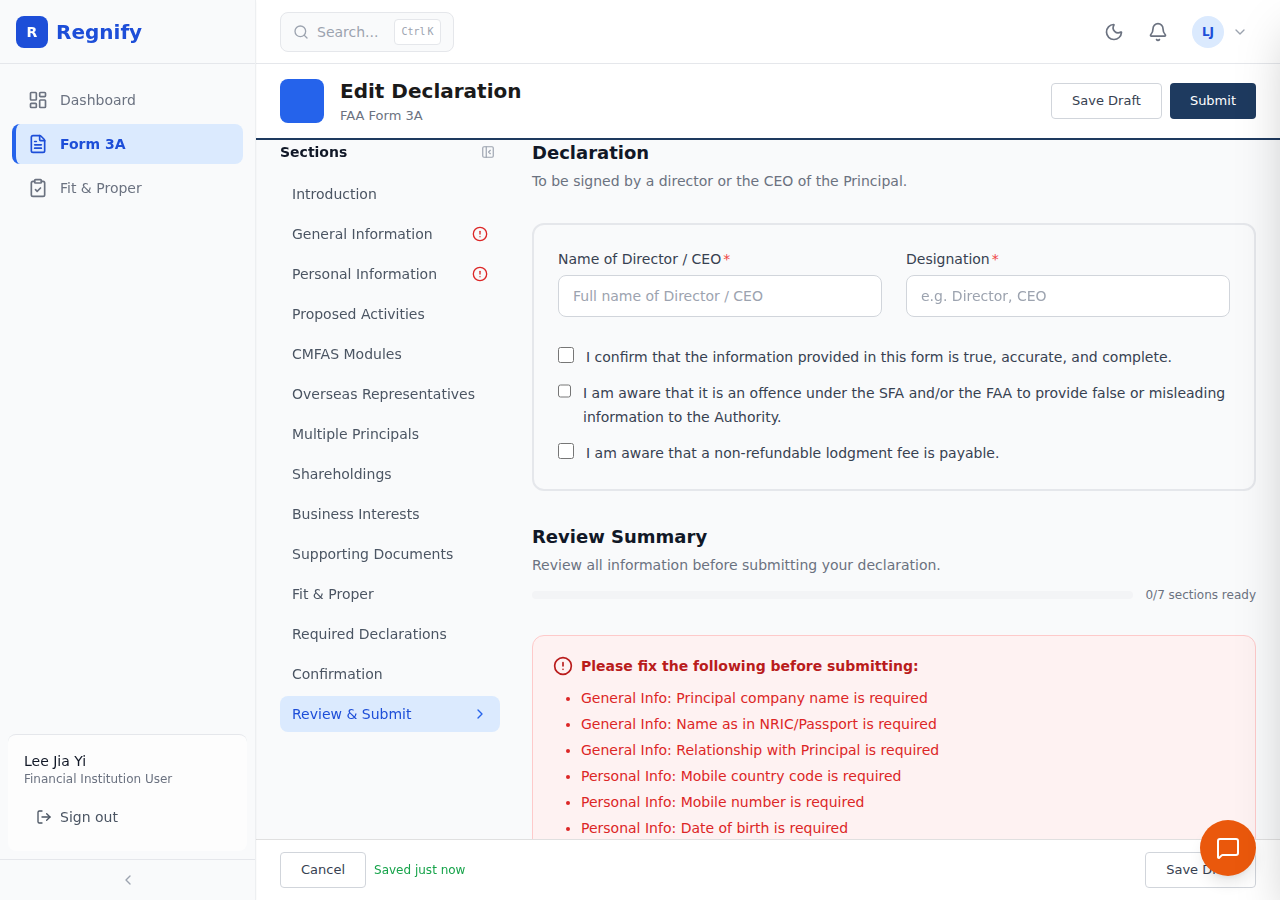 Section 14 showing a progress bar (0/7 sections ready) and a full list of required fields still missing before the Submit button activates.
Confirmation checkbox: Before the Submit button activates, check the final declaration:
"I have reviewed all the information above and confirm this declaration is ready for submission."
Submitting: Click Submit. The declaration status changes to Pending Review and routes automatically into the configured approval workflow. You are returned to the Dashboard. The declaration is no longer editable by the representative.
Important: The Submit button is disabled until: (1) at least one supporting document is uploaded, and (2) the confirmation checkbox is checked.
Saving as Draft vs Submitting
| Action | Result |
|---|---|
| Save Draft (header button or footer button) | Saves with status Draft — editable, stays in your Drafts tab |
| Auto-save (every 30 seconds) | Same as Save Draft |
| Submit | Status changes to Pending Review — triggers approval chain; no longer editable by the representative |
AI Assistance During Form 3A
The Reggie AI panel is available throughout the form via the floating button in the bottom-right corner. Reggie is aware of the current section and your declaration ID. Example questions:
- "What documents do I need for supporting documents?"
- "Explain the competency requirements for FAA activities."
- "Which CMFAS modules do I need for dealing in securities?"
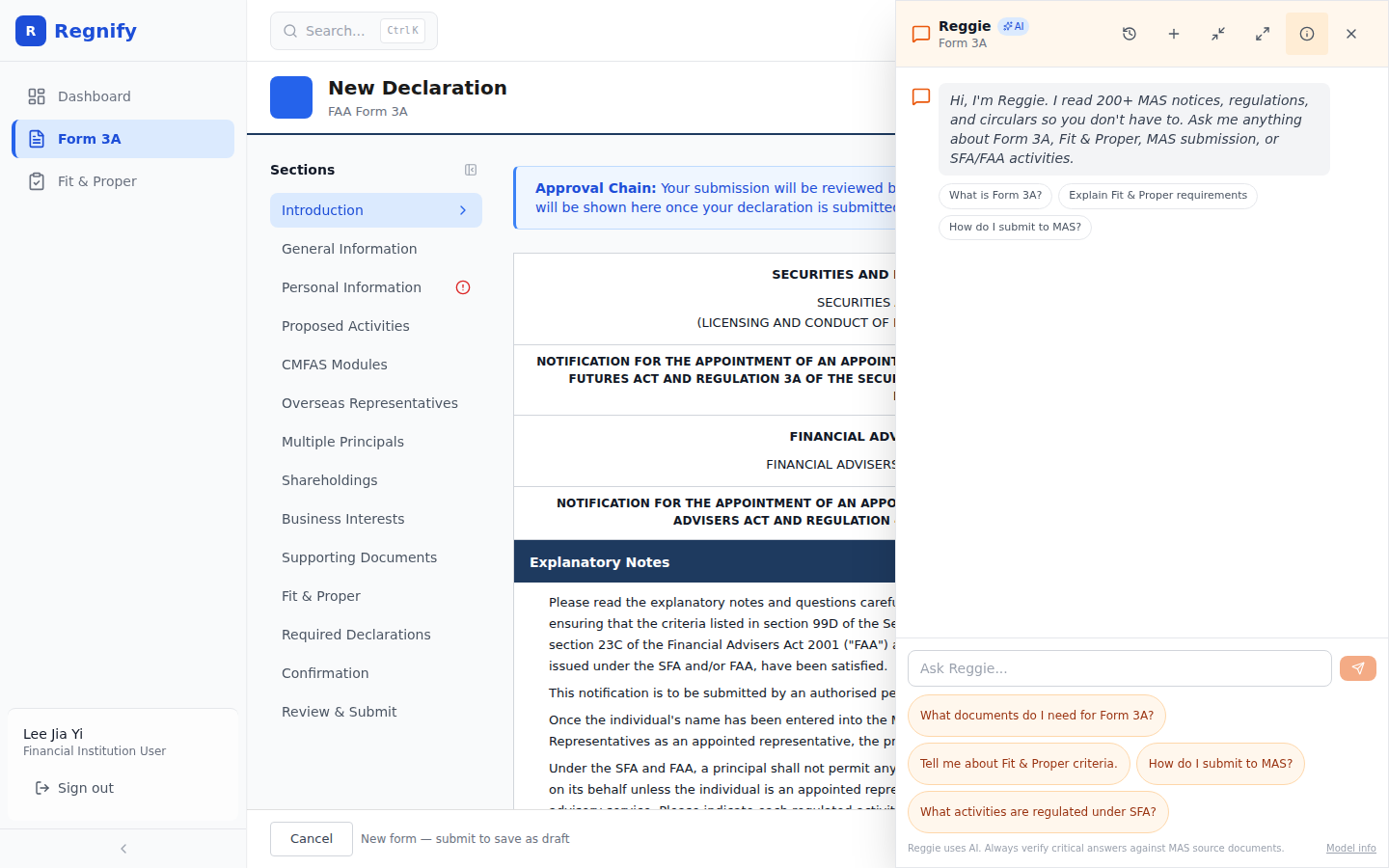 Reggie open alongside Form 3A — the form stays accessible on the left while Reggie answers compliance questions on the right.
For more on AI features, see Section 09 — Concierge Panel and Section 10 — AI Suggestions and Notifications.
Related: Declaration Lifecycle | Workflow Approvals | Section 11 — Rep Health & Compliance