13 — Organisation Management
Organisations in Regnify represent the Financial Institutions (FIs) that are licensed by MAS and registered on the platform. Each FI is a distinct tenant whose users, declarations, and workflows are logically separated from other organisations. This page allows system administrators to create, view, edit, and remove FI records.
Access required: SYS_ADMIN, ORG_ADMIN
Route: /organisations
Note: While
ORG_ADMINcan access this page, onlySYS_ADMINcan create or delete organisations.ORG_ADMINusers can view their own organisation's details and edit certain fields.
13.1 Viewing Organisations
Navigate to Organisation Management from the left sidebar. The page displays a table listing all registered organisations.
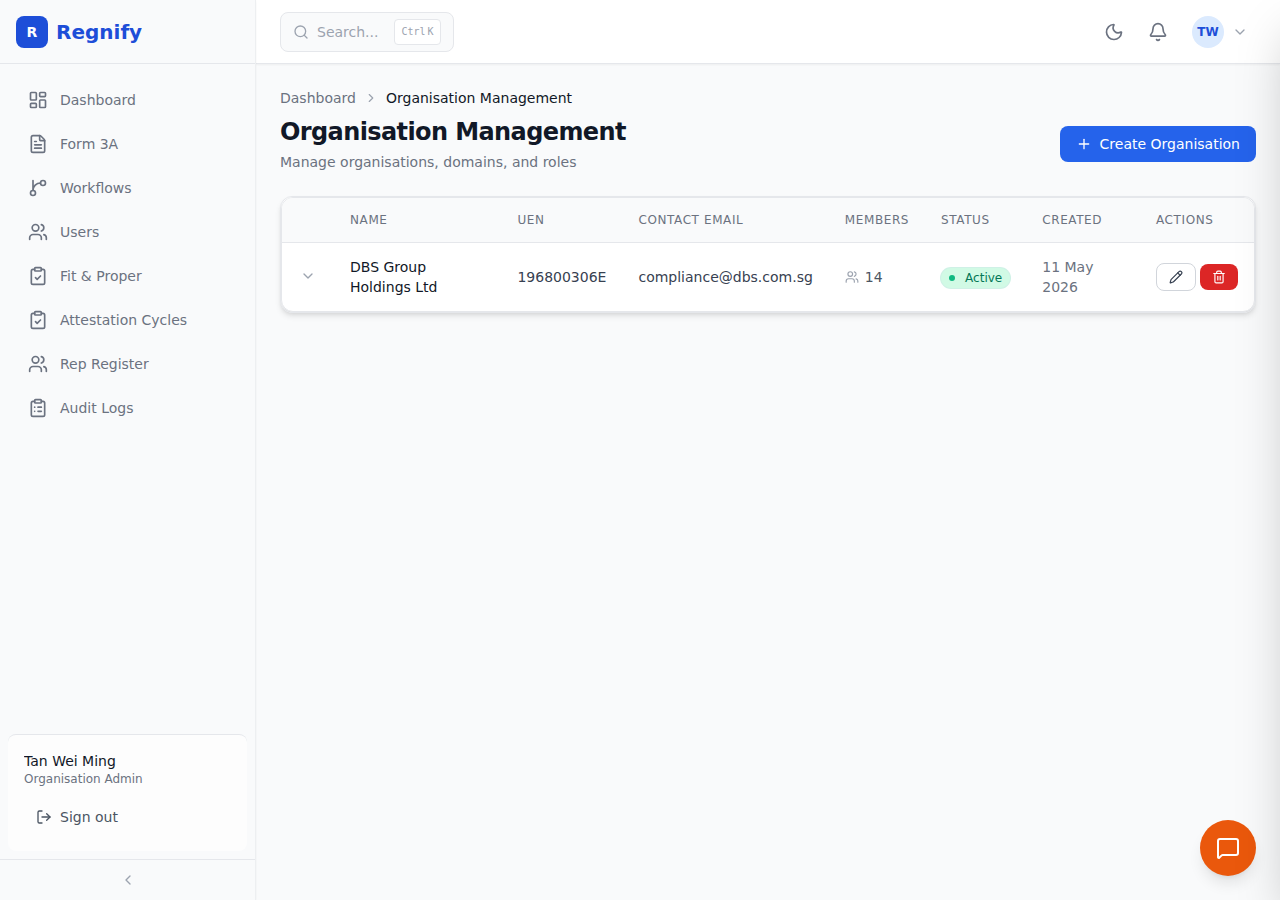 Organisation list. DBS Group Holdings Ltd is shown with UEN 196800306E, compliance@dbs.com.sg, 14 members, and Active status.
Table Columns
| Column | Description |
|---|---|
| Expand toggle | A chevron button that expands the row to show full organisation details. |
| Name | The registered legal name of the FI. |
| UEN | Singapore Unique Entity Number (company registration number). |
| Contact Email | The primary compliance contact email for the organisation. |
| Members | Count of user accounts currently assigned to this organisation. |
| Status | Active (green dot) or Inactive (red dot). |
| Created | Organisation registration date in DD MMM YYYY format. |
| Actions | Edit (pencil icon) and Delete (trash icon) buttons. |
The table loads all organisations on page open. There is no server-side pagination — all results are displayed at once.
13.2 Expanding Organisation Details
Click the chevron icon at the left of any row to expand it and view the full organisation profile.
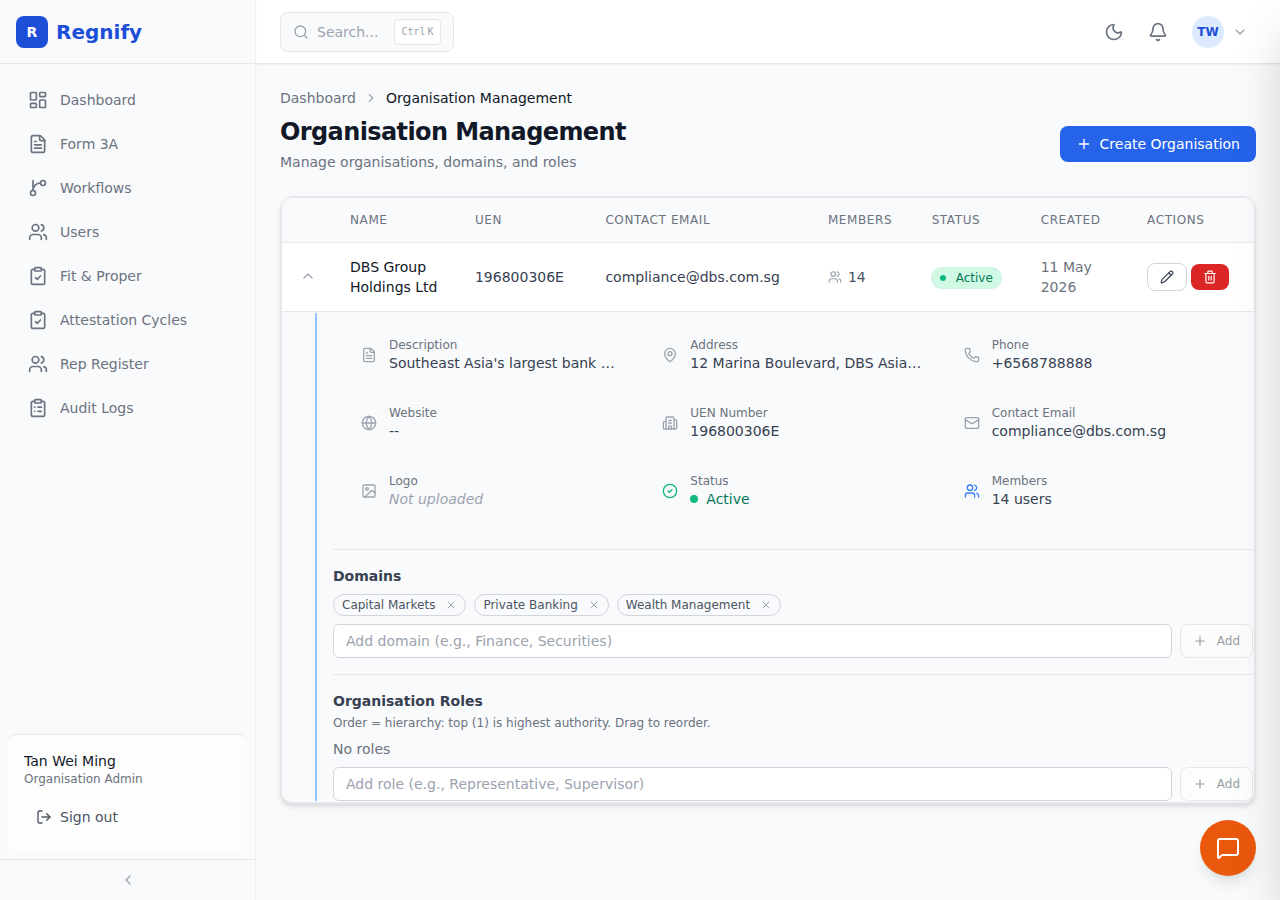 Expanded DBS organisation detail. Address: 12 Marina Boulevard, DBS Asia Hub. Phone: +65 6878 8888. Three business domains listed: Capital Markets, Private Banking, and Wealth Management.
The expanded detail panel displays the following fields in a three-column grid:
| Field | Description |
|---|---|
| Description | A brief description of the organisation's business. |
| Address | Registered business address in Singapore. |
| Phone | Primary contact phone number. |
| Website | Organisation's public website URL. |
| UEN Number | Unique Entity Number (also shown in the table row). |
| Contact Email | Primary compliance contact email. |
| Logo | Upload status ("Not uploaded" if no logo has been provided). |
| Status | Active or Inactive with a colour-coded indicator. |
| Members | Number of users assigned to this organisation. |
Click the chevron again to collapse the row. Only one row can be expanded at a time — expanding a new row automatically collapses the previous one.
13.3 Creating an Organisation
Precondition: You must be logged in as SYS_ADMIN.
- Click Create Organisation in the top-right corner of the page header.
-
The Create Organisation modal opens with a two-column form layout.
-
Fill in the form fields:
| Field | Required | Format / Example |
|---|---|---|
| Organisation Name | Yes | Full registered legal name. Example: DBS Group Holdings Ltd |
| UEN Number | Yes | Singapore company registration number. Format: 9–10 digits followed by a letter. Example: 196800306E |
| Contact Email | No | Email address of the primary compliance contact. Example: compliance@dbs.com.sg |
| Phone Number | No | Singapore phone number. Example: +65 6878 8888 |
| Address | No | Full registered address. Example: 12 Marina Boulevard, DBS Asia Central, Singapore 018982 |
| Website URL | No | Organisation's public website. Example: https://www.dbs.com.sg |
| Description | No | Short description of the organisation's business. Example: Southeast Asia's largest bank by assets |
| Logo | No | Logo upload is reserved for a future release. The field displays a placeholder. |
- Click Create Organisation. A success toast confirms creation and the new organisation appears in the table.
Error Conditions
- If the UEN Number already exists in the system (each UEN must be unique), the API returns an error. Verify the UEN against records at the Accounting and Corporate Regulatory Authority (ACRA) and use the exact registered number.
- If Organisation Name or UEN Number is left blank, the form will not submit.
13.4 Editing an Organisation
- In the organisation table, click the pencil icon (Edit) in the Actions column for the target organisation.
- The Edit Organisation modal opens with all existing values pre-filled.
- Modify the required fields. All fields shown in Section 13.3 can be edited, including Name, UEN Number, Contact Email, Phone Number, Address, Website URL, and Description.
- Click Update Organisation. A success toast confirms the update.
Note: Changing an organisation's name updates its display name throughout the system, including on user accounts, declarations, and audit logs. The UEN Number is the unique database key — changing it on an existing organisation should be done only to correct a data entry error, as it is the primary identity anchor for the record.
13.5 Organisation Status
Each organisation has an is_active flag:
- Active: The organisation is operational. Its users can log in and submit declarations.
- Inactive: The organisation's account has been deactivated. This does not automatically prevent users from logging in, but signals that the FI is no longer an active platform participant. An example in the seed data is AIA Financial Advisers Pte Ltd, which is seeded as inactive.
Status is visible in the expanded detail panel. To change an organisation's status, edit the organisation record (the status field is managed at the data layer; the UI edit form currently updates the fields listed in Section 13.4; contact a SYS_ADMIN to toggle is_active directly if the UI field is not exposed).
13.6 Organisation Members
Each user account is linked to one organisation via the organisationId field. The Members column in the organisation table shows a live count of users currently assigned to the organisation.
To view the specific users who belong to an organisation:
- Navigate to User Management (
/users). - Use the Organisation filter dropdown to select the target organisation.
- The table filters to show only members of that organisation.
Users are assigned to organisations during user creation (see Section 12.3) or when editing an existing user (see Section 12.6). A user can belong to only one organisation at a time.
13.7 Domains and Organisation Roles
Each organisation can have multiple domains (business units or sub-entities within the FI) and organisation roles (internal job hierarchy levels). These are used when assigning FI_USER accounts:
- Domain: Specifies which sub-entity or business unit the user operates under. For example, a large bank may have separate domains for insurance brokerage and financial advisory.
- Organisation Role: Represents the user's position in the internal approval hierarchy (rank 1 = Representative, rank 2 = Supervisor, rank 3 = Manager, rank 4 = CEO). A user with a higher
approvalRankandisApprover = trueis eligible to be designated as a reporting officer.
Domains and organisation roles are managed as part of the organisation record and can be assigned to users via the User Management page (Domain and Organisation Role fields in the user form, visible for FI_USER role).
For ORG_ADMIN users, the workflow template associated with the organisation can be reviewed and updated from the Workflow Management page. See Section 14.6 for the edit template modal, which shows Template Name, Form Type, and the ordered Approvers chain.
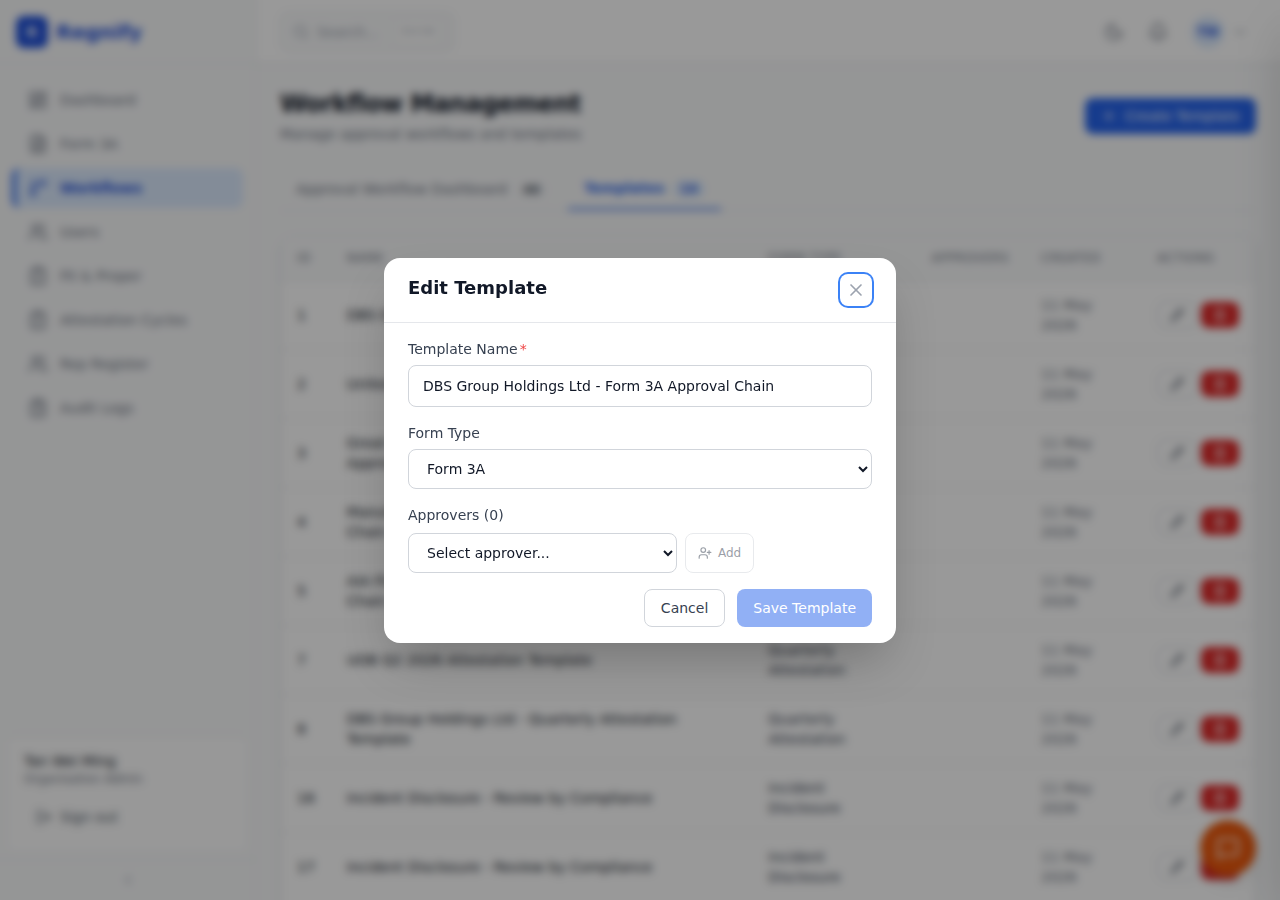 The Edit Template modal as seen by an ORG_ADMIN: Template Name, Form Type selector, and the ordered approver chain for the organisation's approval workflow.
13.8 Deleting an Organisation
- In the organisation table, click the trash icon (Delete) in the Actions column.
- A browser confirmation dialog asks: "Delete this organisation? This cannot be undone."
- Click OK to confirm.
Warning: Deleting an organisation is irreversible. All users currently assigned to that organisation will lose their organisation association. Their declarations and audit history remain in the database but will no longer be grouped under an FI. Before deleting, reassign or deactivate all users in the organisation, and archive relevant compliance records. Consider marking the organisation as Inactive rather than deleting it to preserve historical integrity.
The delete button is present for all SYS_ADMIN and ORG_ADMIN users, but only SYS_ADMIN has the backend permission to complete the operation.