10 — AI Suggestions and Notifications
Regnify surfaces AI-generated compliance guidance in two places without requiring you to ask: the Notification Bell, which distinguishes between routine platform notifications and AI-initiated alerts, and — as a planned feature not yet active in the current build — the AI Suggestions Bar that will appear inline inside form sections.
AI Suggestions Bar (Planned Feature)
Status: The AI Suggestions Bar is not active in the current UI. The
POST /agents/chat/suggestionsFastAPI endpoint is deployed and the bar component exists in the frontend codebase (AISuggestionsBar), but it is not wired into the page layout in this release. When it ships, it will appear as a horizontal bar above form sections inside the Form 3A wizard, showing 3–5 short clickable compliance nudges tailored to the section you are filling in.
When the Suggestions Bar is active, clicking any suggestion chip will open the AI assistant with that text pre-filled as the opening message — a one-click path from "the AI noticed something" to "the AI explains it."
Notification Bell
The Notification Bell sits in the top-right header area of every page. Click it to open a dropdown showing your 20 most recent platform notifications. The number of unread notifications is displayed as a badge on the bell icon.
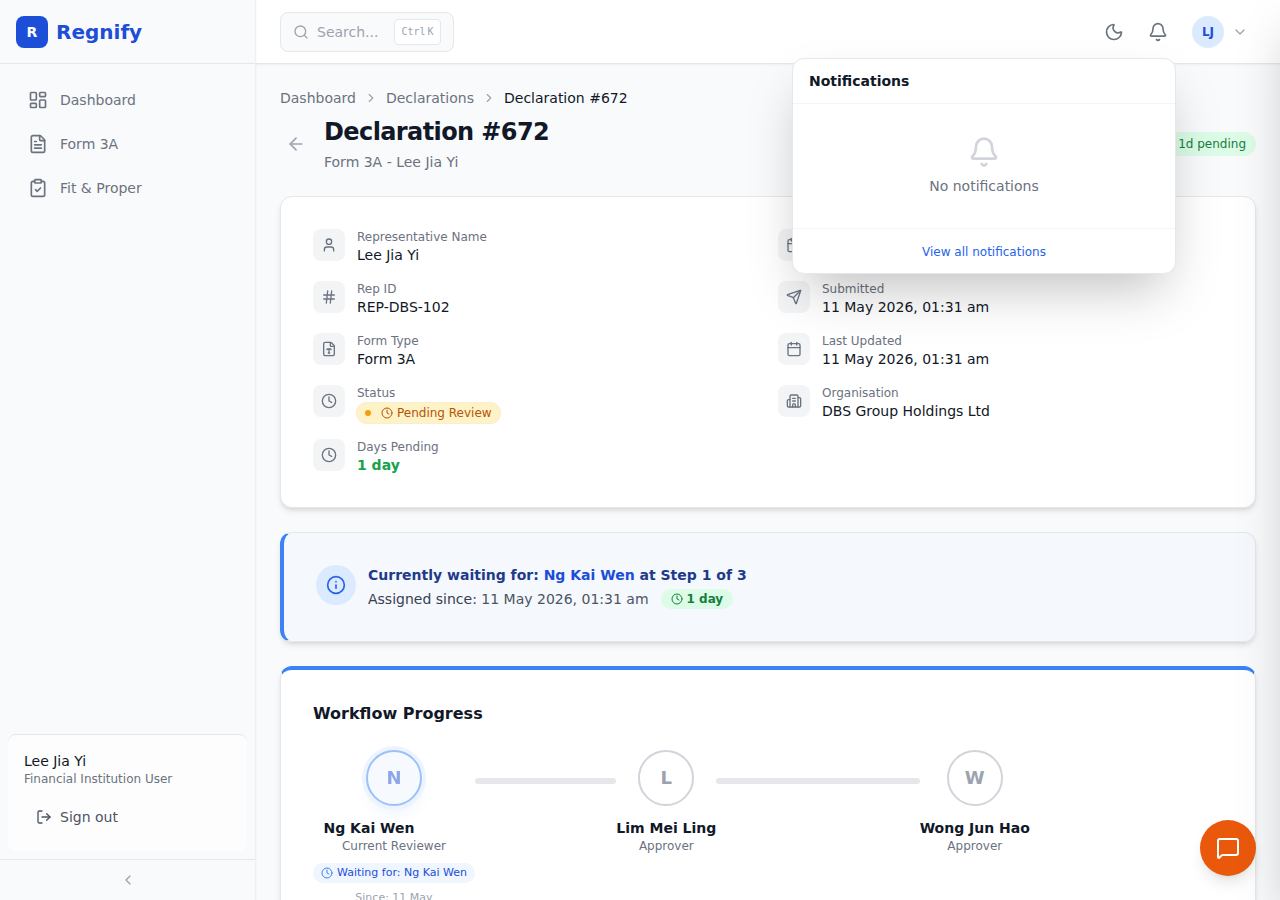 The notification dropdown open in the header, showing unread indicators and notification entries.
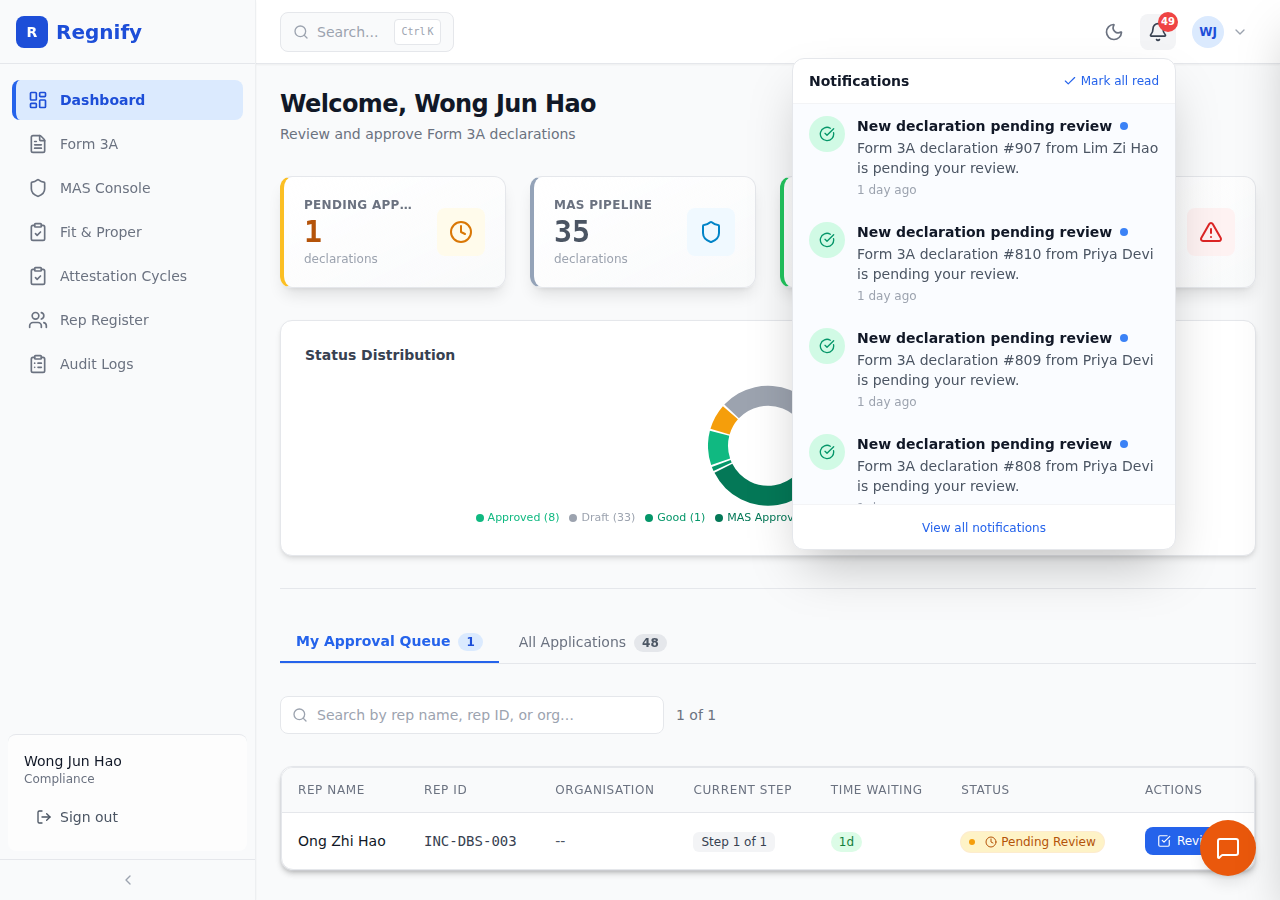 The AI badge on the bell icon indicates there are unread AI-initiated notifications.
Opening the Bell
Click the bell icon in the top-right of the header to open the notification dropdown. Click outside the dropdown or press Escape to close it.
Reading Notifications
Each notification shows:
- Type icon — coloured icon indicating the notification category (approval, revision, MAS, or user action).
- Title — the notification title, bolded.
- AI badge — a small AI pill with a sparkle icon if the notification was AI-initiated (see below).
- Unread indicator — a blue dot if the notification has not been read.
- Message — up to two lines of the notification body.
- Timestamp — relative time ("5 min ago", "2 hours ago", "3 days ago").
Marking Notifications as Read
- Individual: Click any notification to mark it as read. The blue dot disappears and the background lightens.
- All at once: Click "Mark all read" in the dropdown header (visible only when there are unread notifications).
Notification Types
| Type | Icon | Colour | Examples |
|---|---|---|---|
approval |
Checkmark | Green | Workflow step approved, declaration status changed |
revision |
Warning triangle | Yellow/Amber | Step rejected, sent back for revision |
mas |
Shield | Blue | MAS submission status update |
user |
User-plus | Teal | New representative assigned, team change |
The AI Badge: Distinguishing AI Notifications
A notification carries an AI badge (sparkle icon + "AI" text) if either:
- Its
sourcefield equals'chatbot'— the notification was created directly by an AI tool call or agent action within the platform. - It has a
triggerKeyfield — the notification was generated by the Airflow scheduling system in response to a proactive compliance trigger.
This distinction matters because an AI badge means the system proactively identified something and surfaced it — no human action was required to generate it. Human-authored notifications (a colleague approving a workflow step, an HR admin adding a user) do not carry the AI badge.
Proactive AI Alerts
Demo State: The proactive AI notifications described in this section are generated by Airflow scheduled DAGs running on the server. In the current demo environment, no Airflow DAG runs have been executed, so the notification bell shows an empty state for all users. In a production instance with Airflow running on schedule, these notifications are generated automatically at the configured times.
Several notification types are generated automatically by the Airflow scheduling system, without any human triggering them. These always carry the AI badge.
Attestation Cycle Reminders (COMP and HR_ADMIN)
Quarterly launch reminder (1st of Jan/Apr/Jul/Oct, 09:00 SGT): The attestation.quarterly.launch-reminder trigger fires at the start of each quarter. It reminds Compliance Officers and HR Admins to launch the quarterly fit-and-proper attestation cycle for their organisation.
Non-completion chase (24th of Mar/Jun/Sep/Dec, 09:00 SGT): The attestation.quarterly.noncompletion-chase-t7 trigger fires seven days before each quarter-end cycle close. It identifies representatives who have not yet completed their attestation and generates notifications prompting action.
CPD Deadline Warnings (Representatives)
60-day warning (1 November, 09:00 SGT): For any representative whose CPD hours are below the FAA-N26 annual minimum at that point, the system generates a notification reminding them of the 31 December cycle close deadline.
30-day warning (1 December, 09:00 SGT): A second, more urgent reminder for representatives still below threshold with one month to go.
Both triggers are executed by Airflow DAGs via the /internal/* callback endpoints on the FastAPI backend.
How to Act on an AI Notification
AI notifications are designed to be directly actionable through the AI assistant:
- Open the notification bell. See an AI notification — for example: "CPD reminder: Representative has 14.0 of 30 required hours."
- Click the notification to mark it read.
- Open the AI assistant (floating orange button, bottom-right corner).
- Ask: "Draft a CPD reminder for Rep Profile 15." The AI calls
draft_cpd_reminder, fetches the rep's current totals, and generates a professional reminder email for your review before anything is sent.
See Section 08 for full documentation of the draft_cpd_reminder and other available AI tools.