15 — Audit Logs
Every action performed in Regnify — by users, approvers, system processes, and AI agents — is recorded in the audit log. The audit log is the authoritative compliance trail for MAS audit purposes: it shows who did what, to which record, and when. This page allows administrators to browse, filter, and inspect the full activity history of the platform.
Access required: SYS_ADMIN, ORG_ADMIN, COMP
Route: /audit-logs
15.1 Overview
The Audit Logs page is a read-only view. No entries can be created, modified, or deleted from the UI. All entries are generated automatically by the system as actions occur.
The page header shows the total count of all audit entries in the system. Entries are ordered by timestamp descending (newest first) by default. The platform defines 48 audit action types spanning declarations, documents, workflows, users, organisations, Fit & Proper checks, authentication events, and AI agent operations.
15.2 Viewing the Audit Log Table
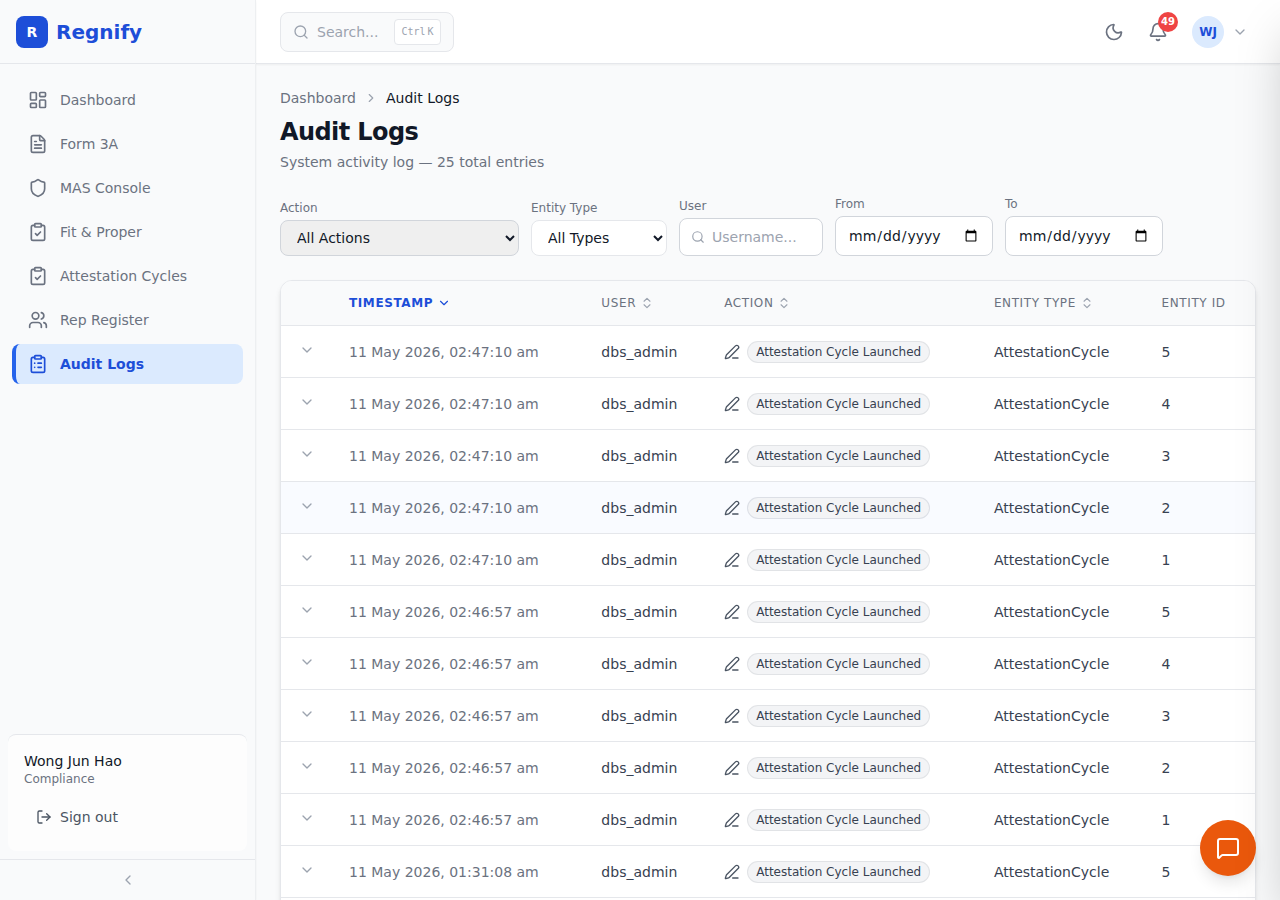 Audit Logs page with 25 entries. Filter bar provides: Action type, Entity Type, User, and From/To date range filters.
Table Columns
| Column | Description |
|---|---|
| Expand toggle | Chevron button. Click to expand the row and view the full metadata payload. |
| Timestamp | Date and time of the action in Singapore locale format (DD MMM YYYY, HH:MM:SS). Sortable. |
| User | The username of the person (or system/agent) that performed the action. Shows -- for anonymous or system-initiated entries. Sortable. |
| Action | The action type, displayed as a colour-coded badge (see Section 15.5 for the full list). Sortable. |
| Entity Type | The type of record that was affected (e.g. Declaration, User, WorkflowInstance). Sortable. |
| Entity ID | The identifier of the specific record that was affected. For declarations, this is the representative ID (repId). For users, this is the username. |
Clicking any row toggles the expanded metadata panel for that row. Only one row can be expanded at a time.
15.3 Filtering Logs
The filter bar above the table provides five independent filters. All filters apply client-side to the current page of results.
| Filter | Type | Behaviour |
|---|---|---|
| Action | Dropdown | Select a specific action type from the list of actions present in the current page of results. Defaults to "All Actions". |
| Entity Type | Text input | Free-text substring match against the Entity Type column. Example: enter User to show only user-related entries. |
| User | Text input (with search icon) | Free-text substring match against the username. Case-insensitive. |
| From | Date picker | Filters to entries with a timestamp on or after this date (inclusive, from 00:00:00). |
| To | Date picker | Filters to entries with a timestamp on or before this date (inclusive, up to 23:59:59). |
Filters can be combined. For example, set Action = DECLARATION_SUBMITTED, User = dbs_rep1, and a From / To date range to find all Form 3A submission events by a specific representative within a time period.
Note: The Action dropdown is populated from the current page of results, not from all possible action types. If you are looking for a specific action type and it does not appear in the dropdown, navigate to the relevant page of results or remove other filters that may be hiding it.
Changing any filter automatically resets the current page to page 1.
15.4 Audit Log Entry Details
Click the chevron icon at the left of any row to expand it. A metadata panel appears below the row.
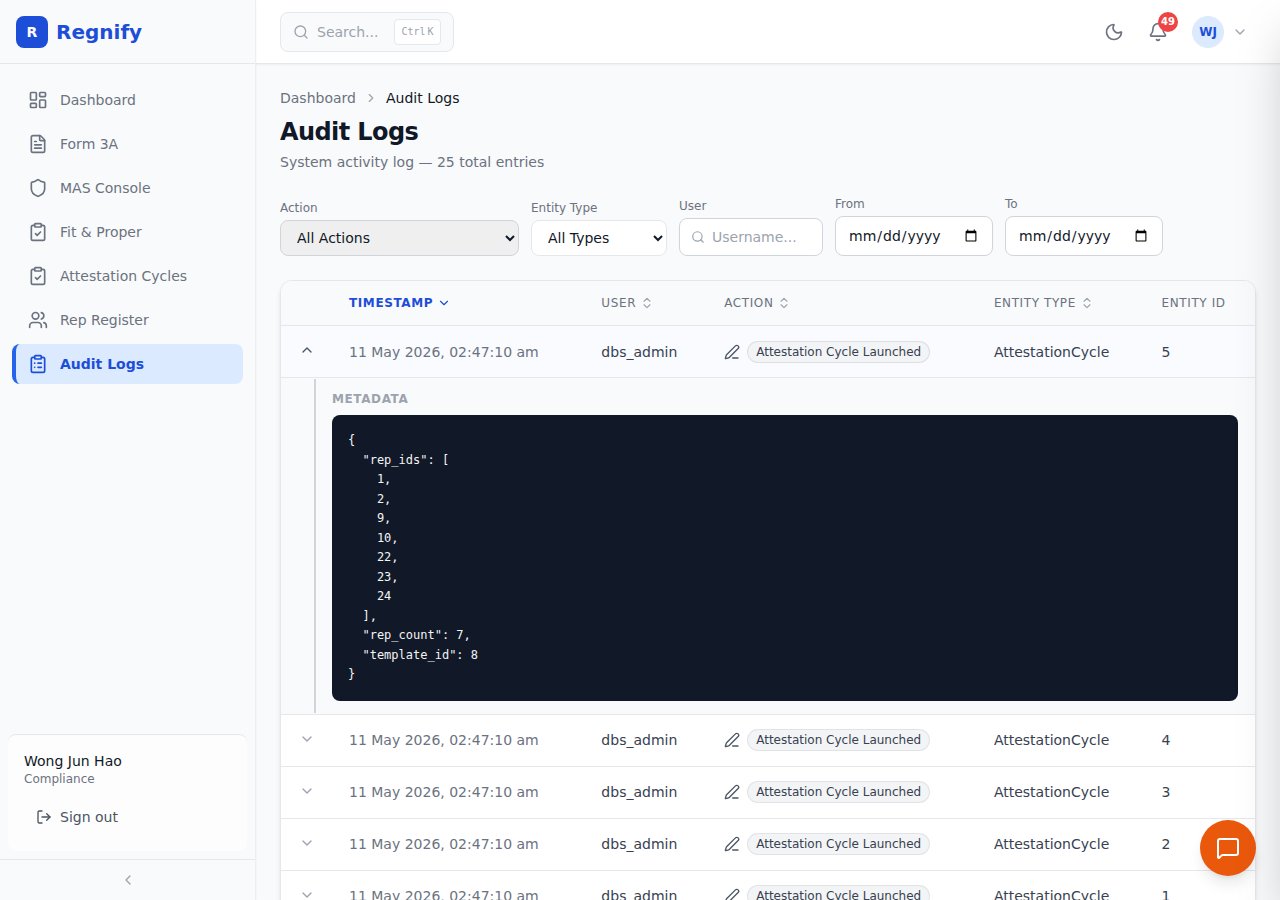 An expanded audit entry reveals structured JSON metadata. This example records a cycle launch: 7 rep IDs (
rep_ids: [1,2,9,10,22,23,24]), rep_count: 7, template_id: 8.
The metadata panel displays the full JSON object associated with the action, formatted with syntax highlighting on a dark background. The content varies by action type:
- DOCUMENT_UPLOADED:
{ "filename": "resume_jane_doe.pdf", "category": "RESUME" } - WORKFLOW_STEP_APPROVED:
{ "step_index": 0, "approver": "Ahmad Karim" } - WORKFLOW_STEP_REJECTED:
{ "step_index": 1, "approver": "Priya Sharma", "reason": "See rejection comment" } - DECLARATION_SENT_BACK:
{ "sent_back_by": "Wei Lun Chan", "comment": "Please revise and resubmit" } - USER_CREATED:
{ "target_role": "ORG_ADMIN", "target_org": "DBS Group Holdings Ltd" } - USER_ROLE_CHANGED:
{ "old_role": "FI_USER", "new_role": "FI_USER", "is_approver_changed": true } - DECLARATION_REJECTED:
{ "rejected_by": "Alex Wong" }
If an action has no additional metadata, the panel displays "No metadata available".
15.5 Action Types
The system defines 48 audit action types, grouped into eight categories.
Declaration Actions (7)
| Action | Badge Colour | Description |
|---|---|---|
DECLARATION_CREATED |
Green | A new declaration record was created (saved as Draft). |
DECLARATION_UPDATED |
Blue | A draft declaration was edited and saved. |
DECLARATION_SUBMITTED |
Green | The representative submitted the declaration for approval. |
DECLARATION_APPROVED |
Green | The declaration passed all workflow steps and was approved internally. |
DECLARATION_REJECTED |
Red | An approver rejected the declaration. |
DECLARATION_SENT_BACK |
Amber | An approver returned the declaration for revision. |
DECLARATION_RESUBMITTED |
Green | The representative resubmitted after a send-back or rejection. |
Document Actions (3)
| Action | Badge Colour | Description |
|---|---|---|
DOCUMENT_UPLOADED |
Blue | A supporting document was attached to a declaration. |
DOCUMENT_DELETED |
Red | A supporting document was removed. |
DOCUMENT_VIEWED |
Blue | A document was opened or downloaded. |
Workflow Actions (4)
| Action | Badge Colour | Description |
|---|---|---|
WORKFLOW_STARTED |
Blue | A workflow instance was created when a declaration was submitted. |
WORKFLOW_STEP_APPROVED |
Green | An individual approver approved their step. |
WORKFLOW_STEP_REJECTED |
Red | An individual approver rejected their step. |
WORKFLOW_COMPLETED |
Green | All workflow steps were completed successfully. |
User Actions (6)
| Action | Badge Colour | Description |
|---|---|---|
USER_CREATED |
Green | A new user account was created. |
USER_UPDATED |
Blue | A user account's details were modified. |
USER_DELETED |
Red | A user account was permanently deleted. |
USER_ROLE_CHANGED |
Blue | A user's role or approver status was changed. |
USER_PASSWORD_RESET |
Blue | An administrator reset a user's password. |
USER_PASSWORD_FIRST_TIME_CHANGED |
Blue | A user completed a mandatory first-time password change. |
Organisation Actions (8)
| Action | Badge Colour | Description |
|---|---|---|
ORGANISATION_CREATED |
Green | A new FI organisation was registered on the platform. |
ORGANISATION_UPDATED |
Blue | An organisation's profile details were modified. |
ORGANISATION_DELETED |
Red | An organisation was permanently removed. |
ORGANISATION_DOMAIN_ADDED |
Green | A new business domain was added to an organisation. |
ORGANISATION_DOMAIN_REMOVED |
Red | A domain was removed from an organisation. |
ORGANISATION_ROLE_CREATED |
Green | An internal role level (e.g. Supervisor) was created for an organisation. |
ORGANISATION_ROLE_UPDATED |
Blue | An organisation role definition was modified. |
ORGANISATION_ROLE_DELETED |
Red | An organisation role was removed. |
Fit and Proper Actions (6)
| Action | Badge Colour | Description |
|---|---|---|
FIT_PROPER_CREATED |
Green | A Fit & Proper declaration was created. |
FIT_PROPER_UPDATED |
Blue | A Fit & Proper declaration was edited. |
FIT_PROPER_SUBMITTED |
Green | A Fit & Proper declaration was submitted. |
FIT_PROPER_APPROVED |
Green | A Fit & Proper declaration was approved. |
FIT_PROPER_REJECTED |
Red | A Fit & Proper declaration was rejected. |
FIT_PROPER_DELETED |
Red | A Fit & Proper record was deleted. |
Authentication Actions (2)
| Action | Badge Colour | Description |
|---|---|---|
USER_LOGIN_SUCCESS |
Grey | A user successfully authenticated via Keycloak SSO. |
USER_LOGIN_FAILED |
Grey | An authentication attempt failed (wrong credentials or locked account). |
AI Agent Actions (12)
These actions are recorded when the Concierge AI agent performs autonomous operations. They appear with the username of the user who triggered the agent session.
| Action | Badge Colour | Description |
|---|---|---|
AGENT_RUN_STARTED |
Blue | A new AI agent run was initiated. |
AGENT_RUN_COMPLETED |
Green | An AI agent run finished successfully. |
AGENT_RUN_FAILED |
Red | An AI agent run terminated due to an error. |
AGENT_LOOP_DETECTED |
Amber | The agent detected a potential reasoning loop and self-terminated. |
AGENT_SUB_RUN_SPAWNED |
Blue | The agent spawned a sub-agent for a specialised task. |
AGENT_SUB_RUN_COMPLETED |
Green | A sub-agent completed its task and returned control. |
AGENT_APPROVAL_REQUESTED |
Amber | The agent paused and requested human approval before proceeding. |
AGENT_APPROVAL_GRANTED |
Green | A human approved the agent's proposed action. |
AGENT_APPROVAL_DENIED |
Red | A human denied the agent's proposed action. |
AGENT_APPROVAL_EXPIRED |
Red | An agent approval request timed out without a human response. |
SKILL_LOADED |
Blue | The agent successfully loaded a skill playbook. |
SKILL_LOAD_FAILED |
Red | The agent failed to load a skill playbook. |
15.6 AI Actions in the Audit Log
The Concierge AI agent is a full participant in the audit trail. When the agent takes a system action on behalf of a user — for example, drafting a CPD reminder, launching an attestation cycle, or creating an incident declaration — those actions are logged with the same fidelity as human actions.
To identify AI-initiated actions in the audit log:
- Look for Action values in the
AGENT_*orSKILL_*categories. - The User column shows the authenticated user who triggered the agent session. AI actions do not have a separate system user identity — they are attributed to the human who initiated the session.
- The Metadata panel for agent entries typically contains
agent_run_id,skill_name, andtool_namefields that identify the specific AI operation.
This design ensures that AI-assisted actions are fully auditable and attributable to a responsible human operator, which is required for MAS compliance evidence.
15.7 Pagination
Audit logs are fetched in pages of 20 entries per page. The pagination control at the bottom of the page shows:
- The current page and total pages.
- Total entry count.
- Navigation buttons for previous and next page, and direct page number selection.
The total count shown in the page header (e.g. "989 total entries") reflects all entries in the database before any client-side filters are applied. The pagination operates on the server-fetched page; client-side filters then narrow the results within that page.
Tip: To find a specific entry for a known date range, set the From and To date filters first, then use the Action or User filters to narrow down. This avoids pagination across large result sets.
15.8 Export and Download
The current release does not include a built-in audit log export button in the UI. For bulk export of audit records (e.g. for external MAS audit submissions or internal compliance reporting), use one of the following approaches:
- Direct database query: Connect to the PostgreSQL database and query the
audit_logstable. Contact your platform administrator for database access credentials. - GraphQL API: The
auditLogsquery acceptstakeandskiparguments for paginated retrieval. Use this to programmatically extract records in JSON format. Authentication is required (Keycloak bearer token). - Prisma Studio: Administrators with direct server access can open Prisma Studio (
make db-studio) to browse and export audit log records.
15.9 Retention and Compliance
Audit log entries are never automatically deleted or rotated. They accumulate indefinitely and provide a complete, unmodified compliance record for MAS audit purposes.
For MAS audits: The audit log demonstrates that the FI's internal approval chain (as defined by the workflow template) was followed for every declaration submission. Key evidence entries to locate for a given declaration include:
DECLARATION_CREATED— proves when the process began.DOCUMENT_UPLOADED— proves supporting documents were attached.DECLARATION_SUBMITTED— proves the representative initiated submission.WORKFLOW_STEP_APPROVED(×N) — proves each approver reviewed and approved in sequence.WORKFLOW_COMPLETED— proves internal approval was complete.DECLARATION_APPROVED— the final internal sign-off.
Any rejection or send-back events (DECLARATION_REJECTED, DECLARATION_SENT_BACK, DECLARATION_RESUBMITTED) are also preserved, providing a complete picture of the review cycle for complex declarations.
Compliance note: The audit log includes IP address (
ipAddress) and user agent (userAgent) fields for each entry. These are captured at the time of the action and provide additional evidence of the operating environment for forensic investigations.