17 — Representative Portal Overview
The Representative Portal is a distinct section of Regnify designed specifically for licensed representatives who need to manage their own compliance data. It is a clean, focused workspace — separate from the main application that administrators, compliance officers, and approvers use — with its own navigation and its own data scope. The Concierge AI panel (Reggie) is not included in the Rep Portal; representatives interact with per-section help text and tooltips instead.
The portal lives at /rep/* and surfaces five tabs across the top: Dashboard, My Passport, Attestations, CPD Log, and Incident Disclosure. Reps reach it after Keycloak login; the URL is the same as the rest of the platform and Keycloak issues the REP_USER realm role to qualifying users. All read/write paths use the same Apollo GraphQL client as the admin app — the portal is a focused chrome on top of the same data layer, not a separate backend.
What Is the Rep Portal?
Where the main Regnify application is built for organisations — managing declarations, workflows, and approval chains across many representatives — the Rep Portal is built for the individual. A representative who logs in here sees only their own data: their passport, their attestations, their Continuing Professional Development (CPD) records, and their incident disclosures. Nothing about other representatives is visible.
The Rep Portal is accessed at /rep and all its sub-routes (/rep/passport, /rep/attestations, /rep/cpd, /rep/incidents).
How to Access the Rep Portal
Access depends on your Keycloak role:
- REP_USER role — when you log in, Regnify automatically routes you to
/rep. The main sidebar navigation used by admin and compliance users is not shown. Your entire session is within the Rep Portal. - FI_USER role with approver permissions — these users (supervisors, managers) use the main application and access the main sidebar. If a manager also needs to view their own compliance data, they can navigate to
/repdirectly; the portal will show their own records.
If you log in and see the main dashboard with the full sidebar, you are in the main application. If you see a top navigation bar with five tabs and your name in the welcome heading, you are in the Rep Portal.
Rep Portal Navigation
The top navigation bar — rendered at the top of every page in the Rep Portal — contains five tabs. This bar replaces the vertical sidebar found in the main application.
| Tab | Route | What it contains |
|---|---|---|
| Dashboard | /rep |
Welcome page with shortcut cards to all four main sections |
| My Passport | /rep/passport |
Capital Markets and Financial Advisory Services (CMFAS) module status, CPD summary, and passport export |
| Attestations | /rep/attestations |
Pending and submitted quarterly attestation declarations |
| CPD Log | /rep/cpd |
Year-to-date CPD hours and the entry log form |
| Incident Disclosure | /rep/incidents |
Three-step wizard for self-reporting regulatory events |
The active tab is highlighted with a primary colour background and text. Tabs are accessible via keyboard and screen reader with appropriate ARIA labels.
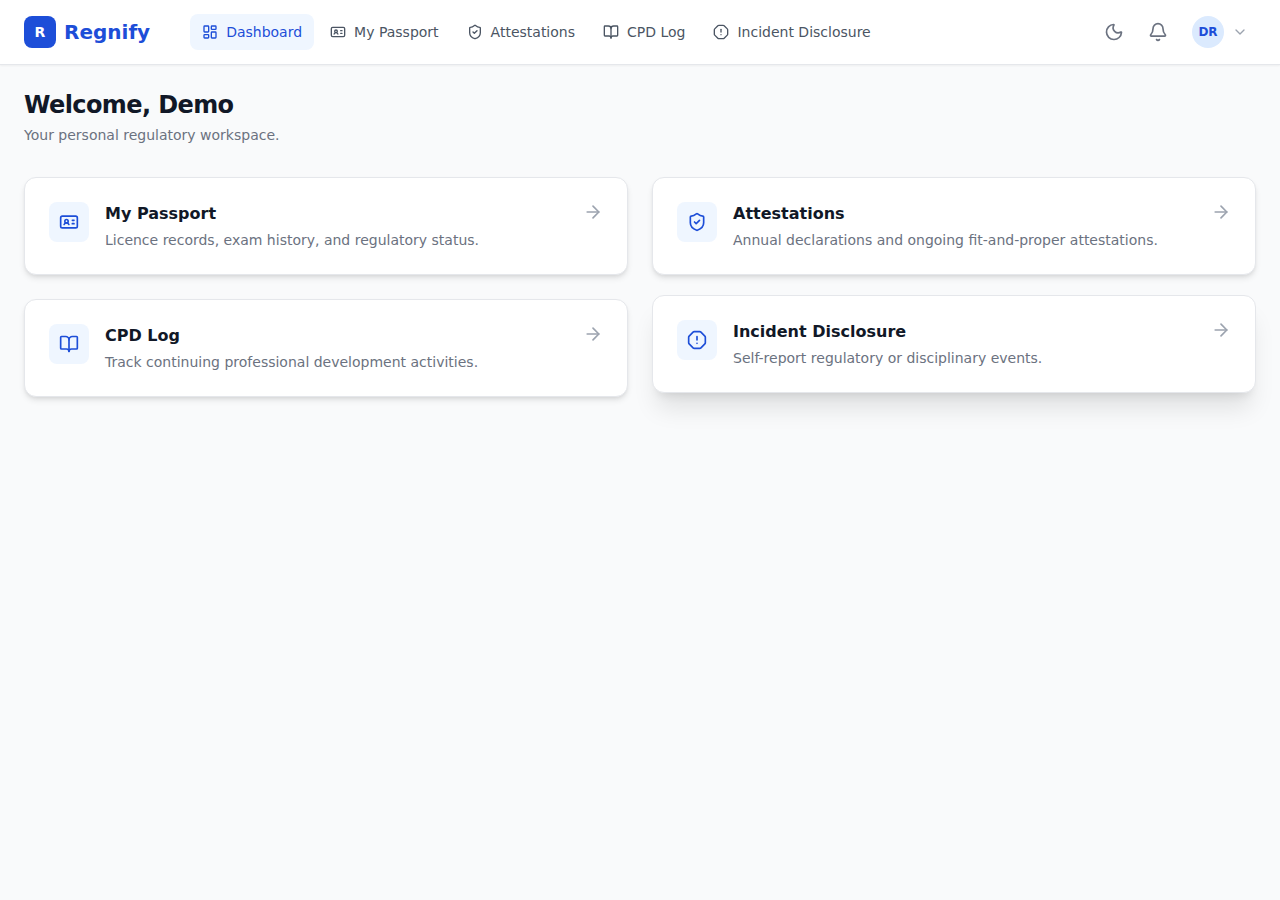 The Rep Portal landing page for Demo Rep Two, showing the 5-tab navigation (Dashboard, My Passport, Attestations, CPD Log, Incident Disclosure) and four quick-action cards.
The Rep Portal Dashboard
Route: /rep
The dashboard is the landing page for the Rep Portal. It shows:
- Welcome heading — "Welcome, [First Name]" using your name from the Keycloak token.
- Subtitle — "Your personal regulatory workspace."
- Four shortcut cards — one for each of the main portal sections:
| Card | Icon | Description |
|---|---|---|
| My Passport | ID card icon | "Licence records, exam history, and regulatory status." |
| Attestations | Shield check icon | "Annual declarations and ongoing fit-and-proper attestations." |
| CPD Log | Book open icon | "Track continuing professional development activities." |
| Incident Disclosure | Alert octagon icon | "Self-report regulatory or disciplinary events." |
Clicking any card navigates directly to that section. Each card shows the section title, a brief description, and an arrow icon on the right.
The Rep Portal landing page for Demo Rep Two, showing the 5-tab navigation (Dashboard, My Passport, Attestations, CPD Log, Incident Disclosure) and four quick-action cards.
Section 1 — Passport (/rep/passport)
The Passport page is the central view of your regulatory standing as a licensed representative.
Compliance Health Badge
At the top of the Passport page, a Red / Amber / Green (R/A/G) health badge reflects your current compliance status, computed server-side on every page load against the FAA-N26 thresholds:
| Status | Colour | Meaning |
|---|---|---|
| GREEN | Green | Both CPD hours and all required CMFAS modules are on track |
| AMBER | Amber | One signal is acceptable; the other needs attention (e.g., CPD hours are sufficient but a CMFAS module is flagged) |
| RED | Red | Material gaps in both CPD and CMFAS require immediate action |
The badge is computed from two inputs:
- CPD thresholds (FAA-N26): 30 total hours / 8 ethics hours / 4 product knowledge hours per annual cycle. Falling below any threshold contributes to Amber or Red.
- CMFAS module status: Modules required for your declared regulated activities must be in PASSED status with a non-expired exam date.
CMFAS Module Table
Below the health badge, the page shows a table of all CMFAS modules linked to your rep profile: module code, pass/fail status, examination date, and expiry date (5 years from the exam date under MAS rules).
CPD Hours Summary
Four summary cards show your year-to-date CPD hours for the current cycle: - Ethics hours - Product Knowledge hours - Other hours - Total hours
These totals are drawn from your CPD Log entries (see /rep/cpd).
Passport Export
The bottom of the Passport page shows your passport export status — whether a shareable token has been generated and when it was last rotated. The token is generated by your organisation's compliance team using the AI generate_passport tool; you cannot generate or rotate it yourself from the Rep Portal. See Section 18 — Passport Export for the full export workflow.
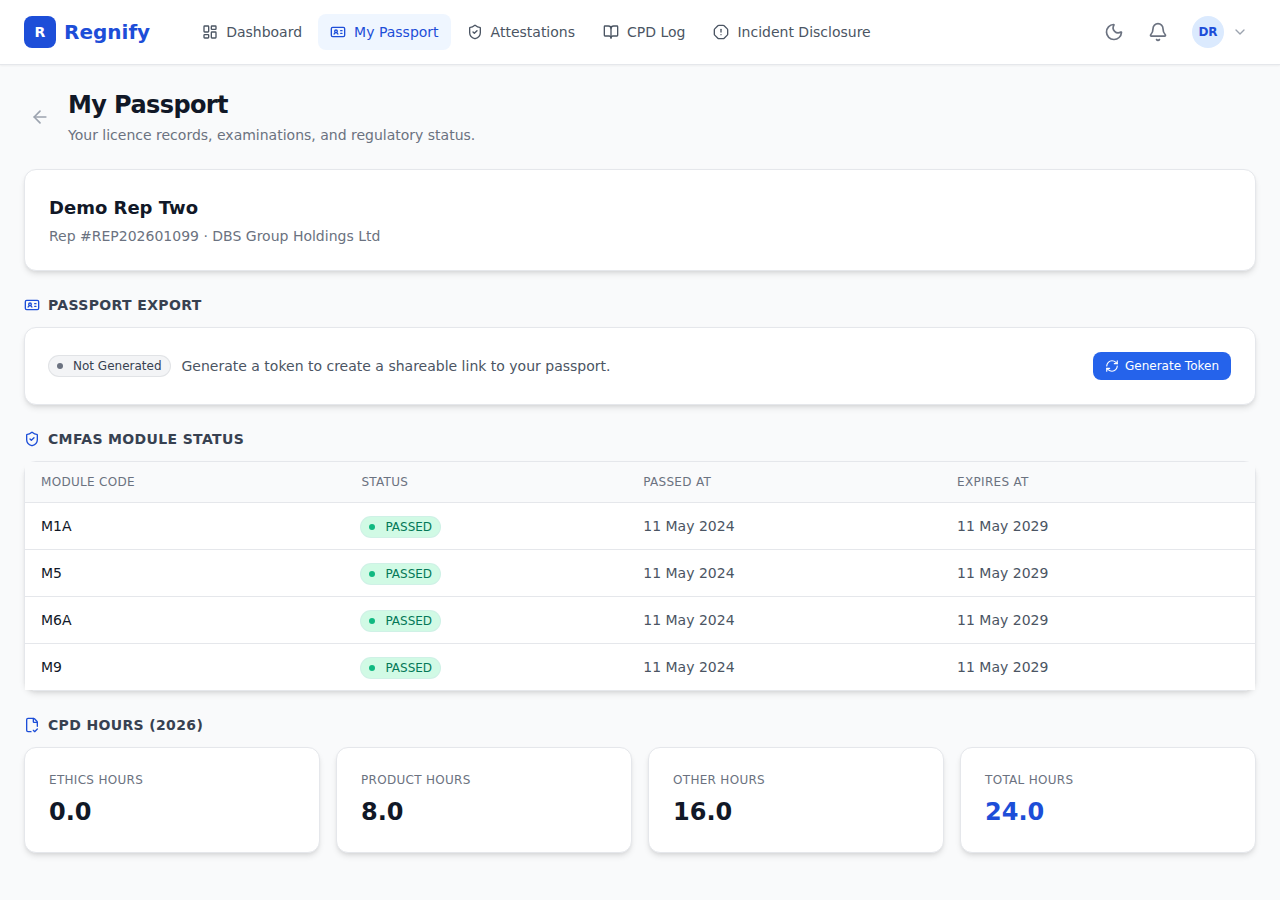 The Passport page for Demo Rep Two (REP202601099, DBS Group Holdings Ltd) showing 4 CMFAS modules (M1A/M5/M6A/M9) all PASSED, CPD totals (Ethics 0.0hr / Product 8.0hr / Other 16.0hr / Total 24.0hr), and the Passport Export panel in the "Not Generated" state.
Section 2 — Attestations (/rep/attestations)
Route: /rep/attestations
The Attestations tab lists all quarterly fit-and-proper attestation cycles in which you have been enrolled.
Pending Attestations
The top section ("PENDING ATTESTATIONS FOR YOU") lists any active cycles awaiting your response. For each pending cycle: - Cycle period (e.g., Q1 2026) - Launch date - Deadline date - A Complete Attestation button to open the attestation questionnaire
Completing an Attestation
Clicking Complete Attestation opens the attestation form with five FSG-G01 questions covering: 1. Criminal convictions (Singapore or overseas) 2. Bankruptcy or receivership proceedings 3. Regulatory investigations or sanctions 4. Civil judgements relating to dishonesty or financial impropriety 5. Any other matters that may affect your fitness and propriety
Each question is answered Yes / No. A "Yes" answer reveals a mandatory details text area for explanation.
After answering all five questions, click Submit Declaration to record your attestation. The submission creates a DECLARATION_ATTESTATION_QUARTERLY record and closes the pending cycle for your user.
Completed Attestations
Below the pending section, a list of completed past cycles is shown with submission dates and outcomes.
Note: If no cycles have been launched for your organisation yet, both sections show an empty state. In a live deployment, Compliance Officers (COMP role) launch cycles quarterly via the admin Attestation Cycles page.
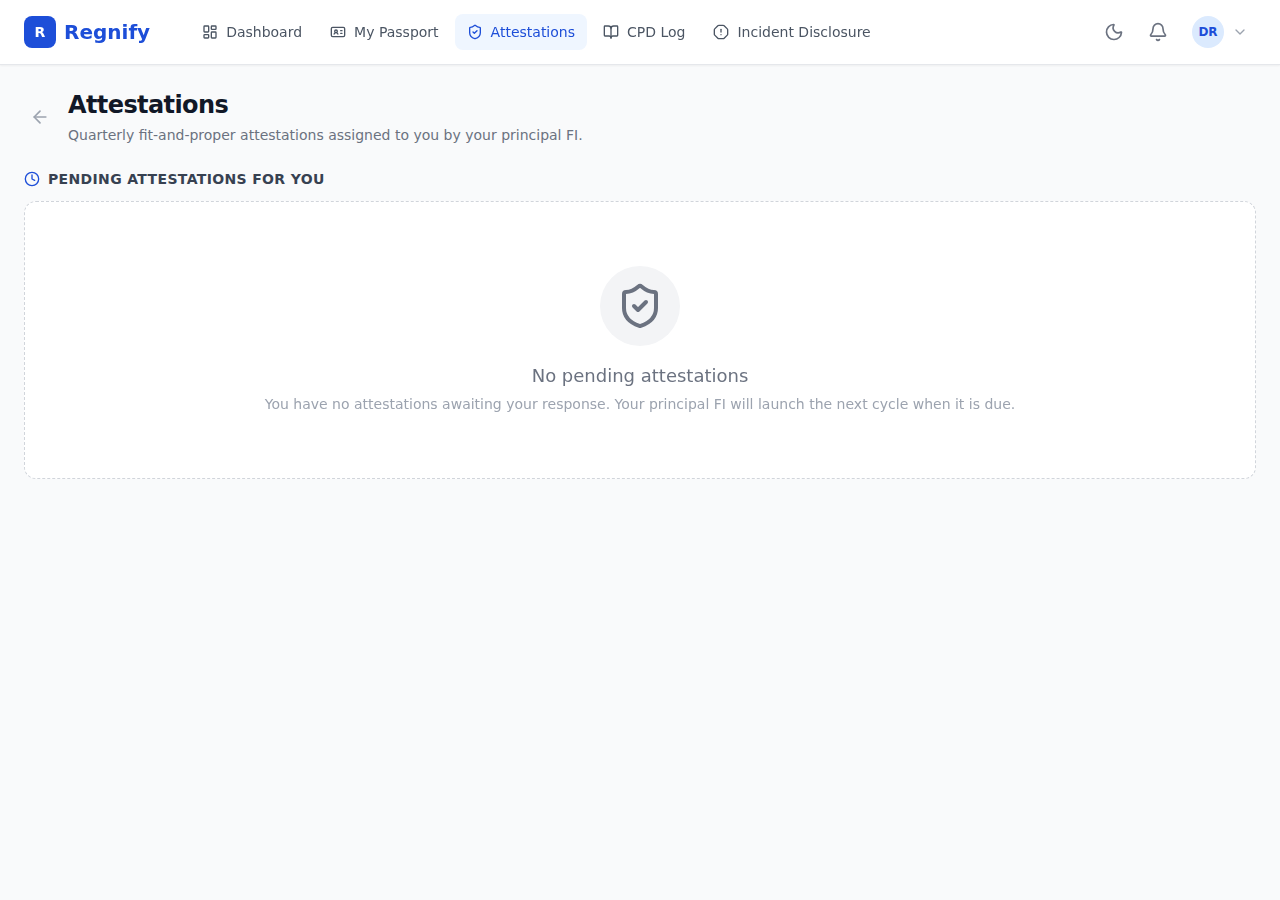 The Attestations tab in the empty state — "No pending attestations. You have no attestations awaiting your response." Attestations appear here once a Compliance Officer launches a cycle for your organisation.
Section 3 — CPD Log (/rep/cpd)
Route: /rep/cpd
The CPD Log tab is where you view and record your Continuing Professional Development activities for the current annual cycle.
Year-to-Date Summary
At the top of the page, four summary cards show cumulative CPD hours for the current cycle: - Ethics — must reach 8 hours minimum (FAA-N26) - Product Knowledge — must reach 4 hours minimum (FAA-N26) - Other — no individual minimum - Total — must reach 30 hours minimum (FAA-N26)
Cards that have met their threshold display in green; cards below threshold display in amber.
CPD Entry Log
Below the summary, a table lists all CPD entries for the current cycle, sorted by completion date descending. Each entry shows: - Course name - Provider name - IBF Course Code (if provided) - Completion date - Ethics hours, Product hours, Other hours contributed
Adding a CPD Entry
Click Add CPD Entry (or Log CPD Activity) to open the entry form:
| Field | Required | Notes |
|---|---|---|
| Cycle Year | Yes | Defaults to current year |
| Course Name | Yes | Name of the CPD course or activity |
| Provider Name | Yes | Organisation that ran the training |
| IBF Course Code | No | IBF-STS or similar reference code |
| Completion Date | Yes | Date the activity was completed |
| Ethics Hours | No | Hours classified as ethics and regulations |
| Product Knowledge Hours | No | Hours classified as product knowledge |
| Other Hours | No | Hours in neither ethics nor product category |
Hours are entered in 0.5-hour increments. At least one hours field must be non-zero.
Data visibility: CPD records you enter are visible to your organisation's HR_ADMIN and COMP users via the Rep Register and the AI
get_cpd_statustool.
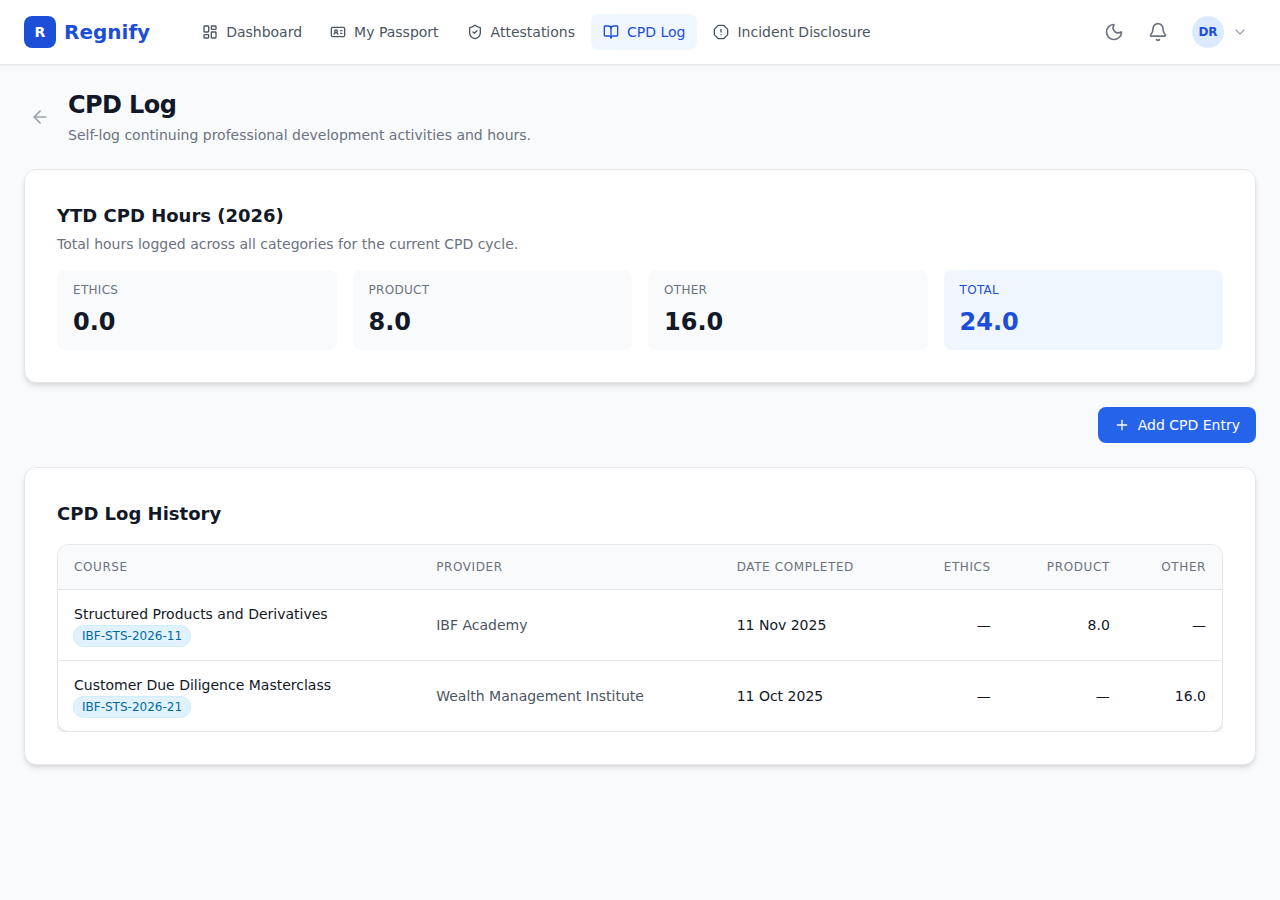 The CPD Log for the current cycle: Ethics 0.0hr / Product 8.0hr / Other 16.0hr / Total 24.0hr, with two history entries visible.
Section 4 — Incidents (/rep/incidents)
Route: /rep/incidents
The Incidents tab shows all incident disclosures you have filed and provides a three-step wizard for filing new ones.
Viewing Filed Incidents
A table lists all your submitted incident disclosures with: - Incident type - Submission date - Status (the underlying declaration status in the approval workflow) - A View link to read the full disclosure
Important: Submitted incident disclosures cannot be edited after submission. If you submitted a disclosure in error or need to add information, contact your organisation's compliance officer.
Filing a New Incident
Click Report New Incident to open the three-step disclosure wizard:
Step 1 — Incident Type: Select one of five categories: | Type | Description | |------|-------------| | Gift received | Receipt of gifts or entertainment above your FI's policy threshold | | Client complaint | A complaint filed against you by a client | | Third-party report | An adverse report or allegation from a third party | | Conflict of interest | A situation creating a conflict with your duties as a representative | | Other | Any other regulatory or disciplinary event not covered above |
Step 2 — Narrative: Enter a detailed description of the incident (minimum 50 characters, maximum 4,000 characters). The character counter updates as you type.
Step 3 — Review and Submit: Review your entries, set the "Reported at" datetime, and click Submit disclosure. On submission, the system creates a declaration record of type DECLARATION_INCIDENT_DISCLOSURE and routes it into your organisation's approval workflow.
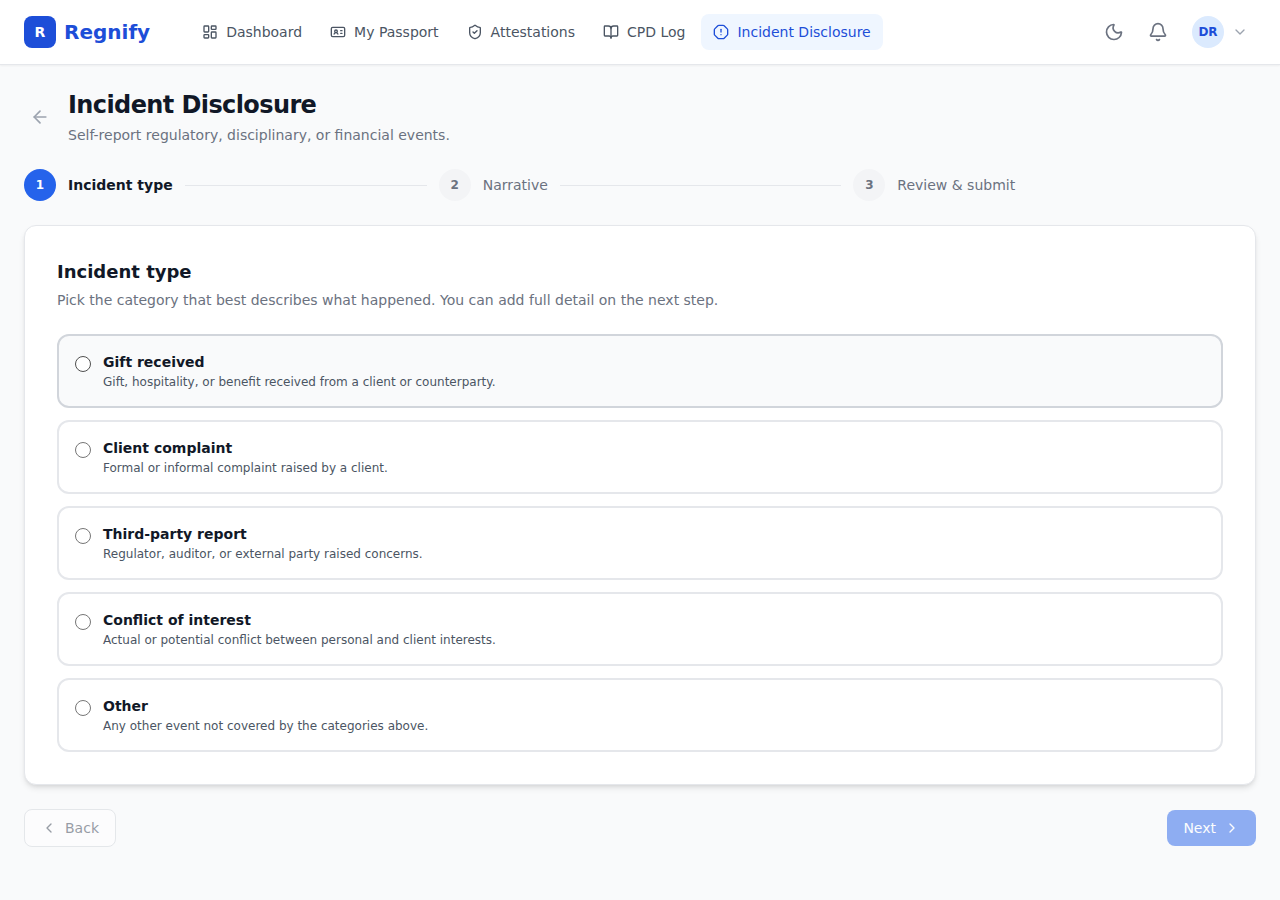 Step 1 of the incident disclosure wizard showing the five incident type radio cards: Gift received, Client complaint, Third-party report, Conflict of interest, Other.
Section 5 — Passport Export (/rep/passport)
The Passport Export section lives within the Passport tab (not a separate tab). It handles the generation and sharing of your regulatory passport token.
See Section 18 — Passport Export for complete documentation, including:
- How to generate or rotate an export token via the AI generate_passport tool
- The public verification URL and QR code structure
- What data is included in the passport export versus what is excluded (raw PII)
- Token lifecycle states: not generated, active, revoked
Logging In to the Rep Portal
REP_USER accounts use the same Keycloak login page as all other Regnify users — there is no separate login URL. Navigate to https://regnify.regnify.dev and log in with your credentials.
Username format: Your Keycloak username, as assigned by your organisation's administrator (for example, dbs_rep2).
Password: The password set by your administrator. The platform enforces: minimum 8 characters, at least one uppercase letter, one lowercase letter, one digit, and one special character.
After a successful login, Regnify reads your role from the Keycloak token. If your role is REP_USER, you are automatically routed to /rep (the Rep Portal dashboard). The main application sidebar does not appear — your entire session is within the Rep Portal.
What Representatives Can See and Edit
| Data | Visible? | Editable? |
|---|---|---|
| Own health badge (R/A/G) | Yes | No — computed server-side |
| CMFAS module statuses | Yes | No — updated by admin or AI cert-gap tool |
| CPD entries | Yes | Add new only — existing entries cannot be deleted |
| Pending attestations | Yes | Yes — can complete via the attestation form |
| Completed attestations | Yes | No — read only after submission |
| Incident disclosures | Yes | No — read only after submission |
| Passport export token | Yes (read status only) | Generated by COMP/SYS_ADMIN via the AI tool; rep views status only |
| Other representatives' data | No | No |
Relationship to the Main Application
Representatives using the Rep Portal have a deliberately constrained view. There is no sidebar, no declaration queue, no workflow template management, no organisation administration, and no user management. The design is intentional: compliance obligations for a representative are personal and self-contained.
Data scoping: all queries in the Rep Portal are automatically scoped to the logged-in representative. When the portal fetches your attestations, it filters by your user ID. When it fetches your CPD records, it filters by your rep profile ID. You cannot access another representative's data.
Notifications: the notification bell is present in the Rep Portal header. Notifications relevant to representatives — attestation invitations, CPD reminders, incident disclosure status updates — appear here.
AI assistance: the Concierge AI panel (Reggie) is not available in the Rep Portal. The Rep Portal provides in-context help text and tooltips for each section instead. For regulatory questions, representatives can contact their principal FI's compliance officer.
Rep Portal vs Main Application — Quick Reference
| Feature | Main Application | Rep Portal |
|---|---|---|
| Route prefix | /dashboard, /declarations, /admin/* |
/rep/* |
| Navigation | Vertical sidebar | Horizontal tab bar |
| Data scope | Organisation-wide (role-filtered) | Own records only |
| Intended users | Admins, COMP, HR, FI_USER approvers | REP_USER, and any FI_USER who needs to view their own records |
| Declaration creation | Form 3A wizard at /form3a/new |
Incident disclosure only, via /rep/incidents |
| Workflow management | Full admin console | Not available |
| AI assistant (Reggie) | Available — floating orange button | Not available |